.profile.json`, rather than a setting of the dialog or of the app. That placement is the argument. A build that must reproduce last month’s output needs the classes that produced it, and a file committed with the story gives it that; a preference stored on one machine would not. One profile serves as many exports as you like, so a profile is not tied to one export.
## Stripping media and links
[Section titled “Stripping media and links”](#stripping-media-and-links)
**Strip media** and **Strip links** work on a project copy as well as a campaign, and they answer a different question from **Include media**. Whether a file ships and whether the prose points at it are separate: stripping changes the prose and leaves what travels alone. The rules for each switch are in [Export options and bundle contents](/reference/export-options/#dialog-controls).
## Related
[Section titled “Related”](#related)
* [How to export a project copy or a campaign](/how-to/export-a-project-or-campaign/)
* [How to export for a player without Python](/how-to/export-for-a-player-without-python/)
* [Export options and bundle contents](/reference/export-options/)
* [Diagnostics](/reference/diagnostics/)
# Working with an AI assistant
> Why Ripple Effect is an MCP server, why its tools are the app's own, and why an assistant's writes go through the same sessions as yours.
Ripple Effect is an **MCP server**, so Claude Code, Claude Desktop, Cursor and anything else that speaks the protocol can work in the folder alongside you instead of being pasted things. The design rests on four decisions: the channel is private, the tools are the app’s rather than the bridge’s, a write is the same act whoever makes it, and the log records that something happened without recording what.
## Why a server at all
[Section titled “Why a server at all”](#why-a-server-at-all)
A project is ordinary files, so an assistant with the folder open can already read most of it. What the files cannot answer on their own is what leads to what across boards, which translations have fallen behind, what the embedded Python can actually do, and what the story does when it is played. Those answers live in the running app, and the server is how an assistant asks for them.
## A private channel, off by default
[Section titled “A private channel, off by default”](#a-private-channel-off-by-default)
The server is a private local channel that only your own account can open. It is never a network port. Connecting a client is a copy-and-paste, which [How to connect an AI assistant](/how-to/connect-an-mcp-client/) walks through.
Access is off until you turn it on, in two steps, on the **Agents** page of the Settings dialog. **Let agents reach this app** makes the server listen: an assistant can then read the project and play it. **Let agents change files** is subordinate to the first and off independently. Both default to off.
The split follows the difference in consequence. Reading is useful on its own and cannot touch a thing, so it is the first thing you can grant. Writing changes your story, so it is a separate decision, and a project can be shared with an assistant for review, questions and play-testing without ever offering it the chance to edit.
## Why the tools are the app’s, not the bridge’s
[Section titled “Why the tools are the app’s, not the bridge’s”](#why-the-tools-are-the-apps-not-the-bridges)
The program a client starts is a thin bridge. It does not carry a list of tools; it asks the running app what it offers the moment a client starts it, and the app answers for this build and this project. The node types that adding a node accepts are an enumeration read off the editor’s own palette, with the card names beside them. Every `locale` argument names the languages the project is written in, and `cvar` names the variables it declares. A write tool says in its description when the edit switch is off, and every description ends with a link to its own page.
The reason is drift. A list written into the bridge describes the app that existed when it was written; a list read from the app describes the one you are running. The same reasoning is behind the `node_types` tool, which lists every kind of node this build has and, asked about one, describes it in full: the fields to fill in and the ports to wire. It reads the palette at the moment it is asked.
The client is told the moment any of that changes: a project opened, a switch thrown, a language or a variable declared. An update to the app is therefore seen by a client that was already running, and a client with the bridge configured shows up on the Agents page as soon as agent access is on, rather than at its first call. A client whose bridge predates 1.4 needs a restart once.
## Reading: the shape of the project, on demand
[Section titled “Reading: the shape of the project, on demand”](#reading-the-shape-of-the-project-on-demand)
What an assistant can read is chosen to answer the questions a long story raises: the shape of the whole project in about twenty lines, then any board as a compact digest, and beyond single documents what leads to what, every route between two passages, and what is stale or wrong. [MCP tools](/reference/mcp-tools/) lists them.
This is the same argument as [Reading a large story back](/explanation/reading-a-story-back/): a project too large to hold in view is better read as digests and answers than as every file, and an assistant is in the same position as you are. A node’s metadata reaches it too, as a `meta` line under the node in a board read; adding or changing a node takes a `metadata` object that replaces what the node had.
## Playing: the shipped story, not a simulation
[Section titled “Playing: the shipped story, not a simulation”](#playing-the-shipped-story-not-a-simulation)
An assistant plays with the same runner the Play button uses, with the same Python and the same component values, for the reasons given in [Why the preview is the shipped story](/explanation/the-preview-is-the-shipped-story/). It starts a campaign, makes choices and reads the state. Because it is a program rather than a person, it can also walk **every** branch and report what nobody has time to sit through: which endings are reachable, which passages nothing leads to, where a path runs out of wire, and which jumps are broken.
A playthrough writes nothing, and it plays the boards as they are on disk rather than what is half-edited in a tab, so a walk reports on what would be saved and exported. It reads the same trace the play window shows, line by line with the board and node each line came from, and continues from where it last read. An Input node reaches it as a slide of its own listing the fields it asks for, and it fills the form in with a value per name; an unattended walk goes through one with every field blank.
## Writing: through the sessions, once you allow it
[Section titled “Writing: through the sessions, once you allow it”](#writing-through-the-sessions-once-you-allow-it)
With the second switch on, an assistant can write: passages and their translations, nodes and wires, components, scripts, soundscapes, and the files themselves. [MCP tools](/reference/mcp-tools/) lists every one.
The important property is that none of these is a separate path to the disk. Every write goes through the app’s own sessions, the same ones your typing goes through. That has three consequences you would otherwise have to build separately. Adding a passage is a single undo. Autosave sees it, so it is not lost or overwritten. Version control lists it, so it appears in the changes like anything else. A second route that wrote files directly would need its own answer to each of those, and the app would have two ways of being wrong. Everything changed this session is listed on the Agents page, and every change is posted to Messages as it happens.
### What a write is refused
[Section titled “What a write is refused”](#what-a-write-is-refused)
A refusal is either a decision that belongs to you or a guard that keeps the project consistent. A document with two versions pending is a conflict, and picking a side would make your decision for you; the registry and catalogue ids are never written directly, so a rename cannot leave a Jump pointing at nothing. Deleting a file cannot be undone, so it is guarded rather than prompted: nothing outside the project, nothing in `.ripple/` and nothing with unsaved edits is deleted.
[What an assistant may read, play and write](/reference/mcp-permissions/) is the reference for the full list.
## Knowing who is connected
[Section titled “Knowing who is connected”](#knowing-who-is-connected)
The app bar keeps only what has news, and the agents mark is one of those things. While a client is connected its mark appears there (Claude’s, OpenAI’s, Gemini’s, or a plain robot for everything else), and pressing it opens the Agents page. If the local connection could not be opened, a plug in the error colour takes its place, with *Agents cannot reach this app* on the tooltip. With the switch off, or on and nobody there, the bar shows nothing.
## What the app writes down, and what it does not
[Section titled “What the app writes down, and what it does not”](#what-the-app-writes-down-and-what-it-does-not)
Every tool call, resource read and prompt a client makes leaves a line in the session log: which client, which tool, which argument *names* it passed, how long it took and whether it worked. Argument contents are never recorded. A path would be redacted, but a passage you wrote would not be, and a denylist of what to scrub is right only until the day it misses a case. The log can say that an assistant wrote to a board but not what it wrote; every change is also posted to Messages. See [Updates, logs and Messages](/explanation/updates-logs-and-privacy/).
## Prompts and the documentation
[Section titled “Prompts and the documentation”](#prompts-and-the-documentation)
Two prompts, for writing a passage and for editing a board, can be handed to an assistant with the passage or board already in them. They exist because they carry the two things an assistant gets wrong first: that Python in prose is monty rather than CPython, so an attribute is `component("X")["attr"]`, and that a node id is numbered across a whole board rather than per type. This site also publishes its documentation as plain text for assistants; [MCP tools](/reference/mcp-tools/) names the files.
## Related
[Section titled “Related”](#related)
* [How to connect an AI assistant (MCP client)](/how-to/connect-an-mcp-client/): the copy-and-paste that connects a client.
* [MCP tools](/reference/mcp-tools/): every tool and argument.
* [What an assistant may read, play and write](/reference/mcp-permissions/): the permissions in full.
* [How to play and test a campaign](/how-to/play-a-campaign/): the runner an assistant shares with you.
# How to add a state machine to a board
> Create a state machine file, put it on a board as a State machine node, and branch the story on the state it answers.
Use a state machine for a door that is locked, unlocked or open, or a quest that is offered, taken or done.
## Create the machine
[Section titled “Create the machine”](#create-the-machine)
1. In the file tree, right-click and choose **New state machine**. The file is `*.fsm.mmd` and holds a mermaid `stateDiagram-v2`.
2. Write the machine in the editor. Every arrow is `From --> To : event`, and `[*] --> S` names the start:
```text
stateDiagram-v2
[*] --> Locked
Locked --> Unlocked : key
Unlocked --> Open : push
Open --> Unlocked : pull
Unlocked --> Locked : lock
```
3. Fix anything the editor reports against its line. [State machine files](/reference/state-machine-file/) lists what the editor warns about.
## Put it on a board
[Section titled “Put it on a board”](#put-it-on-a-board)
1. Drag the `.fsm.mmd` file from the file tree onto the board. It becomes a **State machine** node pointing at the file. Alternatively, add a State machine node and pick the machine from the list on its card.
2. Wire or type the **Event** the node receives. Leave it blank to read the state without moving the machine. Use `[*]` as the event to reset the machine to its start.
3. If two nodes in the story must drive separate copies of one machine, give each its own **Instance** name. Give a single quest none: left blank, the instance is the machine’s own name, so every node without one drives the same machine.
## Branch on the state
[Section titled “Branch on the state”](#branch-on-the-state)
1. Add a **Switch** node and wire the State machine node’s **state** output into it.
2. In the Switch’s rows, type one state name per row. Each row has its own output, taken when the state matches that name.
3. Wire the State machine node’s flow out to the rest of the board. It leaves by **changed** when an arrow fired or the machine was reset, and by **unchanged** otherwise.
An event the current state has no arrow for is not an error. The machine stays put and the flow takes **unchanged**, so decide downstream what to do about it.
## What is kept
[Section titled “What is kept”](#what-is-kept)
A machine remembers its state for the whole playthrough, across boards and saves. Starting over resets it.
## Related
[Section titled “Related”](#related)
* [State machines](/explanation/state-machines/): why a state machine is a drawing and how it differs from a console variable.
* [State machine files](/reference/state-machine-file/): the mermaid syntax the app reads and what it refuses.
* [Nodes](/reference/nodes/): the State machine and Switch nodes.
* [How to play and test a campaign](/how-to/play-a-campaign/): check the machine moves as you intend.
# How to add sound to a story
> Bring audio into a project, lay it out as a soundscape, name it on a Narration node, and cue one-off sounds.
## Bring audio into the project
[Section titled “Bring audio into the project”](#bring-audio-into-the-project)
Drop an `.ogg`, `.mp3`, `.wav`, `.flac`, `.m4a`, `.aac` or `.opus` anywhere in the folder and it appears in every picker. Or use *Import…* for a file from outside; it is copied to `.ripple/external/`.
An audio file opens in a tab of its own with play, pause and a scrub bar, so you can check it before you use it.
## Make a soundscape and lay out clips
[Section titled “Make a soundscape and lay out clips”](#make-a-soundscape-and-lay-out-clips)
1. Choose **+** in the file tree and make a new soundscape, a `*.soundscape.json` file. Open it in a tab.
2. Add a clip with *Add clip*, or double-click empty canvas. Both offer the project’s audio, searchable by name or by folder, each row showing where the file is. Choose *Import a file…* if the audio is not in the project yet. You can also drag a sound from the file tree onto the timeline and let go where you want it.
3. Drag a block to move it. Pull either edge to trim it. The shape of the sound is drawn inside the block, showing the part of the file it plays, so you can trim to a beat by eye. The shape appears a moment after the clip, because the file is decoded to draw it.
4. Select a clip to edit it in the panel on the right. Set **Playback** to *Once*, *Loop* or *Auto-loop*. Use *Auto-loop* for music. Turn on **Rest** on an auto-loop clip to leave a silence between plays, for a bell every so often. Leave it off for a gapless bed.
5. Shape the clip’s ends. Drag the grip at the top of a fade slope inward to lengthen the ramp, or back into the corner to remove it. On an auto-loop clip the fades apply at every repeat, so a fade can hide the seam of a file that does not loop cleanly. For a ramp measured to the millisecond, type a length such as `0.25 s` in **Fade in** or **Fade out**. A clock typed there is also understood.
6. Open the gear in the toolbar to set the timeline’s own properties: **Length**, **Loop timeline**, **Fade in**, **Fade out**, **Volume** and **Tied to the passage**.
Every field a clip and a soundscape carries is in [Soundscape files](/reference/soundscape-file/). A clip names its audio by catalog id, so renaming or moving a file does not break it.
### Name and lock lanes
[Section titled “Name and lock lanes”](#name-and-lock-lanes)
* Double-click a lane header to name it, for example *Bed* or *Weather*.
* Right-click a lane header to name it or to lock it. A locked lane takes no clip, so a bed laid out once stays put while you move everything else around it.
* Right-click anywhere else for what the pointer is on: duplicate or delete a clip, add one here, select everything on a lane, fit the pane, set the row height, undo and redo.
### Preview the soundscape
[Section titled “Preview the soundscape”](#preview-the-soundscape)
Press Space to play and pause, and Shift+Space to stop. The ruler, or any empty canvas, is the scrub bar. The preview plays through the same mixer the campaign uses, so a gain slider is heard live and a dragged clip does not restart the bed under it.
To audition without the whole mix, use the **M** and **S** on a lane header, or silence a single clip from its panel. Silenced clips are drawn faint. None of this is saved and none of it reaches the story: a soundscape plays every clip it holds.
The whole file is one undo history, the toolbar’s. An edge you trim on the timeline and a volume typed in the panel are the same history.
Note
A clip past the timeline’s length is allowed and shaded. What lies past the length is cut at play time rather than refused in the editor.
## Play a soundscape from a passage
[Section titled “Play a soundscape from a passage”](#play-a-soundscape-from-a-passage)
1. On the **Narration** node, find the soundscape row under the choices.
2. Pick the soundscape. It plays from that passage on, through every passage after it that brings none of its own.
3. To change the music, pick another soundscape on a later passage. Two soundscapes never overlap. Naming the same one again does not start it over.
4. To stop everything outright, pick *Silence — stops what is playing* on a later passage. A passage with *None* changes nothing.
5. To make a soundscape belong to one passage, turn on **Tied to the passage** in its properties. A tied soundscape stops when the story moves on.
A saved game remembers what was playing. A load plays the soundscape before the page shows, and a tied soundscape comes back only at its own passage.
## Cue a sound once
[Section titled “Cue a sound once”](#cue-a-sound-once)
Use a one-off sound when the story should carry straight on. `completed` fires the moment the sound is cued, so nothing waits for it.
* **From a node.** Add a **Play sound** node and pick one file, a volume and a speed. See [Nodes](/reference/nodes/#play-sound).
* **From Python.** In a Script node, call `play_sound("sfx/bell.ogg")`, with the path as the project spells it or as the bundle spells it. Pass `volume` and `speed` by name. See [Sounds](/reference/python/sounds/).
A passage’s snippets cannot cue a sound. To sound a stinger when a passage is reached, put a **Play sound** node before the passage, or call `play_sound` from a Script node before it.
## Hear it in the campaign
[Section titled “Hear it in the campaign”](#hear-it-in-the-campaign)
The campaign window’s header has a **mute** button. It is the reader’s, it belongs to the campaign, and it is remembered between sessions. Previewing a soundscape in its own tab is never silenced by it.
A soundscape’s volume is the file’s, and every clip’s volume is relative to it, so there is no second master to keep in step.
## Related
[Section titled “Related”](#related)
* [Soundscapes and one-shot sounds](/explanation/soundscapes-and-sounds/) for how the runtime decides what is playing.
* [Soundscape files](/reference/soundscape-file/) for every clip and timeline property, and how the file names its audio.
* [Sounds](/reference/python/sounds/) for `play_sound` in Python.
* [Nodes](/reference/nodes/#play-sound) for the Play sound node.
* [How to play and test a campaign](/how-to/play-a-campaign/) to hear the result.
# How to arrange the workspace
> Split, tab and resize documents, fold the side bar, show or hide Messages, enter Zen Mode and bring the tips back.
## Put two documents side by side
[Section titled “Put two documents side by side”](#put-two-documents-side-by-side)
* To put a board beside the passage it links to, drag its tab out of the strip and drop it beside the other document.
* To tab a document into a group instead, drop it on that group’s strip.
* To resize, drag a divider.
Your layout is remembered per project in `.ripple/workspace.json`.
## Give the documents the whole width
[Section titled “Give the documents the whole width”](#give-the-documents-the-whole-width)
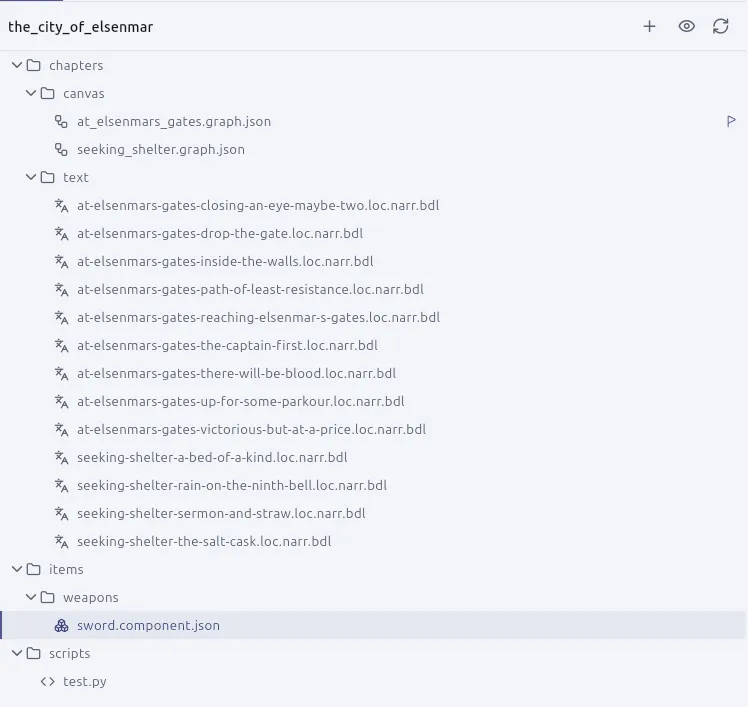
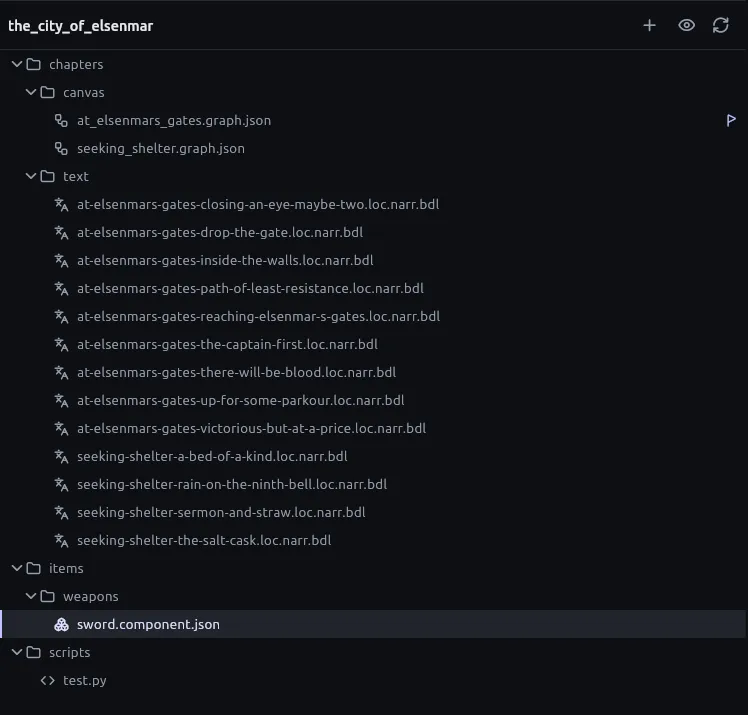
Click the activity bar icon of the section already showing — **Files**, **Changes** or **Search** — to fold the side bar away. Click the icon of any section to pick what the side bar shows again.
## Close and reopen Messages
[Section titled “Close and reopen Messages”](#close-and-reopen-messages)
* Close Messages with its cross.
* Bring it back, under the documents, from the Messages button at the bottom of the activity bar, which carries the count, from the **View** menu, or with *Toggle messages* in the command palette (`Ctrl+Shift+P`).
To change how Messages reads:
* To see everything broken first, switch the grouping from what a message is about to how loud it is.
* To fold a group, click the count on its heading.
* To hide a kind of message, turn off its chip: problems, cautions or records. The grouping and the chips are remembered.
* To silence a deliberate choice the check cannot judge, tick *I meant that* on its row. It stays said.
* To read about a message from the engine, click its code to open its page in [Diagnostics](/reference/diagnostics/). To find the cards a message names, click the message.
## Give the window to one document
[Section titled “Give the window to one document”](#give-the-window-to-one-document)
Press `F11` (`Ctrl+Cmd+F` on a Mac), or choose *View ▸ Zen Mode*. The app bar, side bar, Messages and tabs go. The same keys bring them back.
* A banner at the top names the document on the way in and whenever it changes. When the pointer reaches the top edge it carries an *Exit Zen Mode* button.
* `Ctrl+Tab` and `Ctrl+Shift+Tab` move between documents — every open one, whichever group it is in. Outside Zen Mode the same keys move along the tabs of the group you are in.
## Bring the tips back
[Section titled “Bring the tips back”](#bring-the-tips-back)
Each tip appears once, the first time you open its kind of thing. To see one again, run *Show the tip for…* from the command palette. To re-arm all of them, choose *Help ▸ Troubleshooting ▸ Show every tip again*.
## Related
[Section titled “Related”](#related)
* [The workspace window, menus and palette](/reference/workspace-window/) — what each part of the window holds.
* [Project files and the .ripple folder](/reference/project-files/) — what `workspace.json` records.
* [A project is a folder](/explanation/projects-are-folders/) — why the layout is remembered per project and per machine.
* [Updates, logs and Messages](/explanation/updates-logs-and-privacy/) — what lands in Messages and why.
# How to change the app's language, contrast and colour vision
> Switch the interface language, raise the contrast and recolour the app for a kind of colour blindness from Settings.
*Language*, *Contrast* and *Colour vision* are settings of the app, not of a project, so they follow you from project to project. Each is a choice among a few named options and takes effect when you press it; there is no Apply.
Note
Contrast and colour vision are also on the first page of a first launch, beside a small preview that changes as you choose.
## Open the settings
[Section titled “Open the settings”](#open-the-settings)
1. Press the gear in the app bar. The Settings dialog opens.
2. On the *General* page, find the row you want: *Language*, *Contrast* or *Colour vision*. [Settings, accessibility and updates controls](/reference/settings/) shows where each row sits.
## Change the language
[Section titled “Change the language”](#change-the-language)
1. In *Language*, press the language you want. Each language is listed under its own name, so you can find yours even when the app is showing one you cannot read.
2. To follow the operating system instead, press *System*, which the app shows followed by the language it currently resolves to, in brackets.
Every menu, dialog, message and tip changes. A project’s own text and languages are untouched; to change those, see [How to add, switch off or change a project’s languages](/how-to/manage-languages/).
## Raise the contrast
[Section titled “Raise the contrast”](#raise-the-contrast)
In *Contrast*, press *More*. Press *Standard* to go back.
Text becomes firmer and controls gain edges you can find; the colours and layout stay the same. [Settings](/reference/settings/#contrast) has the full list.
Contrast is separate from the theme, so you can have dark and firmer at once.
## Recolour the app for a kind of colour blindness
[Section titled “Recolour the app for a kind of colour blindness”](#recolour-the-app-for-a-kind-of-colour-blindness)
In *Colour vision*, press the mode that matches yours:
* *Protan*: protanopia and protanomaly.
* *Deutan*: deuteranopia and deuteranomaly.
* *Tritan*: tritanopia and tritanomaly.
Press *Off* to return to the house colours.
The app’s category colours change to a palette you can tell apart; [Settings](/reference/settings/#colour-vision) lists what each mode recolours. A few places still tell categories apart by hue alone; see [What the accessibility settings do and do not claim](/explanation/accessibility-limits/).
## Change the text size
[Section titled “Change the text size”](#change-the-text-size)
Text size is set in your operating system, not in the app. For why the cards on a board do not follow it, see [Text size: the chrome follows, the cards do not](/explanation/accessibility-limits/#text-size-the-chrome-follows-the-cards-do-not).
## Related
[Section titled “Related”](#related)
* [Settings, accessibility and updates controls](/reference/settings/): every option on the dialog.
* [What the accessibility settings do and do not claim](/explanation/accessibility-limits/): the limits of the colour-vision palettes.
* [How to add, switch off or change a project’s languages](/how-to/manage-languages/): the languages of the project’s own text.
# How to check spelling and grammar
> Read the underlines in a passage or a note, take a suggestion, teach the project's dictionary a word, edit the dictionary, and switch checking off.
Passages in an English language and Markdown notes are checked as you type, by [Harper](https://writewithharper.com/). A passage in another language is not checked, and neither is the Python in a passage. The checking happens on your machine: nothing you write is sent anywhere to be checked.
The colour of an underline says what it found: red for spelling, amber for grammar, blue for style.
## Take a suggestion
[Section titled “Take a suggestion”](#take-a-suggestion)
1. Right-click the underlined words, or put the caret in them and press **Ctrl+.** (**⌘.** on a Mac).
2. Pick a suggestion. It replaces the underlined words.
The line at the top of the menu is the checker’s explanation, in English as the checker wrote it. **Ignore** stops underlining that one until the project is closed.
## Teach the project a word
[Section titled “Teach the project a word”](#teach-the-project-a-word)
On a spelling underline, choose **Add to dictionary** in the same menu. The word stops being underlined everywhere in the project.
Names the project already has are words without being added: its files’ names, its console variables, its host callbacks and its state machines’ states.
## See or change the dictionary
[Section titled “See or change the dictionary”](#see-or-change-the-dictionary)
1. Open Project settings from the bottom of the activity bar and pick *Writing*.
2. Under *Dictionary*, type a word in *Add a word* and press Enter or choose **Add**. One word at a time: a phrase with a space is refused.
3. Use *Find a word* to search the list, and the bin beside a word to take it out.
4. Save. Cancel puts every word back.
The dictionary is saved with the project, so everyone who opens it shares it. A dictionary saved by a newer version of the app is not shown or changed: update the app to edit it.
## Switch checking off
[Section titled “Switch checking off”](#switch-checking-off)
1. Press the gear in the app bar. The Settings dialog opens.
2. On the *General* page, set *Writing* to *Off*.
The command palette’s **Toggle spelling and grammar** does the same. The words in a project’s dictionary are kept.
## Related
[Section titled “Related”](#related)
* [How to write a style rule](/how-to/write-a-style-rule/)
* [Settings, accessibility and updates controls](/reference/settings/)
* [Project files](/reference/project-files/)
# How to connect an AI assistant (MCP client)
> Switch agent access on, copy the configuration and paste it into Claude Code, Claude Desktop, Cursor or another MCP client.
Use this to point an MCP client — Claude Code, Claude Desktop, Cursor or anything else that runs local servers — at the project you have open in Ripple Effect.
1. **Switch agent access on.**
Open the gear in the app bar, which is on every screen, and pick the **Agents** page; the command palette’s Agents command opens the same page. Switch on **Let agents reach this app**. An assistant can now read the project and play it, but change nothing.
Leave **Let agents change files** off until you want an assistant to change files. It only does anything while the first switch is on, and reading is useful on its own. With it off, a tool that writes answers `refused`.
Both switches are for the app rather than for one project: the app serves whichever project is open.
2. **Copy the configuration.**
Press **Copy client configuration** on the page. The clipboard receives the block most clients read, already pointing at the right place on your machine:
```json
{
"mcpServers": {
"ripple_effect": {
"command": "/opt/ripple_effect/ripple_effect_mcp",
"args": []
}
}
}
```
The path is a small program installed beside the app that the client starts and that talks to the app for it. Copy it from the page rather than typing it; the app installs to a different place on each platform.
3. **Paste it where your client reads it.**
* Claude Code
One command, with the path from the page:
```sh
claude mcp add ripple_effect -- /opt/ripple_effect/ripple_effect_mcp
```
Quote the path on Windows, where it contains a space. `claude mcp list` shows it registered; `/mcp` inside a session shows whether it connected.
* Claude Desktop
Settings → Developer → **Edit Config** opens `claude_desktop_config.json`; paste the block in. If the file already has an `mcpServers` object, add the `ripple_effect` entry inside it rather than pasting a second object. Restart Claude Desktop and the tools appear. Claude Desktop has no Linux build.
* Cursor
Paste the block into `.cursor/mcp.json` in the project you are working from, or into `~/.cursor/mcp.json` for every project. Cursor lists it under Settings → MCP, where it can be switched on and off.
* Anything else
Every MCP client that runs local servers takes a command and an argument list. The command is the path in the block and the argument list is empty. Most read the `mcpServers` key exactly as above; check your client’s own documentation for which file it wants.
4. **Ask it something.**
A client with the bridge configured appears in the page’s **Connected** list as soon as access is on; it does not wait for its first request. The app bar shows nothing for agents until there is news. While a client is connected its mark appears there, with its name and version on the tooltip. If the app could not open its local connection, the mark appears in the error colour instead. Either one opens the Agents page.
A good first request is `project_outline` — the shape of the whole story in about twenty lines — or ask *what is this project about?* and let the assistant find that tool itself.
## If it says the app is not running
[Section titled “If it says the app is not running”](#if-it-says-the-app-is-not-running)
While the app is closed or agent access is off, every tool call answers:
```text
ripple_effect is not running, or agent access is switched off.
Open the project in ripple_effect and switch on "Let agents reach this app" under Settings → Agents.
```
Open the project and switch access on in the Agents page of Settings. The client does not need restarting. The assistant sees the full tool list either way, so it can tell you what it would be able to do before the app is up.
## Find the program by hand
[Section titled “Find the program by hand”](#find-the-program-by-hand)
If you need the path without opening the app, it is:
| Platform | Path |
| ------------- | ------------------------------------------------------------------ |
| Linux, `.deb` | `/opt/ripple_effect/ripple_effect_mcp` |
| Linux, `.rpm` | `/usr/share/ripple-effect/ripple_effect_mcp` |
| Windows | `%LOCALAPPDATA%\Programs\Ripple Effect\ripple_effect_mcp.exe` |
| macOS | `/Applications/Ripple Effect.app/Contents/MacOS/ripple_effect_mcp` |
It is deliberately not on your `PATH`: the app installs to three different places on three platforms, and no one command line is true on all of them. The connection between it and the app is a private local channel that only your own account can open, never a network port.
A build run from source has no such program beside it; `melos run editor:mcp:bridge` makes one and prints where it put it.
## Related
[Section titled “Related”](#related)
* [Working with an AI assistant](/explanation/working-with-an-assistant/) — what agent access buys you and why it is off by default.
* [What an assistant may read, play and write](/reference/mcp-permissions/) — what each switch grants.
* [MCP tools](/reference/mcp-tools/) — every tool, with what it takes.
# How to create or import a project
> Make a new project, copy an example project, or open a folder you already have from the home screen.
The home screen is a grid of the projects the app knows about. It has two buttons: **New project** and **Import a folder**.
## Create a blank project
[Section titled “Create a blank project”](#create-a-blank-project)
1. On the home screen, choose **New project**.
2. Leave the dialog’s left rail on **Blank** (*An empty folder*).
3. Enter a **Title**. Add a **Description** and a **Cover** if you want them; a colour is generated for the cover otherwise.
4. Choose where the new folder goes.
5. Under **Written in**, check the language. The starting point comes from your computer’s settings, but the choice is yours. Your passages start in this language; the ones you translate into are chosen later, in project settings.
6. Choose **Create**.
The app creates the folder and one file in it, `.ripple/project.json`, and nothing else.
If a folder with that name already exists at the location you chose, the dialog refuses and tells you to use **Import a folder** instead.
## Start from an example project
[Section titled “Start from an example project”](#start-from-an-example-project)
1. Choose **New project**.
2. In the dialog’s left rail, choose **Templates** (*A copy of an example*).
3. Pick an example. This build carries *The City Of Elsenmar*.
4. Choose where the copy goes, then choose **Create**.
The copy is yours to change, and you can make another later.
## Import a folder you already have
[Section titled “Import a folder you already have”](#import-a-folder-you-already-have)
1. Choose **Import a folder**.
2. Pick the directory. The **Import a project** dialog opens.
3. Check what the dialog shows, then choose **Import**.
* If the folder was a project before, check the prefilled fields and choose **Import**. Its title, description, cover and language arrive already filled in, and nothing is written into it. To change any of them, open the project and use project settings.
* If it was not, name it and choose **Import**. The language is guessed from your computer and written down, because nothing in the folder says yet. The only thing written into it is a small `.ripple/` folder holding the project’s settings; your files are shown as they are.
* If the cover the folder names is missing, a colour is generated instead.
* If the folder’s settings were written by a newer version of the app, they are left alone rather than read and written back over. The folder is still imported, and opening it says the same thing. Update the app to read them.
## When the folder is already a project
[Section titled “When the folder is already a project”](#when-the-folder-is-already-a-project)
If the folder you choose, for a new project or an import, is already used by another project on the home screen, the app says so and does not add a second. See [A project is a folder](/explanation/projects-are-folders/) for why.
A project that another program has moved or deleted disappears from the grid; there is nothing else to keep in step.
## Related
[Section titled “Related”](#related)
* [A project is a folder](/explanation/projects-are-folders/) for why the app writes so little into your folder.
* [Project files and the .ripple folder](/reference/project-files/) for what `.ripple/project.json` holds.
* [The workspace window, menus and palette](/reference/workspace-window/) for the dialog’s fields.
* [How to add, switch off or change a project’s languages](/how-to/manage-languages/) to add or change languages after the project exists.
# How to declare, aim and forget a host callback
> Name a trigger for a game that embeds the story, choose its event, aim it, forget it, and watch it fire in the play window.
You declare the trigger here; the programmer who embeds the story writes the handler and registers it under the same name. Nothing you type in the pane changes what the story does.
A name is a published API
The name is the only thing joining your declaration to their code. Renaming it breaks their build, and nothing in the editor can warn them. Agree the names early and treat a rename like renaming a function somebody calls.
## Declare a callback
[Section titled “Declare a callback”](#declare-a-callback)
1. Open **Host callbacks** from the activity bar, or from the command palette.
2. Type a name in the name field and add it. Write it like an identifier, because a programmer will type it: `chapterTwoBegan`, `achievementHit`, `guardWentAlert`. It must be unique in the project and cannot hold a line break or a control character.
3. Select the callback in the list, and pick its **Event** (the picker has a search field, **Find an event**). The pane offers only the fields that event can use.
The programmer writes the event exactly as the picker spells it. The full list, with when each fires, is under [Events](/reference/host-callbacks/#events) in the reference.
## Aim a callback
[Section titled “Aim a callback”](#aim-a-callback)
Left alone, a callback fires at every occasion of its event. To narrow it, use the fields under **What it watches**.
* **Board**, then optionally **Node** on it. `passage.shown` can then mean one passage rather than every passage. The node picker reads **Pick a board first** until a board is chosen.
* **Console variable**. `cvar.changed` cannot do without it.
* **Component**, for the entity events, and **Attribute** for `entity.field.changed`. The attribute is required and the component is not: with no component picked, `hp` watches anything the story made that has an `hp`.
* **State machine**, which `machine.state.entered` cannot do without, and optionally the **State** to wait for.
### Fire only when a variable reaches a value
[Section titled “Fire only when a variable reaches a value”](#fire-only-when-a-variable-reaches-a-value)
On a `cvar.changed` callback, tick **Only when it becomes a particular value** and enter the **Value**. The field takes the variable’s own type, so you cannot enter a value it could never hold.
The condition fires when the variable becomes that value, not while it holds it.
### Watch individual cards
[Section titled “Watch individual cards”](#watch-individual-cards)
To be told each time the story runs through a card, aim `node.entered`, `node.exited` or `node.failed` at a board and a card.
A card inside a macro cannot be picked, because a macro is spliced into the board that calls it. Aim at the card that calls the macro, which is what the picker offers.
## Forget a callback
[Section titled “Forget a callback”](#forget-a-callback)
1. Select the callback and choose **Forget it**.
2. Confirm in the dialog, or choose **Keep it** to cancel.
A game listening for that name never hears it again, and nothing in the project says why.
## See callbacks fire
[Section titled “See callbacks fire”](#see-callbacks-fire)
Open the **Host callbacks** side panel in the play window. Each row lists the name, the event, the payload fields that are set, and what became of the lookup. The editor publishes the names but has no game to react to them, so normally nothing is registered and each row ends with “nothing registered”. That is not an error: the story plays as it would have. “The handler failed” marks a registered handler that threw; the story plays on.
## Fix a callback aimed at something that is gone
[Section titled “Fix a callback aimed at something that is gone”](#fix-a-callback-aimed-at-something-that-is-gone)
A callback aimed at a board, variable or component the project no longer has is left out of the compiled campaign with a warning, and the field in the pane says so. The declaration stays in the file, so restoring the board from version control brings the callback back. Aim it at something that exists, or forget it.
A node is the exception. The build does not check that a node id is still on its board, so a callback naming a missing node travels intact and never fires. The pane says so while the board is open, and the board carries the warning `W.GE.16`. Aim it at a node that is there, or clear the node to watch the whole board.
If the pane is read-only and a banner says the callbacks were written by a newer version, update the app to edit them. Nothing is written to the file meanwhile.
## Related
[Section titled “Related”](#related)
* [Host callbacks](/explanation/host-callbacks/): why the trigger and the handler are written on opposite sides.
* [Host callbacks reference](/reference/host-callbacks/): the events, their payloads and `.ripple/callbacks.json`.
* [How to play and test a campaign](/how-to/play-a-campaign/): the play window the callback panel sits in.
* [Diagnostics](/reference/diagnostics/): `W.GE.16`.
# How to declare and scope a console variable
> Add a typed, named variable to the project, limit the boards that offer it, and re-save older games.
Declare a console variable when a value has to be read or written from more than one board, or from Python, with no wire between them.
## Declare a variable
[Section titled “Declare a variable”](#declare-a-variable)
1. Open the **Console variables** page from the activity bar’s project buttons or from the command palette.
2. In the **Add a variable** row, give it a name. The greyed example is `gate_open`; lower case with underscores suits a script that names it.
3. Pick its type and set its default. The twenty-four types are listed in [Console variable declarations](/reference/console-variable-declarations/).
4. For `asset` and `componentRef`, on their own, in a list or in a map, type a few letters of a name and pick from the project’s files; the full path shows beside each. What you pick sits as a chip, and hovering shows the path, which is what the variable stores. A chip for a file that is outside the project or no longer there is marked.
The declaration appears under **Declared**. You can rename it at any time: a node stores the variable’s id, so every board that uses it follows. A script that names the old name does not, and is refused when the campaign plays.
To remove one, use **Forget this variable** and confirm. Every node that names it then says the variable is gone, a script that names it is refused at play time, and there is no undo.
## Limit a variable to some boards
[Section titled “Limit a variable to some boards”](#limit-a-variable-to-some-boards)
1. On the variable’s row, open the **Boards** column. It is a searchable menu of the project’s boards with a box beside each, and reads **Everywhere** until you tick some.
2. Tick the boards that should offer the variable.
A Get variable, Set variable or Variable branch node on a board then offers the variables scoped to that board or to none. A node already pointed at a variable scoped elsewhere keeps its name and shows **Not scoped to this board** under it. If a board a scope names is deleted, the row says how many are gone.
A scope only filters what a node offers; a script can still name the variable from anywhere.
Caution
Ticking a board moves `.ripple/cvars.json` to version 2, which an earlier build refuses rather than reading and writing back without the scopes. A project that never ticks one still moves, because the version belongs to the file and not to the variable.
## Use the variable on a board
[Section titled “Use the variable on a board”](#use-the-variable-on-a-board)
Add a Get variable, Set variable or Variable branch node and pick the variable by name on the card. The three nodes’ ports and behaviour are in [Nodes](/reference/nodes/).
A value that does not fit the declared type is refused as you type it on a card. A value arriving on a wire that does not fit ends the run with a message naming the node. The rule is in [Console variables](/reference/python/console-variables/#coercion).
## Change a value while testing
[Section titled “Change a value while testing”](#change-a-value-while-testing)
In the campaign window, open the panel beside the entities and the console. It shows what every variable holds as the story runs, and lets you change one by hand. **Start over** is then offered, as it is after deleting an entity.
## Re-save older games
[Section titled “Re-save older games”](#re-save-older-games)
A save made before 1.5 has to be replaced: the campaign has to be recompiled, and a save is now format 5.
1. Recompile the campaign.
2. Make a fresh save of any game started before the change.
What a save holds is in [The campaign window and saved games](/reference/campaign-window/).
## Have an assistant point a node at a variable
[Section titled “Have an assistant point a node at a variable”](#have-an-assistant-point-a-node-at-a-variable)
To have an assistant do this, see [How to connect an AI assistant (MCP client)](/how-to/connect-an-mcp-client/).
## Related
[Section titled “Related”](#related)
* [Console variables](/explanation/console-variables/): what a variable is and why a scope only filters the offer.
* [Console variable declarations](/reference/console-variable-declarations/): the types, the file and its versions.
* [Console variables from Python](/reference/python/console-variables/): the functions and the coercion table.
* [The campaign window and saved games](/reference/campaign-window/): what a save holds.
# How to export a project copy or a campaign
> Choose between a project copy and a compiled campaign, set Include media, strip media and links, and write passages as HTML against a profile.
## Open the export dialog
[Section titled “Open the export dialog”](#open-the-export-dialog)
Choose *Export project* in the project panel, or *Export project…* from the command palette. The dialog’s format switch asks for one of two things:
* **Project copy**, a folder that opens as a project again. Use it to hand a story to a translator or to keep a copy. It includes `.ripple/`.
* **Campaign**, a compiled campaign ready to be played by the runtime. Nothing in it opens in the editor. Use it for a game or player.
Warnings, such as media left out, appear in Messages. A picture the prose points at from outside the project lands in `media/external/` in a project copy.
## Export a project copy
[Section titled “Export a project copy”](#export-a-project-copy)
1. Choose **Project copy**.
2. Under **Include media**, switch on the kinds that should travel: **Images**, **Videos**, **Audio**. Leave a kind off to send a translator the story and keep the score.
With a kind off, its files are listed and left behind. The passages, boards and soundscapes still point where the files would have been, so you can put them back later.
3. Switch on **Zip files** to write one archive instead of a folder.
4. Optionally strip media or links from the prose. See [Strip media and links](#strip-media-and-links).
5. Choose **Export**, then pick the destination in the system dialog (*Export here*, or *Zip archive* when zipping).
## Export a campaign
[Section titled “Export a campaign”](#export-a-campaign)
1. Choose **Campaign**.
2. Set **Include media** and **Zip files** as for a project copy.
3. If a game or player built without the Python interpreter will play it, tick **Needs no Python** after following [How to export for a player without Python](/how-to/export-for-a-player-without-python/).
4. Under **Output passages as**, keep Markdown, or choose HTML (see below).
5. Choose **Export**, then pick the destination.
Media left out of a campaign is named in Messages. What a campaign contains, folder by folder, is in [Export options and bundle contents](/reference/export-options/).
## Write passages as HTML
[Section titled “Write passages as HTML”](#write-passages-as-html)
Campaign only. The controls above the line in the dialog decide what travels; the ones below decide what the prose becomes. The editor and the play view stay Markdown.
1. Beside **Output passages as**, choose HTML. Every passage is written out as an HTML fragment per language, ready to drop into a page.
2. Open the **Profile** drop-down. With no profile every element goes out bare, a plain `` or `` (*None — plain elements*). Choose *Find a profile* to pick an existing one, or *New profile* to make one.
3. In the profile, give each kind of element a class. The kinds are listed on the left (*In the passage*), with the Markdown each stands for on a tooltip, and a **CSS class** field sits on the right. A paragraph, a heading, emphasis, a link, a table cell and a Python snippet can each carry a class. Leave a field empty for no attribute at all.
4. Choose **Export**, then pick the destination.
The profile is saved as you type, to `.ripple/export/.profile.json`. A name is a file name: letters, digits, spaces and dashes. Commit the file with the story so a build reproduces it. One profile serves as many exports as you like. *Delete profile* removes only that file.
## Strip media and links
[Section titled “Strip media and links”](#strip-media-and-links)
Two switches under **The passages**; both work on a project copy as well as a campaign.
* **Strip media** takes embedded pictures, videos and audio out of the prose, for a reader that cannot show them. It has one child switch per kind.
* **Strip links** unwraps links to documents and the web to their words.
A link to a picture is a picture, not a link, and answers to **Strip media**. Neither switch changes what travels beside the passages; that is still **Include media**. A strip for a kind that is not in the export is disabled, since there is nothing to strip, and returns as it was when the kind does.
## Related
[Section titled “Related”](#related)
* [What an export is](/explanation/what-an-export-is/): why a campaign is compiled rather than copied.
* [Export options and bundle contents](/reference/export-options/): every switch and what a bundle holds.
* [How to export for a player without Python](/how-to/export-for-a-player-without-python/)
* [Diagnostics](/reference/diagnostics/): the export’s codes in Messages.
# How to export for a player without Python
> Export a campaign that a game or player built without the Python interpreter can play, and fix what stops the export.
Use this when the game or player that will run the campaign is built without the Python interpreter. [What an export is](/explanation/what-an-export-is/) explains the two engine builds.
## Export with Needs no Python ticked
[Section titled “Export with Needs no Python ticked”](#export-with-needs-no-python-ticked)
1. Open the Export dialog as described in [How to export a project copy or a campaign](/how-to/export-a-project-or-campaign/).
2. Under *Campaign*, tick **Needs no Python**.
3. Export. The export looks for every Script node, and for every passage with a `ripple` code block or an inline `{{ … }}` in any of its languages, and stops if it finds one.
4. If it stopped, open Messages. Each place that would run Python is listed and opens its card. The dialog stays open, so you can fix the cards or untick the box and try again.
5. Export again. A campaign that passes carries no scripts at all.
## Fix what stops the export
[Section titled “Fix what stops the export”](#fix-what-stops-the-export)
Messages lists two codes. Any one of them stops the export.
* [`E.EX.01`](/reference/diagnostics/#eex01), a Script node. Move what the script does onto cards that do not need Python, such as a console variable set and read by its own nodes, or a branch on a value. A Script node inside a macro is reported on the card that calls the macro when you export, and on the macro’s own board while you edit.
* [`E.EX.02`](/reference/diagnostics/#eex02), a passage that runs Python. Replace each `ripple` block or inline `{{ … }}` with the text it would have produced, or split the passage so that a choice or a branch picks between versions of it.
If the player does have the interpreter, untick **Needs no Python** instead.
## Turn Python off for the whole project
[Section titled “Turn Python off for the whole project”](#turn-python-off-for-the-whole-project)
To have the app flag these cards as you write, instead of ticking the box on every export, turn **Python** off under *Capabilities* in the project’s settings; [How to build a campaign with no Python](/how-to/turn-python-off/) has the steps. The **Needs no Python** box in the Export dialog is then ticked for you and cannot be unticked.
## Related
[Section titled “Related”](#related)
* [What an export is](/explanation/what-an-export-is/), for the two engine builds and why the export checks for scripts.
* [Diagnostics](/reference/diagnostics/), for `E.EX.01` and `E.EX.02` in full.
* [Export options and bundle contents](/reference/export-options/), for the manifest’s `needs` field and the rest of the Campaign options.
* [How to build a campaign with no Python](/how-to/turn-python-off/), for the project-level switch.
# How to find and replace across a project
> Search every board, component, passage and variable in a project for a word or pattern, and replace it in one result, one file or everywhere, with a preview.
## Find a word or pattern
[Section titled “Find a word or pattern”](#find-a-word-or-pattern)
1. Open the **Search** section of the side bar with `Ctrl+Shift+F`, or run *Find in project* from the command palette.
2. Type in the **Search the project** field. The search starts 300 ms after your last keystroke, and a newer search replaces one still running.
3. Set the options you need with the three toggles beside the field: **Match case**, **Match whole word** and **Use regular expression**.
4. To narrow the search, open **Files and categories**:
* **Files to include** and **Files to exclude** take glob patterns separated by commas, such as `chapters/, *.md`.
* The category switches are **Boards & components**, **Narration**, **Console variables** and **Other text**, which covers notes, scripts and state machines.
5. Read the results, grouped by file. The status line gives the totals, for example *3 results in 2 files*. Click a result to open the document at the match. **Clear** empties the field and the results, and **Collapse all** folds every file.
Each result says where it is, for example *Choice text (Italian) in “At the gate”*, *Field “Backstory”* or *Line 12, English*. Ids and references never match.
A result tagged **name** is something else that refers to it by name: a variable’s name, a state or event of a state machine, an instance, a slot or a metadata key. It is found and marked, and Replace leaves it alone.
If the status line says *This is not a valid pattern*, correct the regular expression. If it says *Stopped at N results. Narrow the search to see the rest.*, add include or exclude patterns or switch categories off.
A line under the results, *N files could not be read*, lists files the search could not read; hover it to see which.
## Replace what you found
[Section titled “Replace what you found”](#replace-what-you-found)
1. Type the new text in **Replace with**, under the search field. Each result now shows what it would become, struck through and followed by the replacement. An empty replacement deletes the match. With a regular expression, `$1` and the other capture groups can be used in the replacement.
2. Hover a result or a file to see its actions. To check the effect on a file, choose **Preview the replacement** on the file. It opens as a tab showing **Now** and **After replacing**. For a board, a component or the console variables it shows only the strings that change, each under its location. The preview follows the replacement field as you retype it, and is not saved with your layout.
3. Use **Dismiss** on a result or a file to remove what you do not want replaced from the list.
4. Replace at the scale you need:
* **Replace** on a result, to change that match only.
* **Replace in this file** on a file’s row.
* **Replace all**, which asks first. The dialog gives the counts of matches and files and how many names are left alone; confirm with **Replace**.
5. Read the status line. After any replace the search runs again, so the list is what is left.
Replacements are written through the open editors, so you undo them there. A board’s replacements, however many, are one undo step.
## When a replacement is not applied
[Section titled “When a replacement is not applied”](#when-a-replacement-is-not-applied)
The status line says so in two cases:
* **The text changed since the search.** The result is skipped and counted: *1 was skipped: its text changed since the search*. Search again.
* **The file changed on disk under unsaved edits.** It is not overwritten: *1 file changed on disk and was not saved; the replacement is in its open editor*. The replacement is in that editor, unsaved.
## Related
[Section titled “Related”](#related)
* [The workspace window, menus and palette](/reference/workspace-window/)
* [Passages, choices, languages and reading time](/reference/passages/)
* [Console variables](/explanation/console-variables/)
* [A project is a folder](/explanation/projects-are-folders/)
# How to install Ripple Effect
> Install Ripple Effect on Windows, macOS or Linux, get past the first-run warning, and turn off Smart App Control if Windows blocks the installer.
Download the installer for your platform from the [download page](https://ripplefx.app/download), which always points at the latest release, then follow the section for your platform. None of the installers is code-signed, so Windows and macOS each stop the app once on first run; Linux asks nothing. The warning is about the missing certificate, not about what the installer does.
* Windows
Needs Windows 10 or 11.
1. Run the Setup `.exe`.
2. When SmartScreen shows **Windows protected your PC**, choose **More info**, then **Run anyway**.
3. If you see **An Application Control policy has blocked this file** instead, that is not SmartScreen. Follow [Turn off Smart App Control](#turn-off-smart-app-control), then run Setup again.
Setup installs into `%LOCALAPPDATA%\Programs\Ripple Effect`, for your account only, and never asks for an administrator. To upgrade by hand, run a later installer over it.
* macOS
Needs macOS 12 Monterey or newer. The `.dmg` is one universal build for Apple silicon and Intel.
1. Open the `.dmg` and drag the app to Applications.
2. Open the app. Gatekeeper says it cannot be opened because it is from an unidentified developer, or that it could not verify it.
3. Either right-click the app and choose **Open**, which adds an Open button to the dialog, or clear the quarantine mark from a terminal:
```sh
xattr -dr com.apple.quarantine "/Applications/Ripple Effect.app"
```
You do this once; the app opens normally afterwards.
* Linux
Needs glibc 2.38 or newer: Ubuntu 24.04+, Debian 13+ or Fedora 39+.
Install the package for your distribution:
```sh
sudo apt install ./ripple_effect--linux.deb
sudo dnf install ./ripple_effect--linux.rpm
```
The `.deb` installs to `/opt/ripple_effect` and the `.rpm` to `/usr/share/ripple-effect`. Both put `ripple_effect` on your `PATH`. The `.deb` declares ALSA, PulseAudio and PipeWire as dependencies for sound.
If the package manager refuses it with a complaint about `libc6` or `GLIBC_2.38`, your distribution is older than the floor above.
After the first install the app updates itself. See [Updates, logs and Messages](/explanation/updates-logs-and-privacy/).
## Turn off Smart App Control
[Section titled “Turn off Smart App Control”](#turn-off-smart-app-control)
Windows 11 only. Setup refusing with `An Application Control policy has blocked this file` (error 4551) means Smart App Control is on. It has no *Run anyway* and no per-app exception, so the only way to install is to turn it off.
1. Open **Settings → Privacy & security → Windows Security → App & browser control → Smart App Control settings**.
2. Choose **Off**.
3. Run Setup again.
Caution
Turning Smart App Control off is a decision, not a toggle. Microsoft says recent Windows updates allow it to be turned back on without reinstalling. On older builds, once it is off the only way back is a clean reset of Windows.
If the setting already reads **Off**, the block has another cause. For the background, see [Installers and first launch](/reference/installers/#smart-app-control).
## Related
[Section titled “Related”](#related)
* [Installers and first launch](/reference/installers/) — the platform table, the first-launch pages and the error text.
* [Why the installers are unsigned](/explanation/unsigned-installers/)
* [Updates, logs and Messages](/explanation/updates-logs-and-privacy/)
# How to keep a history and back up a project
> Start a history, make save points, branch a storyline, back the project up, resolve a conflict and recover an undone change.
The history is built into the app and lives behind **Changes** in the side bar, the second icon on the activity bar beside Files.
## Start a history
[Section titled “Start a history”](#start-a-history)
Every file in a project is plain text, so the folder can take a history at any point. Starting one needs a name and an email address and nothing else.
1. Open **Changes** in the side bar. A project with no history shows *This project has no history yet.*
2. Choose **Let us help you set this up**.
3. Check the name and email address. If git is already set up on the computer they are filled in from `~/.gitconfig`; otherwise enter your own. They are written into this project only.
4. Choose **Start keeping a history**.
This starts the history in the project folder, writes a short list of things to leave out and takes a first save point of everything. An ignore file you already had is not touched, and only what is missing is added. Line endings are kept consistent for co-authors on other platforms. Files too large to ever take back out again are left out and named.
`.ripple/workspace.json` is the one file of the app’s that is ignored, because it is per-machine. Commit the rest of `.ripple/`. [Project files and the .ripple folder](/reference/project-files/) says what each file is for.
## Make a save point
[Section titled “Make a save point”](#make-a-save-point)
1. Open **Changes**. Files are listed in two groups: **Ready to save** and **Not yet included**. Click a file to see it side by side against the version before it.
2. Move files into **Ready to save** with **Mark ready (stage)**, or all of a group at once with **Mark all of these ready (stage)**. **Take back out (unstage)** reverses it.
3. In the box at the foot of the section, write a line under **What changed?**. Choose **Add more detail** if you want a longer note.
4. Choose **Save**, which reads *Save N files*.
Coloured dots mark changed files in the file tree, and the folders holding them, so you can follow a changed chapter down without opening anything. Right-click a file in the tree to see what changed in it without going through the list. The list keeps up on its own as files change anywhere in the project. If the folder is not being watched, choose **Look again**.
To take the last save point back, use **Take it back** in **History**. Every file stays where it is and goes back to being marked ready.
**History**, beside Changes, lists what was saved, by whom and how long ago.
## Branch a storyline
[Section titled “Branch a storyline”](#branch-a-storyline)
A storyline is a branch. Use the storyline commands in the command palette.
1. Choose **New storyline…**, name it, and choose **Start it**. It starts at the current save point and you move onto it.
2. To move to another, choose **Move to another storyline…**. If you have unsaved work, the app asks first. Choose **Set them aside and move** to put the work aside and bring it back later, or cancel and save it first.
3. To rename one, choose **Rename this one…**. To remove one, choose **Delete one…** and pick which.
A deleted storyline is kept and can be put back with **Put back**.
## Set work aside
[Section titled “Set work aside”](#set-work-aside)
Use this to park half-finished work and return to it later.
1. Open the set-aside view in **Changes** (its tooltip reads *Stashes, and what has been undone*).
2. Choose **Put what is here out of the way** and name what you are half-way through. The project goes back to its last save point.
3. To return to it, choose **Bring back**. The entry stays in the list until you throw it away.
Caution
**Throw it away** is the one action here that cannot be undone.
## Back the project up
[Section titled “Back the project up”](#back-the-project-up)
Do this to keep a copy of the project somewhere else.
1. Choose **Back this up somewhere**.
2. Under **Address**, give a web address or the full path to a folder. A shared or synced folder needs no account.
3. For a web address, make the repository on the site first. The app does not create it. On GitHub that is New repository, and the address is under the Code button, on the HTTPS tab. Use the HTTPS address, not SSH.
4. Check whether the repository is public or private. A public repository means anyone can read your story, including every draft you save. Choose private unless you mean otherwise. It can be changed later on the site.
5. Choose **Use this**. A web address asks you to sign in once, with a personal access token you make on that site. Enter the username and the token, then choose **Sign in**. The token is kept on this computer and shared by every project you back up there. If the computer has no password store it is kept for this session only and you are asked again next time.
6. Use the button that now sits in the Changes section. It tells you what it is about to do before it does it: *Check for changes*, then for example *Get 3 changes*, then *Back up 2 save points*, or *Back this storyline up* the first time.
Backing up to a repository that does not exist yet comes back looking like a wrong password. Under **More**, use **Check without taking anything** to look without getting changes, **Change where it is backed up…** to change the address, and the item that reads “Sign in to” followed by the site’s host name and “again…” to replace the token.
## Resolve a conflict
[Section titled “Resolve a conflict”](#resolve-a-conflict)
When two people changed the same passage, the file is marked **Two versions disagree**.
1. Open the file. Both versions are shown side by side.
2. Choose **Keep mine** or **Take theirs**, or choose **Write it myself…** and write the text under **What it should say**. Where the other side deleted the file, choose **Keep it deleted** or **Let theirs delete it**.
3. Repeat for each file. A file that is not text has no readable difference to show: keep one or the other.
Nothing is touched until you pick, and your files are left as they were while you decide, so leaving it for later costs nothing. Choose **Leave it for now** to defer. An assistant connected over MCP is refused a document with a conflict pending.
## Recover an undone change
[Section titled “Recover an undone change”](#recover-an-undone-change)
1. To undo changes to a file, choose **Undo these changes** on it and confirm with **Undo them**. What is thrown away is kept first.
2. To get it back, choose **Put back** in the message that offers it. That message stays in Messages, under the documents, after the notification has gone.
3. Later, open the set-aside view. **Recently undone** lists everything you have undone.
The undone list is kept since the project was opened and starts again when you close the app. What each held is still in the history afterwards.
## Related
[Section titled “Related”](#related)
* [Version control in the app](/reference/version-control/) for every control and what it does.
* [History, sharing and conflicts](/explanation/history-and-sharing/) for why the app shares the folder and never lets autosave write over a change.
* [A project is a folder](/explanation/projects-are-folders/) for what travels with the folder.
* [Project files and the .ripple folder](/reference/project-files/) for what lives in `.ripple/` and which files are ignored.
# How to limit a choice
> Cap how often a choice can be taken or offer it only while a condition holds.
A choice that is used up, or whose condition is false, stays on screen greyed out and unpressable, so a passage never becomes an empty slide.
## Limit how often a choice can be taken
[Section titled “Limit how often a choice can be taken”](#limit-how-often-a-choice-can-be-taken)
1. Open the choice on a Narration node.
2. Fill the *Times* box beside its name with the number of times one playthrough can take it. Leave it blank for as often as the reader likes.
Once the choice is used up it stays on screen, greyed out. The card shows the ceiling as `×3` at the end of the choice’s row.
## Offer a choice only while a condition holds
[Section titled “Offer a choice only while a condition holds”](#offer-a-choice-only-while-a-condition-holds)
1. Find the small input on the choice’s row. Every wired choice has one.
2. Wire a `bool` into it. The choice is offered only while that value is true.
Times and the condition combine on one choice: *three times, and only while you carry the lantern* is a single choice with both set.
## Place the deciding cards in the flow
[Section titled “Place the deciding cards in the flow”](#place-the-deciding-cards-in-the-flow)
A condition is only worked out in time if the cards that decide it sit in the flow leading to the passage. That holds for any card whose answer depends on something the story changes, such as a Comparator reading a dice roll.
1. Put the cards that work out the answer in the flow that leads to the passage. For several, use a Do all with a chain on each branch.
2. Wire the Do all’s `completed` port into the passage.
3. Play the campaign and check the messages panel. A card that is not in the flow is reported there, with the choice named.
Caution
A card hanging off the side of the board is worked out once, before the story starts, and gives the same answer for ever. The messages panel says so and names the choice.
## Related
[Section titled “Related”](#related)
* [Diagnostics](/reference/diagnostics/) for the message that names a choice decided before the story starts.
* [Nodes](/reference/nodes/) for the cards you wire into a choice.
* [Passages, choices, languages and reading time](/reference/passages/) for what a choice carries.
* [How a story runs](/explanation/how-a-story-runs/) for why the flow decides when a card is worked out.
* [The campaign window and saved games](/reference/campaign-window/) for how the player shows a spent choice.
# How to reuse a stretch of story with a macro
> Write a stretch of story once as a macro board, then call it from any board with a Macro card.
Use a macro for a stretch you want to call from several places: a shop, a rest, a skill check with its own three passages.
## Make the macro
[Section titled “Make the macro”](#make-the-macro)
1. In the file tree, press **+** beside a board and choose **Macro**. The file is `*.macro.graph.json` and opens on the same canvas as a board, with a **Macro In** and a **Macro Out** node where a board has its Start and its Ends.
2. Double-click **Macro In** to say what the macro takes: a name and a type per row, as on an Input node. Each name becomes an output carrying what the calling board wires in or types on the card. A take can carry a default, which is used when the calling card wires nothing and types nothing.
3. Double-click **Macro Out** to say what the macro answers, the same way. Each name becomes an input. Its way in takes any number of wires, so every branch inside the macro can finish at the same way out.
4. Build the stretch between the two with the ordinary node set. A macro has exactly one Macro In and one Macro Out.
## Call it from a board
[Section titled “Call it from a board”](#call-it-from-a-board)
1. Drag the macro file from the file tree onto the board. A **Macro** card appears with a port per name, and a field beside every one the macro takes.
2. For each take, wire it or type it in the field. If you do both, the wire wins.
3. Wire the card’s outputs on to the rest of the board.
4. To run the macro by itself, with nothing wired in, press play on its own tab; see [How to play and test a campaign](/how-to/play-a-campaign/).
## What to expect
[Section titled “What to expect”](#what-to-expect)
* Two calls are two independent copies, so a *Once* gate inside a shop fires once per shop, not once for the whole story.
* A choice’s *Times* count inside a macro is kept per call: a corridor called from two places has a separate budget for each. See [How to limit a choice](/how-to/limit-a-choice/).
* A macro cannot call itself.
* A macro cannot be jumped to and a board cannot be called: a Jump lists boards, and a Macro card lists macros.
* A story can be paused inside a macro and picked up where it left off.
## Related
[Section titled “Related”](#related)
* [Boards, nodes and macros](/explanation/boards-nodes-and-macros/), for how a board and a macro differ.
* [Nodes](/reference/nodes/), for the Macro, Macro In and Macro Out cards.
* [How to play and test a campaign](/how-to/play-a-campaign/)
* [How to trace the routes between two passages](/how-to/trace-a-route/), where a route goes inside the macros it calls.
* [How to limit a choice](/how-to/limit-a-choice/)
# How to add, switch off or change a project's languages
> Switch translation languages on and off, change the language a story is written in, and find the translations that have fallen behind.
The language a story is written in is chosen when the project is made, as [How to create or import a project](/how-to/create-or-import-a-project/) describes. Everything after that is in Project settings, which you open from the bottom of the activity bar.
## Add a translation language
[Section titled “Add a translation language”](#add-a-translation-language)
1. Open Project settings from the bottom of the activity bar. It is a set of pages down a rail: *General*, *Languages*, *Writing*, *Narration roots* and *Capabilities*.
2. Pick *Languages*.
3. Tick the language. Use *Find a language* to search the list.
4. Save.
An empty translation is put into every passage bundle. The app’s own language is a separate setting, in the app’s settings.
## Switch a translation language off
[Section titled “Switch a translation language off”](#switch-a-translation-language-off)
1. Open Project settings and pick *Languages*.
2. Untick the language.
3. Save. If anything is written in it, you are asked once what to do with the words.
Unticking deletes nothing. The files stay, the editor keeps showing them marked retired, and readers stop being offered that language.
To remove the words, answer **Delete them**. That deletes the language’s file from every passage bundle and the wording of any choice written in it on your boards, from disk; version control is the only way back. **Keep them** is the default button: clicking through the dialog or dismissing it deletes nothing.
## Change the language a story is written in
[Section titled “Change the language a story is written in”](#change-the-language-a-story-is-written-in)
1. Open Project settings and pick *Languages*.
2. Change the *Written in* dropdown. A note under it says what the change will do.
3. Save.
Nothing is moved. Every passage gets an empty file for the new language, and everything you have written stays in the old language’s file as a translation. Until you carry the words across by hand, your passages play empty and the Messages panel calls the project untranslated. There is no migration for this.
## Find translations that have fallen behind
[Section titled “Find translations that have fallen behind”](#find-translations-that-have-fallen-behind)
1. Open a passage bundle. The locale chips along its top each stand for one language.
2. Look for a **dot** on a chip: that translation is older than its source. [Passages and translations](/explanation/passages-and-translations/) explains how that is told.
3. For the whole project, open the Messages panel (View menu, or the messages button at the bottom of the activity bar). It lists every translation that has fallen behind, for example “3 translations have fallen behind”.
Editing a passage and its translation together does not leave the translation behind. The check cannot see choice wording.
## Related
[Section titled “Related”](#related)
* [Passages and translations](/explanation/passages-and-translations/)
* [Passages, choices, languages and reading time](/reference/passages/)
* [Project files and the .ripple folder](/reference/project-files/)
* [How to write a passage](/how-to/write-a-passage/)
# How to run several jobs before a passage
> Put the jobs on the branches of a Do all and the story on its completed port, so every value is computed before the passage that reads it.
Use a **Do all** when more than one card has to run before a passage — setting several values, say — and the order has to be certain.
1. Put a **Do all** in front of the passage.
2. Wire the first job’s chain to the first branch. Wire the last branch and another appears beneath it, so the card grows as many as you need. For several values, give each value its own chain on its own branch. Branches run from top to bottom.
3. Wire the Do all’s `completed` port to the passage. The jobs go on the branches and the story goes on `completed`.
A Do all carries on from `completed` once every branch has run. A branch runs to the end of its wire before the next one starts, and a passage does not end a wire, so a passage on a branch holds the later branches back until everything after it has been read. That looks exactly like a Set that never fired. See [How a story runs](/explanation/how-a-story-runs/).
## If the app flags a value
[Section titled “If the app flags a value”](#if-the-app-flags-a-value)
A read never runs a card, so a value is only safe when its cards sit in the flow just before whatever reads it. The app reports two cases. A card with a finding wears a halo in the colour of its severity and a mark at the end of its header whose tooltip names the check; the full records are in the messages panel.
* [`W.GE.05`](/reference/diagnostics/#wge05), a value worked out before the story that depends on something the story changes: put the cards in the flow that leads to the reader, using a Do all as above. Wire a producing card’s `completed` into the card that reads it, as in a roller’s `completed` into a Comparator and the Comparator’s into an If. Priming suits a number or a name, not anything the story changes.
* [`W.GE.06`](/reference/diagnostics/#wge06), a route that skips the card whose value is read: make every route run the card, or tick *I meant that* on its row where the leftover is intended, as with a running total or a flag set once on the way in.
* A `bool` wired into a choice’s row that raises `W.GE.05`: use a Do all with a chain per branch and `completed` into the passage. See [How to limit a choice](/how-to/limit-a-choice/).
## Related
[Section titled “Related”](#related)
* [How a story runs](/explanation/how-a-story-runs/) for why the flow only goes forwards and why a read never runs a card.
* [How to limit a choice](/how-to/limit-a-choice/) for guards that need a value computed in time.
* [Diagnostics](/reference/diagnostics/) for every coded check and its meaning.
* [Nodes](/reference/nodes/) for the Do all card and its ports.
* [How to build a board](/how-to/work-on-the-canvas/) for wiring cards.
# How to play and test a campaign
> Press Play, read a story in a chosen language, handle warnings and runaway loops, start from any node, and inspect a playthrough.
## Play a board
[Section titled “Play a board”](#play-a-board)
1. Open the board and press **Play** at its bottom right. The campaign window opens and runs the story from that board’s Start, following Jumps from board to board until a path reaches an End.
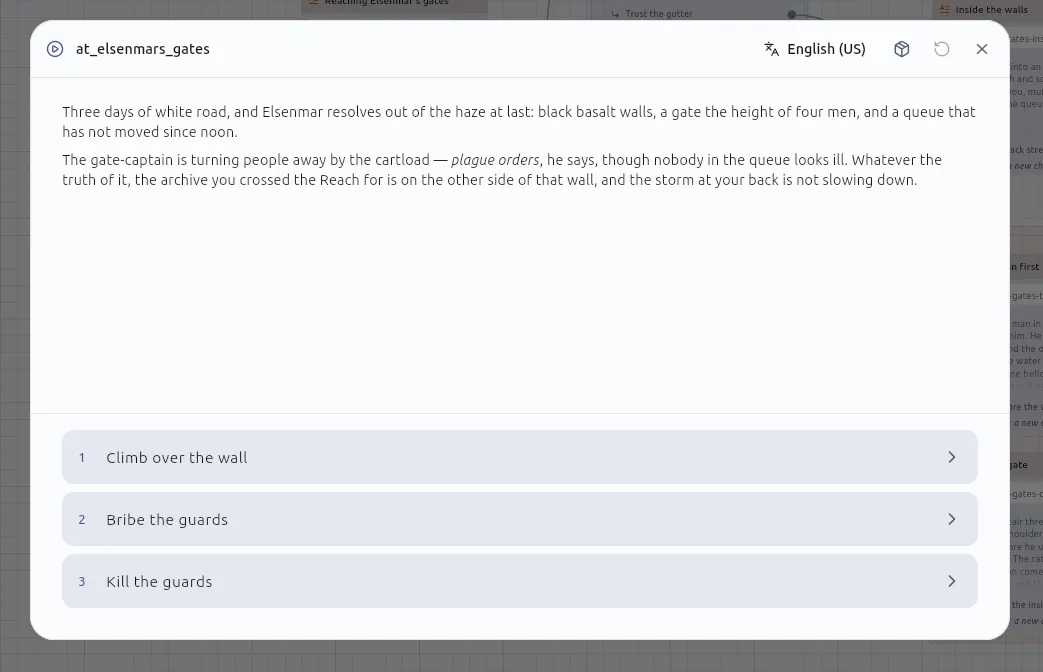
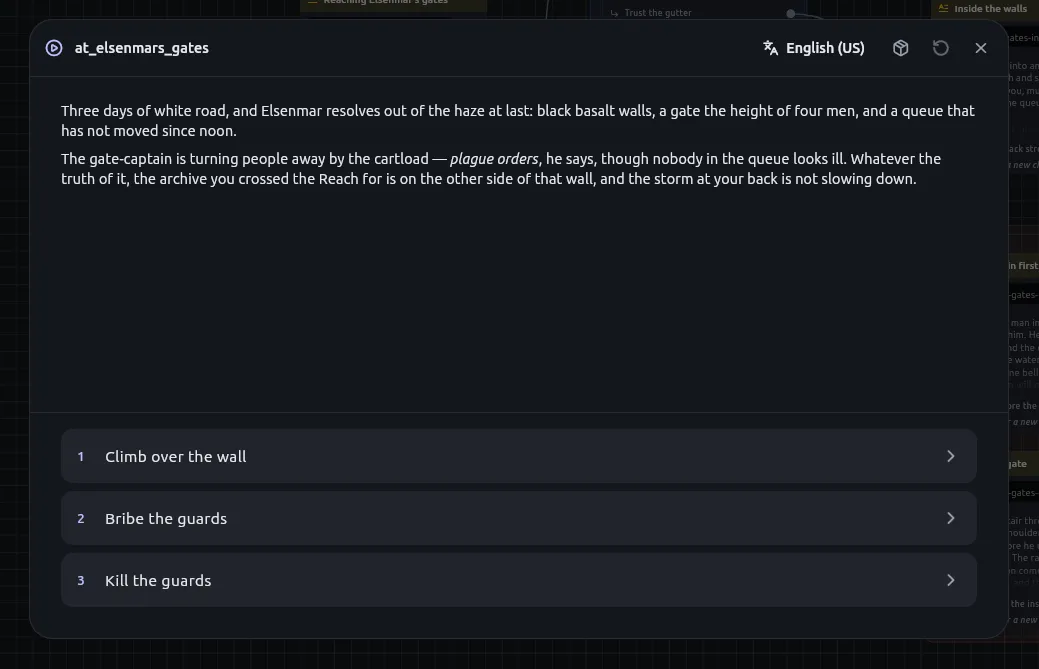
2. Read the passage. It is rendered as Markdown with its Python already run, and the choices leading out of it are the tiles beneath. Press a tile to follow it.
3. Press **Start over** when you want to run again. It is available from the first passage to an ending, and an ending also offers *Play again*.
Play re-indexes the project before it compiles, so the playthrough is current without exporting first. [Why the preview is the shipped story](/explanation/the-preview-is-the-shipped-story/) explains why.
## Read in another language
[Section titled “Read in another language”](#read-in-another-language)
Pick the language from the campaign window’s header. You can change it mid-passage. A passage with nothing in the chosen language says so instead of falling back to another.
## Answer an Input node’s form
[Section titled “Answer an Input node’s form”](#answer-an-input-nodes-form)
When the story reaches an **Input** node, fill in the form and press Enter in a field to continue. The fields are listed in [The campaign window and saved games](/reference/campaign-window/).
## Deal with warnings
[Section titled “Deal with warnings”](#deal-with-warnings)
Compile warnings, such as a roll that cannot vary or a macro missing one of its ends, appear in **Messages** when you press Play, not only when you export. The engine’s board checks appear there too: Play checks every board, and a finding names the cards it concerns.
1. Open **Messages** and read the finding. Look the code up in the [diagnostics reference](/reference/diagnostics/).
2. Fix the board, or, for `W.GE.06`, choose **I meant that** on the finding to acknowledge it for that card.
If the project has turned **Python** off (project settings, *Capabilities*), every Script node and every passage with Python in it is marked as an error and listed in Messages. The campaign will not play until none remain.
## Raise the loop ceiling
[Section titled “Raise the loop ceiling”](#raise-the-loop-ceiling)
A loop nothing breaks out of stops the campaign and offers you the node that ran away. By default one loop node may go round 512 times in a board.
1. Open Settings and find **Playing**.
2. Choose 128, 512, 2,048, 8,192, or None for no ceiling.
A For node’s own *Max iterations* still applies first when it is lower.
## Play from a node
[Section titled “Play from a node”](#play-from-a-node)
1. Right-click any node on a board.
2. Choose **Play from here**. The campaign begins at that node instead of the Start.
3. Set up whatever the story should already have made, using the console in the campaign window. It may do everything a Script node may.
The run starts with nothing made yet, and the window says so. Only a Start begins a story on its own; Play from here is how you begin anywhere else.
## Inspect and change a playthrough
[Section titled “Inspect and change a playthrough”](#inspect-and-change-a-playthrough)
Open a panel from the narrow strip down the window’s right edge: Entities, Variables, Console or Trace. What each shows is in [The campaign window and saved games](/reference/campaign-window/).
* To change a value by hand, open **Variables** and edit it.
* To read the story’s own steps, open **Trace**. Use its toggle to show everything underneath.
* To keep the plain lines, press **Copy** in **Trace**.
### Find the node behind a trace line
[Section titled “Find the node behind a trace line”](#find-the-node-behind-a-trace-line)
1. Tap a line in **Trace**. The story pauses, the window closes, and the board opens with that node selected and centred.
2. Press Resume to bring the story back.
A line about something inside a macro takes you to the card that called it, since that is what is on the board.
## Change the window
[Section titled “Change the window”](#change-the-window)
A button in the header takes the window to the app’s edges and back; Escape also brings it back. The **mute** button beside it is remembered between sessions.
## Related
[Section titled “Related”](#related)
* [How to save and resume a playthrough](/how-to/save-and-resume-a-campaign/)
* [How to trace the routes between two passages](/how-to/trace-a-route/)
* [Why the preview is the shipped story](/explanation/the-preview-is-the-shipped-story/)
* [The campaign window and saved games](/reference/campaign-window/)
* [Diagnostics](/reference/diagnostics/)
# How to play a campaign in your own program
> Export a campaign, add the engine's binding for your language, and play the story with its choices, forms, waits, callbacks, sound and saves.
These steps take a story from the editor into a program of yours: a game, an app, a page or a tool. Each step has a tab for each binding, and choosing a language once switches every tab on the page. What each call does, and every option it takes, is in the binding’s reference: [JavaScript and TypeScript](/reference/binding-javascript/), [C and C++](/reference/binding-c-cpp/), [C#](/reference/binding-csharp/), [Dart](/reference/binding-dart/).
1. **Export the story as a campaign.** In the editor, choose *Export project* in the project panel, choose **Campaign**, and export to a folder. The folder, with `campaign.json` at its root, is what your program opens. If your program will use the engine without Python, tick **Needs no Python** first. See [How to export a project copy or a campaign](/how-to/export-a-project-or-campaign/).
2. **Add the binding.**
* JavaScript
```sh
npm install @ripplefx/player @ripplefx/soundscape
```
Serve the campaign folder beside your page, and serve `.wasm` files as `application/wasm`. Your bundler copies the engine’s files from the package.
* C++
```cmake
include(FetchContent)
FetchContent_Declare(
ripple_effect
GIT_REPOSITORY https://github.com/ConnectingTheDots-DCWK/ripple_effect_c_cpp_integration
GIT_TAG v1.5.2)
FetchContent_MakeAvailable(ripple_effect)
target_link_libraries(my_game PRIVATE Ripple::cpp)
```
Configuring downloads and checks the engine for your platform. Link `Ripple::engine` instead for C alone.
* C#
```sh
dotnet add package RippleFx.Engine
dotnet add package RippleFx.Engine.Native
```
Reference exactly one engine package: `RippleFx.Engine.Native`, or `RippleFx.Engine.Native.NoPython` for the engine without Python.
* Dart
```sh
dart pub add ripplefx_engine # or: flutter pub add ripplefx_engine
```
The package’s build hook downloads, checks and bundles the engine for the platform you build.
3. **Choose the variant**, if the campaign needs no Python and you want the smaller engine.
* JavaScript
Nothing to do: `Campaign.load` reads the campaign’s manifest and loads the engine with Python only when the campaign needs it. Pass `python: false` to refuse one that does.
* C++
```sh
cmake -B build -DRIPPLE_ENGINE_PYTHON=OFF
```
* C#
Reference `RippleFx.Engine.Native.NoPython` instead of `RippleFx.Engine.Native`.
* Dart
In your pubspec, and on the web `--dart-define=RIPPLEFX_PYTHON=false`:
```yaml
hooks:
user_defines:
ripplefx_engine:
python: false
```
The engine without Python refuses a campaign that needs it when the campaign is opened.
4. **Open the campaign, make a session, and wrap it in a player.** Choose the seed yourself: the same seed and the same answers play the same story.
* JavaScript
```ts
import { Campaign, Player } from '@ripplefx/player';
const campaign = await Campaign.load('/campaigns/the-city-of-elsenmar/');
const player = new Player(campaign.session({ seed: BigInt(Date.now()) }), {
onEffect: draw, // step 5
onError: (error) => console.error(error),
});
```
* C++
```cpp
#include
const ripple::Campaign campaign = ripple::Campaign::open_dir("assets/story");
ripple::SessionConfig config;
config.board = campaign.manifest().entries.front();
config.seed = seed;
ripple::PlayerHandlers handlers;
handlers.on_effect = [&](const ripple::Effect& effect) { draw(effect); }; // step 5
handlers.on_error = [](const ripple::Failure& failure) { log(failure.message); };
ripple::Player player(ripple::Session::create(campaign, config), handlers);
```
* C#
```csharp
using RippleFx.Engine;
using var campaign = Campaign.OpenDirectory("Assets/Story");
var config = new SessionConfig { Board = campaign.Manifest.Entries[0], Seed = seed };
using var player = new Player(Session.Create(campaign, config), new PlayerHandlers
{
OnEffect = Draw, // step 5
OnError = error => Log(error.Message),
});
```
* Dart
```dart
import 'package:ripplefx_engine/ripplefx_engine.dart';
final campaign = await Campaign.openDirectory('assets/story');
final player = Player(
Session.create(
campaign,
SessionConfig(board: campaign.manifest.entries.first, seed: seed),
),
onEffect: draw, // step 5
onError: (error, stack) => log('$error'),
);
```
A program that packs its assets its own way opens the campaign from its files in memory instead: `Campaign.fromFiles`, `Campaign::open_files`, `Campaign.OpenFiles` or `Campaign.openFiles`.
5. **Draw the turn.** Every effect reaches your handler in order. The ones that need drawing are a passage (`show`), a form (`ask`) and an ending (`ended`, `failed`, `stopped`). Draw a choice that is not available greyed, and do not let it be pressed.
* JavaScript
```ts
function draw(effect: Effect) {
switch (effect.kind) {
case 'show': showPassage(effect.passage); break; // passage.text, passage.choices[i].available
case 'ask': showForm(effect.prompt); break;
case 'ended': showEnding(effect.title); break;
case 'failed': showProblem(effect.message); break;
}
}
```
* C++
```cpp
void draw(const ripple::Effect& effect) {
if (const auto* shown = std::get_if(&effect)) show_passage(shown->passage);
else if (const auto* asked = std::get_if(&effect)) show_form(asked->prompt);
else if (const auto* ended = std::get_if(&effect)) show_ending(ended->title);
else if (const auto* failed = std::get_if(&effect)) show_problem(failed->message);
}
```
* C#
```csharp
void Draw(Effect effect)
{
switch (effect)
{
case Effect.Show s: ShowPassage(s.Passage); break; // Passage.Choices[i].Available
case Effect.Ask a: ShowForm(a.Prompt); break;
case Effect.Ended e: ShowEnding(e.Title); break;
case Effect.Failed f: ShowProblem(f.Message); break;
}
}
```
* Dart
```dart
void draw(Effect effect) {
switch (effect) {
case Show(:final passage): showPassage(passage); // passage.choices[i].available
case Ask(:final prompt): showForm(prompt);
case Ended(:final title): showEnding(title);
case Failed(:final message): showProblem(message);
default:
}
}
```
A passage’s text is Markdown, or HTML when the campaign was exported that way, as the manifest’s text format says. Render it with a library of your choice.
6. **Start the story, answer the reader, and give the player your clock.** Call the verb for what the reader did. Outside JavaScript, call the player’s `update` from your frame or event loop: it answers a wait once its time has come.
* JavaScript
```ts
player.start();
choiceButton.onclick = () => player.choose(index);
leaveButton.onclick = () => player.choose(); // the reader leaves the passage
form.onsubmit = () => player.answer({ name: 'Ada', age: 31n }); // an Int is a bigint
// The player waits out a hold by itself.
```
* C++
```cpp
player.start();
player.choose(index); // or player.choose(ripple::leave)
player.answer(answers); // a ripple::Value::Map, or std::nullopt to leave the form
// every frame:
player.update();
```
* C#
```csharp
player.Start();
player.Choose(index); // or player.Leave()
player.Answer(answers); // field name to Value; null leaves the form
// every frame:
player.Update();
```
* Dart
```dart
player.start();
player.choose(index); // or player.leave()
player.answer({'name': TextValue('Ada')}); // null leaves the form
// every frame:
player.update();
```
A verb the story was not asking for is refused and nothing moves. Catch the refusal for a spent choice and for an unknown language, which are the two met in ordinary use.
7. **Register the author’s callbacks.** Agree the names with the author. A handler must not call a verb, so queue one for after it returns.
* JavaScript
```ts
player.onCallback('chapterTwoBegan', (fired) => game.unlock('chapter-2'));
player.onCallback('quitToTitle', () => queueMicrotask(() => player.stop()));
```
* C++
```cpp
player.on_callback("chapterTwoBegan", [&](const ripple::CallbackEvent&) { game.unlock("chapter-2"); });
player.on_callback("quitToTitle", [&](const ripple::CallbackEvent&) { later.push_back([&] { player.stop(); }); });
```
* C#
```csharp
player.OnCallback("chapterTwoBegan", fired => game.Unlock("chapter-2"));
player.OnCallback("quitToTitle", fired => later.Enqueue(() => player.Stop()));
```
* Dart
```dart
player.onCallback('chapterTwoBegan', (fired) => game.unlock('chapter-2'));
player.onCallback('quitToTitle', (fired) => scheduleMicrotask(player.stop)); // dart:async
```
8. **Give the story a speaker.** Make a soundscape driver over the campaign and a speaker, pass the driver to the player as its audio, and tick it with the player. In a browser, `@ripplefx/soundscape` is the speaker; elsewhere you implement the binding’s speaker interface over your own audio API, as its reference describes.
* JavaScript
```ts
import { Player, SoundscapeDriver } from '@ripplefx/player';
import { WebAudioSpeaker } from '@ripplefx/soundscape';
const speaker = new WebAudioSpeaker();
const audio = new SoundscapeDriver(campaign, speaker);
const player = new Player(campaign.session({ seed }), { onEffect: draw, audio });
begin.onclick = async () => { await speaker.unlock(); player.start(); }; // sound needs a click first
```
* C++
```cpp
MySpeaker speaker; // implements ripple::Speaker
auto audio = ripple::SoundscapeDriver::create(campaign, speaker);
handlers.audio = audio.get();
// every frame: audio->update(); player.update();
```
* C#
```csharp
using var audio = new SoundscapeDriver(campaign, new MySpeaker()); // implements ISpeaker
// in PlayerHandlers: Audio = audio,
// every frame: audio.Update(); player.Update();
```
* Dart
```dart
final audio = SoundscapeDriver(campaign, MySpeaker()); // implements Speaker
// in Player(...): audio: audio,
// every frame: audio.update(); player.update();
```
9. **Save, and resume.** Checkpoint while the story is on a passage or a form, and keep the save with the seed. To resume, open a session from the save over the same campaign and start it: it shows the saved turn again.
* JavaScript
```ts
const save = player.session.checkpoint(); // undefined except on a passage or a form
const resumed = Session.resume(campaign, save, { seed });
```
* C++
```cpp
std::optional save = player.session().checkpoint();
ripple::Session resumed = ripple::Session::resume(campaign, *save, seed, options);
```
* C#
```csharp
string? save = player.Session.Checkpoint();
var resumed = Session.Resume(campaign, save, seed, options);
```
* Dart
```dart
final save = player.session.checkpoint();
final resumed = Session.resume(campaign, save!, seed: seed);
```
A save from a campaign that has since changed too much is refused when it is resumed. Tell the player the save is from an older build of the story. If the engine reports a **trap**, the campaign is unusable from then on: dispose of it, open it again, and resume from the last checkpoint.
10. **Ship the engine’s notice.** Reproduce the engine’s `NOTICE` wherever your product lists its third-party software. Each binding names the file: `ENGINE-NOTICE` in the npm package, `share/ripple_effect/ENGINE-NOTICE` in a CMake install, `ENGINE-NOTICE.txt` in the C# engine packages, and the archive’s `NOTICE` for Dart.
## Related
[Section titled “Related”](#related)
* [Embedding the engine](/explanation/embedding-the-engine/): why the API is a session answering with a list of effects.
* [How the engine ships](/explanation/how-the-engine-ships/): what the binding puts in your build, and the two variants.
* [Engine platforms and variants](/reference/engine-targets/): the platforms each binding ships for.
* [Host callbacks](/explanation/host-callbacks/): the author’s side of a named callback.
# How to report a bug
> Open the pre-filled bug form from the Support page and attach the session's log and reports as a zip.
1. Open **Settings ▸ Support**, or choose *Support and feedback* in the Help menu.
2. Choose **Report a bug**. The bug form opens in the public support repository, [`ripple_effect_support`](https://github.com/ConnectingTheDots-DCWK/ripple_effect_support), with the version, your operating system and which installer this copy came from already answered, along with the technical details.
3. Describe what you saw in the form.
4. Under *What to attach*, choose **Save this session as a zip**. The log and reports of the session are packed into one file, and the folder it was written to opens. The row names the session by its id, so a support thread can be about the right run.
5. Attach the zip to the issue before you submit it.
Caution
The app removes private details from the log before it is written, but it cannot know that a board’s name is private. Read the zip’s contents before you post it. Nothing uploads these files; you decide what to attach. The one exception is a crash report, which the app asks about first and sends only if you say yes. [The session log and reports](/reference/session-log/) lists what is removed.
## Other ways to give details
[Section titled “Other ways to give details”](#other-ways-to-give-details)
* **Help ▸ Troubleshooting** copies the package details (which build this is and how it was installed) and the device details (the operating system), and opens this session’s folder. *Show every tip again* is in the Help menu itself. The Troubleshooting items and *Show every tip again* are in the command palette too; see [the workspace window, menus and palette](/reference/workspace-window/).
* **Ask a question** opens GitHub Discussions, **Request a feature** opens a new issue tagged as an enhancement, and **Browse open issues** lists the known problems, so you can check whether yours is already there.
## Related
[Section titled “Related”](#related)
* [The workspace window, menus and palette](/reference/workspace-window/)
* [Settings, accessibility and updates controls](/reference/settings/)
* [The session log and reports](/reference/session-log/)
* [Updates, logs and Messages](/explanation/updates-logs-and-privacy/)
# How to save and resume a playthrough
> Save a playthrough under a name, pause and resume it, and open a saved game from the bookmark or the command palette.
## Save a playthrough under a name
[Section titled “Save a playthrough under a name”](#save-a-playthrough-under-a-name)
Saving does not end the playthrough, and you can save as many times as you like.
1. In the campaign window, select the bookmark in the header.
2. Type a name in the **Save this playthrough** dialog. **Save** stays unavailable until the name is not empty.
3. Select **Save**. The app reports *Saved as “name”.* and the playthrough carries on.
## Put a playthrough down and pick it up again
[Section titled “Put a playthrough down and pick it up again”](#put-a-playthrough-down-and-pick-it-up-again)
Select **Pause** in the campaign window to put a playthrough down. Pausing writes an automatic save into the project’s `.ripple/saves/`, listed as **Where you left off** in the same list as your named saves and rewritten each time you pause. [How to play and test a campaign](/how-to/play-a-campaign/) covers pausing and resuming.
Pausing and resuming in the same sitting hands you back the board you just edited. A save opened later is checked against the story as it is then, which is why one can be refused.
## Open a saved game
[Section titled “Open a saved game”](#open-a-saved-game)
1. Select the bookmark beside Play, or run **Open a saved game…** from the command palette.
2. Pick a save. The list shows the passage each is waiting at and how long ago it was written.
3. If a playthrough is running, the app asks **Open this saved game?** Opening a save throws the running campaign away, so save that playthrough first if you want it back.
4. Select **Open**.
A save records your place and everything the story has made. [The campaign window and saved games](/reference/campaign-window/) lists what it holds, and [How a story runs](/explanation/how-a-story-runs/) explains how choice counts and macros behave.
## When a saved game is refused
[Section titled “When a saved game is refused”](#when-a-saved-game-is-refused)
A save records a place in a board. If the story has been rewritten since and that place no longer exists, the save is listed with the reason beside it and left alone. Open another save, or start a new playthrough and save that.
A build older than yours refuses a newer save rather than put a `json` variable back to its default. Update the app to open it.
Saves are left out of version control.
## Related
[Section titled “Related”](#related)
* [How to play and test a campaign](/how-to/play-a-campaign/)
* [The campaign window and saved games](/reference/campaign-window/)
* [How a story runs](/explanation/how-a-story-runs/)
* [Project files and the .ripple folder](/reference/project-files/)
# How to run Python in a story
> Compute with a Script node, show the answer with an Output node, vary a passage with {{ }} and ripple blocks, and check what the sandbox allows.
## Compute a value with a Script node
[Section titled “Compute a value with a Script node”](#compute-a-value-with-a-script-node)
A Script node references a `.py` file in the project, so one script can serve many nodes.
1. Add a Script node and reference a `.py` file.
2. Press **Inputs** or **Outputs** in its editor, as you need them. Each opens the same ports dialog every other node uses. Declare a name and a type per row; the node grows a port per name.
3. Wire the inputs. Values cross as native Python types, so `total = hp - damage` is arithmetic, not a parse.
4. Assign each output name in the script. Whatever the script assigns to an output name is published on that port.
Choose names Python can read. A Script node’s inputs and outputs, and a passage’s inputs, accept only a letter or an underscore followed by letters, digits and underscores. Python’s own words, such as `class`, are refused, with the reason shown under the field. A board that carries a name Python cannot read reports it.
### Choose slot types and defaults
[Section titled “Choose slot types and defaults”](#choose-slot-types-and-defaults)
Give each row the type of the value it carries, and a default if the slot may be left unfilled. For a script input, a wired value wins over the default; for an output, the default applies only where the script never set that name. The type list and the coercion rules are in [Node families, slots and state](/reference/node-families/).
## Show the answer with an Output node
[Section titled “Show the answer with an Output node”](#show-the-answer-with-an-output-node)
A Script node presents nothing; an Output node shows its inputs to the reader as a slide with one way on.
1. Add an Output node and wire the Script node’s outputs into it.
2. Double-click the card and declare a name and a type per row. These names are read by people, so `Your roll` is a fine name here, unlike a Script node’s. A slot may carry a default.
To take a name or a number from the reader instead, use an Input node. It asks the reader for values and hands what was typed on as ports, so a Script node can use them. On an Input node the default is filled in for the reader to accept or type over.
## Vary a passage with Python
[Section titled “Vary a passage with Python”](#vary-a-passage-with-python)
A passage has two places for Python: an inline `{{ … }}` span and a fenced ` ```ripple ` block. Both are replaced by what they evaluate to when the passage is presented, so a sentence can vary instead of forking into two passages.
````markdown
The goblin has {{ entity_get("Goblin-1")["HP"] }} hit points left.
```ripple
names = entity_names(of="Goblin")
f"{len(names)} goblins are still standing."
```
````
A passage only reads. Making, changing or deleting an entity, or writing a console variable, is refused from inside prose. Do those in a Script node, where the change can be pointed at on the canvas. The refusal renders in place as a `⚠` chip and the story carries on.
## Try a line in the console
[Section titled “Try a line in the console”](#try-a-line-in-the-console)
Open any `.py` file. Its console is a live session, one per project, so `x` survives between lines.
* **Enter** runs what is there; **Shift+Enter** starts a new line. The prompt grows to three lines as you type.
* The arrow keys walk through what you have already run.
During a playthrough the same console sits beside the Entities and Variables panels, over the story that is running. There you can run statements that make or change entities, as a Script node can.
## Work within the sandbox
[Section titled “Work within the sandbox”](#work-within-the-sandbox)
The interpreter runs a subset of Python; the limits are in [The sandbox and its limits](/reference/python/sandbox/). To roll dice, use the Dice roller, Random number and Weighted branch nodes. To keep entities straight in prose and scripts, use these habits.
* **Read components and entities as dicts** (see [How to read and change entities from Python](/how-to/use-entities-from-python/)). Write `component_get("Goblin")["HP"]`, never `goblin.hp`.
* **Write with `entity_set`.** A read hands back a copy: `e = entity_get("Mira"); e["HP"] -= 3` runs and changes nothing.
* **Keep host functions out of `map()`, `filter()` and `sorted(key=…)`.** Everything the app binds fails there. Inside a `def` or a comprehension it works, so build the pairs first:
```python
pairs = [(entity_get(n)["HP"], n) for n in entity_names()]
weakest = sorted(pairs)[0][1]
```
### Check what the sandbox allows
[Section titled “Check what the sandbox allows”](#check-what-the-sandbox-allows)
The list above is not the authority; the app is. The interpreter’s limits change between its releases, so the app probes them.
1. Press the **i** button on the console, or run the command palette’s *What this Python can and cannot do*.
2. Read the report. It runs a suite of tiny snippets (statements, modules, built-ins, call shapes) in the real interpreter and reports what happened, row by row. It says what the app binds, what `import` can reach, and which limits are enforced.
3. Press **Copy report** to paste it into a bug report. An agent can ask for the same text through `python_capabilities`.
Where this page and the report disagree, the report is right.
## Related
[Section titled “Related”](#related)
* [Python in a story](/explanation/python-in-a-story/): why Python sits where it does and what the sandbox is for.
* [Python reference](/reference/python/): every function the app binds, with what it answers and refuses.
* [The sandbox and its limits](/reference/python/sandbox/): the limits the interpreter enforces.
* [Node families, slots and state](/reference/node-families/): slot types, coercion and defaults.
To leave Python out of a campaign, see [How to build a campaign with no Python](/how-to/turn-python-off/).
# How to trace the routes between two passages
> Open Script navigation, pick two passages or two chapters, confirm, and read every route between them, or ask what leads to one passage.
Use a trace to answer *how can a reader get from here to there* or *how could a reader have arrived here at all*, without playing the story.
## See how the boards connect
[Section titled “See how the boards connect”](#see-how-the-boards-connect)
1. Press **Script navigation**, the first button in the left panel’s footer. The overview opens: one card per board, one output per way out of it, every arrow labelled with the node it leaves by. A Jump into the middle of a chapter also names where it lands, such as `Down → The cellar`. Markers show where a thread begins and ends.
Nothing on the overview can be moved or rewired, and the same project lays out identically each time.
## Trace every route between two passages
[Section titled “Trace every route between two passages”](#trace-every-route-between-two-passages)
1. Open the board and press **Trace the routes between two passages** on its quickbar. The quickbar then offers a tick and a cross in place of the toggle.
2. Click the first passage, then the second. Only Start, Narration, Jump and End nodes can be picked; a click on any other node does nothing. The status beside the buttons reads *Pick two passages*, then *Pick one more*, then *Ready*.
3. Press the tick, **Trace every route between them**. Every route lights up in colour and the rest of the board goes under a scrim. The status beside the buttons gives the count, such as *2 routes*, or *No route between them*, or *Loops — countless routes* when the story can go round a loop any number of times.
4. Read the colours. Each linear run has its own hue, so the place where routes part is where the colour changes. You can pick either passage first. The app tries both directions and draws the one that has a route; if both do, the order you picked decides.
5. Press the cross, **Take the trace away**, when you are done. Editing the board also drops the trace.
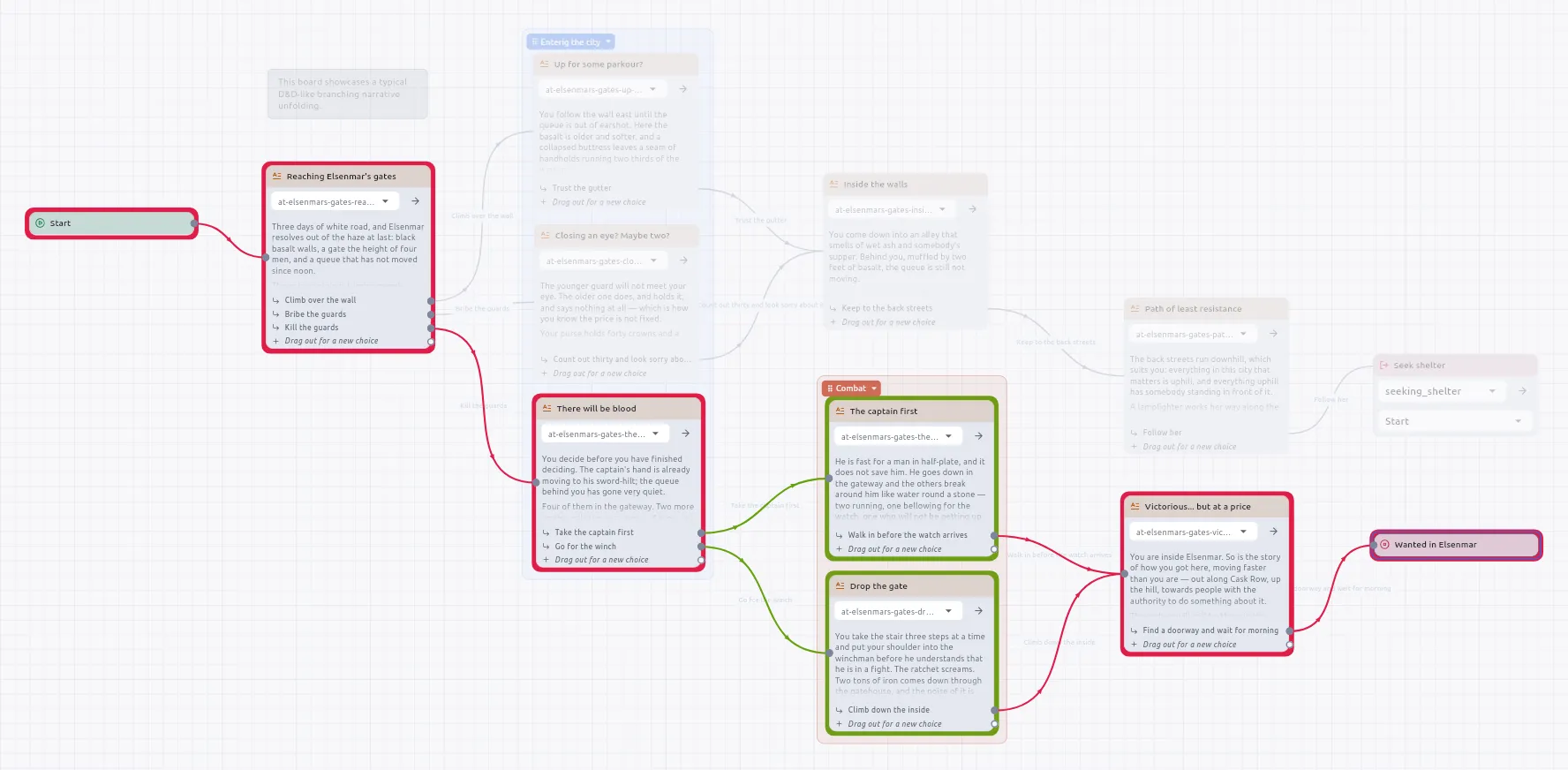
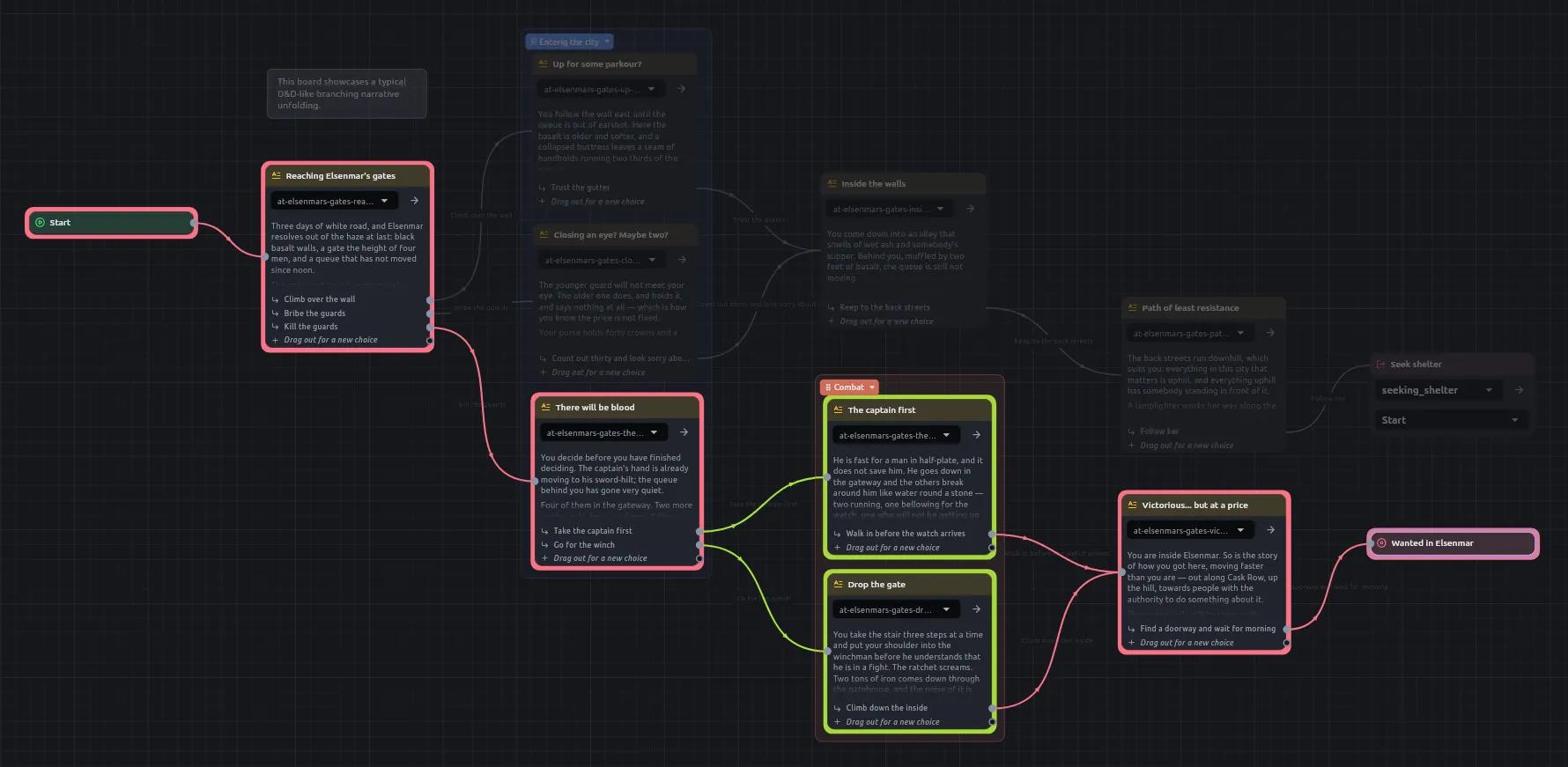
Confirming a trace ends the picking: the board keeps its routes with only the cross beside them, and the next click is an ordinary click. Two boards can each hold a trace at once. To abandon the picking before you confirm, press the cross, **Stop tracing**.
## Trace between two chapters
[Section titled “Trace between two chapters”](#trace-between-two-chapters)
On the boards overview, use the same gesture to pick two boards instead of two passages: **Trace the routes between two boards**, click each, then the tick.
## Ask what leads to one passage
[Section titled “Ask what leads to one passage”](#ask-what-leads-to-one-passage)
1. Select one passage on a board. With nothing selected the button reads *Select one to see everything that leads to it*.
2. Press the quickbar button beside the trace toggle, or run **Trace what leads here** from the command palette.
The answer is every route that arrives at the passage, from wherever the story begins. You pick no second end, and a story often has several beginnings. The status reads a count such as *3 ways here*, *Nothing leads here* or *Loops — countless ways here*. If every route stays on its own board, the board draws it and the cross takes it away. If one arrives through a Jump, the board cannot draw it and the answer opens as a merged view.
## Trace across boards in the merged view
[Section titled “Trace across boards in the merged view”](#trace-across-boards-in-the-merged-view)
1. Pick a passage on one board.
2. Open another board and pick a second passage there.
3. Press the tick, now reading **Open both boards in one view and trace between them**. The merged view opens in its own tab, titled with the two boards’ names joined by ↔, or `Into ` for a what-leads-here answer.
4. Press the reload button on the bar to read every board from disk again after you have edited one.
In the merged view:
* Every board on the route is on one canvas, and a passage is shown as its prose. Hover a passage for its name, and click it to open its bundle in the viewer panel.
* Wherever the story passed through an *If*, a *Switch*, a roll or a loop, the arrow names that node and the way it went, such as `Hit? → true`, beside the words of the choice if there was one.
* If the header says boards are folded, press **Expand N more chapters**. A board over the view’s size budget appears as one card, and the route still passes through it.
* If a chapter has since been deleted, the view says *One of those chapters is no longer in this project.* If nothing reaches the board you asked about, it says so, as *Nothing in this project reaches* followed by the board’s name.
The merged view is read-only. Make changes on the boards themselves. A trace on a board and a merged view do not mix: opening a merged view takes every board’s trace away, and while one is open the board’s two trace buttons are disabled with the tooltip *Close the merged trace first — a board cannot trace while one is open*. Closing the last merged view hands the boards back.
For how Do-all branches, macros and choices that run a script are drawn on a route, see [Board and navigation rules](/reference/canvas-rules/#merged-view).
## Ask an assistant instead
[Section titled “Ask an assistant instead”](#ask-an-assistant-instead)
An MCP client can ask the same three questions with `trace_between`, `trace_into` and `board_links`, for example to check that an ending is reachable.
## Related
[Section titled “Related”](#related)
* [Reading a large story back](/explanation/reading-a-story-back/)
* [Board and navigation rules](/reference/canvas-rules/#traces)
* [MCP tools](/reference/mcp-tools/)
# How to build a campaign with no Python
> Turn Python off in a project's settings so the app flags every card that needs the interpreter, and export a campaign for a player built without it.
Use this when the campaign is for a game or a player built without the Python interpreter, and you want the app to tell you everything that would need it.
1. Open the project’s settings and go to the **Capabilities** page.
2. Turn **Python** off.
3. Open **Messages**. Each Script node and each passage with a `{{ … }}` or a `ripple` block is listed there and marked as an error on its card:
* [`E.EX.01`](/reference/diagnostics/#eex01) is a Script node.
* [`E.EX.02`](/reference/diagnostics/#eex02) is a passage that runs Python, in any of its languages.
4. Replace each one with cards that do not need Python, such as a console variable set and read by its own nodes, or a branch on a value. Until none are left, the campaign will not play or export.
5. [Export the campaign](/how-to/export-for-a-player-without-python/). **Needs no Python** is ticked in the export dialog and cannot be unticked while the project has Python off.
To go back, turn **Python** on again. Nothing about the project has changed, and it plays and exports as before.
Note
What a player built without Python does with a campaign that still has Python in it is covered in [the export guide](/how-to/export-for-a-player-without-python/).
## Related
[Section titled “Related”](#related)
* [How to export for a player without Python](/how-to/export-for-a-player-without-python/)
* [How to run Python in a story](/how-to/script-a-passage/)
* [Python in a story](/explanation/python-in-a-story/)
* [Diagnostics](/reference/diagnostics/)
# How to use components and entities
> Make a component, give it typed attributes, put it on a board as a component or an entity, and spawn, delete and list the entities a story has made.
Use this to make a component and put it, or entities made from it, on a board. For what the two are, see [Components and entities](/explanation/components-and-entities/).
## Make a component
[Section titled “Make a component”](#make-a-component)
1. In the file tree, create a **New component**. It is saved as a `*.component.json` file.
2. Set a name and, if you want one, a cover picture.
3. Add a row per attribute. Give each a label, a type and a value. Drag rows to reorder them.
4. Choose each type from the attribute’s type menu. Each can stand on its own, as a list or as a map from names.
A `markdown` attribute keeps its six-line editor when you change its type from the menu.
Add only the attributes this story needs. The types and how the file stores them are in [Project files and the .ripple folder](/reference/project-files/).
### Point an attribute at a file
[Section titled “Point an attribute at a file”](#point-an-attribute-at-a-file)
An `asset` or `componentRef` attribute, or the items of a list of them, is filled by name.
1. Type in the slot. The project’s files are offered, with the full path beside each.
2. Pick one. It sits in the slot as a chip with its name on it; hover to see the path.
A chip is marked when its file is outside the project or missing; fix or replace the file. Dotted folders and files, and anything outside the project, are not offered.
### Use a cover or file from outside the project
[Section titled “Use a cover or file from outside the project”](#use-a-cover-or-file-from-outside-the-project)
A cover picked from outside the project is copied into `.ripple/external/`, so the file never records a path that works on one machine only.
Copying in is a switch: run **Toggle importing outside assets** from the command palette. With it off, the file is linked instead.
A cover that is still outside the project shows a caution under the field with **Copy into project** beside it. Messages names every such link each time the project is opened.
## Put a component on a board
[Section titled “Put a component on a board”](#put-a-component-on-a-board)
1. Drag the `*.component.json` from the file tree onto a board. It becomes a **Component** node with one typed output per attribute, plus one that carries the whole component as a map.
2. Choose the node’s mode. The node says which one it is in.
* **Component** is a window onto the file: outputs and nothing else.
* **Entity** makes the story a thing, keyed by the name on the node. Attribute inputs appear beside the outputs.
To make two independent swords, use two Entity nodes with two names. A node on a later board that names the same entity is the sword the first board made.
To change an entity later, put another node naming it later in the story. There is no Set/Get pair; that node is the setter.
To make one entity per name, wire the node’s name from upstream. Wire the name from upstream, for example from a For node, to make one entity per name it is handed.
## Make several entities at once
[Section titled “Make several entities at once”](#make-several-entities-at-once)
1. Add a **Spawn** node from the **Entities** category of the node menu.
2. Point it at a component and say how many.
3. Choose how they are told apart: numbers or letters, and what goes between them. “Goblin” with numbers and a dash makes Goblin-1, Goblin-2 and so on.
4. Wire the names it hands on, as a list, into whatever gives each one its own values, for example a Python script that sets each one’s hit points. See [How to read and change entities from Python](/how-to/use-entities-from-python/).
Spawn makes the same entities every time. Coming back to the node finds the goblins it already made rather than six more, so a paused campaign resumes into the encounter it left. For a second wave, use a different name.
## Remove an entity
[Section titled “Remove an entity”](#remove-an-entity)
Add a **Delete Entity** node and give it the name. The entity is forgotten; the component file is untouched, so a node naming it later makes a fresh one.
Deleting a name nothing answers to is not an error. It removes nothing and the story carries on.
## Branch on whether an entity exists
[Section titled “Branch on whether an entity exists”](#branch-on-whether-an-entity-exists)
Add an **Entity Exists** node and wire its answer into an If node.
## Do something to every entity
[Section titled “Do something to every entity”](#do-something-to-every-entity)
1. Add an **Entity Names** node. It answers the names of every entity the story has made, alphabetically. To limit it to one component, choose that component.
2. Wire its `names` output into a For node with a List at node.
3. Put the work to do for each one inside the loop. For example, to reach the goblins still standing two passages later, put the work inside the loop.
## Related
[Section titled “Related”](#related)
* [Components and entities](/explanation/components-and-entities/) for what a component and an entity are
* [Project files and the .ripple folder](/reference/project-files/) for the component file format
* [Nodes](/reference/nodes/) for the Component, Spawn, Delete Entity, Entity Exists and Entity Names nodes
* [Components and entities in Python](/reference/python/components-and-entities/) for the calls a script uses
* [The campaign window and saved games](/reference/campaign-window/) for the Entities panel
* [How to read and change entities from Python](/how-to/use-entities-from-python/) as a see-also
# How to read and change entities from Python
> Find, damage, delete, create and inspect entities from a Script node, using the component and entity functions.
Five recipes over the entities a playthrough has made from a component. Each assumes a component called `Goblin` with an `HP` attribute, and a script that runs in a Script node or the playthrough console. Reading works on every [surface](/reference/python/#surfaces); `entity_set`, `entity_create`, `entity_delete` and `entity_rename` work only in a Script node and the playthrough console, and are refused elsewhere. `damage` stands for a number the script already has.
## Find the weakest goblin
[Section titled “Find the weakest goblin”](#find-the-weakest-goblin)
1. Collect each goblin’s hit points with its name, using `entity_names(of="Goblin")`.
2. Sort the pairs and take the name from the first, guarding against there being none.
```python
pairs = [(entity_get(n)["HP"], n) for n in entity_names(of="Goblin")]
weakest = sorted(pairs)[0][1] if pairs else None
```
`weakest` is a name, or `None` when the story has made no goblins. To test whether an entity exists, use `entity_get(name) is None`: an entity with no attributes answers `{}`, which is falsy too.
## Damage an entity and delete it when it drops
[Section titled “Damage an entity and delete it when it drops”](#damage-an-entity-and-delete-it-when-it-drops)
1. Read its `HP` and subtract the damage.
2. Write the new value back with `entity_set` while it is above zero.
3. Call `entity_delete` when it is not.
```python
if weakest is not None:
hp = entity_get(weakest)["HP"] - damage
if hp > 0:
entity_set(weakest, "HP", hp)
else:
entity_delete(weakest)
```
Both `entity_set` and `entity_delete` raise when nothing answers to the name. Deleting leaves no tombstone: a Component node that still names the entity makes a fresh one from the file if it runs again. Renaming has the same effect, so avoid `entity_rename` on an entity a Component node names: after `entity_rename("Goblin-7", "Steve")` the node finds nothing under `Goblin-7` and makes a fresh goblin from the file.
## Create an entity only if the story has not already
[Section titled “Create an entity only if the story has not already”](#create-an-entity-only-if-the-story-has-not-already)
`entity_create` is never get-or-create: it raises when the name is taken, so catch the error when you do not mind.
```python
try:
entity_create("Boss", of="Goblin")
except RuntimeError:
pass
```
The `except` clause also swallows the error raised when `of` names no component, which is a typo rather than an empty filter, so check the spelling of `of` first. The call answers the new entity’s attributes, so `entity_create("Goblin-7", of="Goblin")["HP"]` reads the starting hit points in one line.
## Collect a component’s values into one dict
[Section titled “Collect a component’s values into one dict”](#collect-a-components-values-into-one-dict)
1. Call `component_get("Goblin")`, which answers the definition as its file describes it, or `None`.
2. For each entry in `attributes`, take `items` when it has one (the two lists of paths, `list` and `list`), and `value` otherwise.
```python
fields = {}
for attr in component_get("Goblin")["attributes"]:
if "items" in attr:
fields[attr["label"]] = attr["items"]
else:
fields[attr["label"]] = attr["value"]
```
Each attribute also carries its `type`. Switch on it with a default branch, because the set is open.
## Find the definition behind an entity
[Section titled “Find the definition behind an entity”](#find-the-definition-behind-an-entity)
`entity_of` answers the component an entity was made from, and `component_get` takes that name:
```python
definition = component_get(entity_of("Goblin-1"))
```
## Related
[Section titled “Related”](#related)
* [Components and entities](/reference/python/components-and-entities/) lists every function, what it answers and what it refuses.
* [Components and entities, explained](/explanation/components-and-entities/) covers what a component and an entity are.
* [How to run Python in a story](/how-to/script-a-passage/) covers the Script node these recipes run in.
* [The sandbox and its limits](/reference/python/sandbox/) lists what a script may call.
# How to build a board
> Build a board by creating cards, adding its Start, naming choices, and wiring the story and the values it reads.
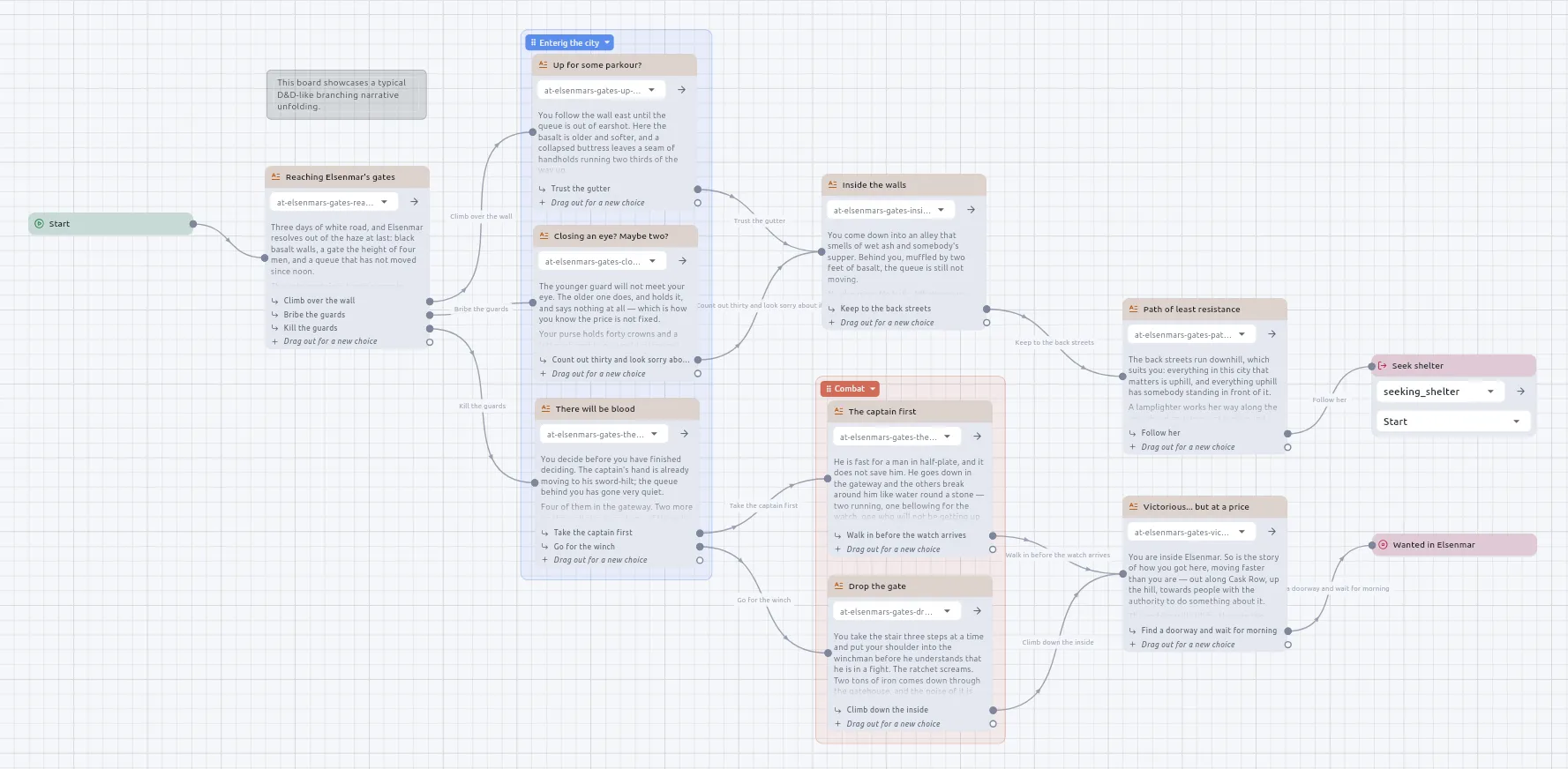
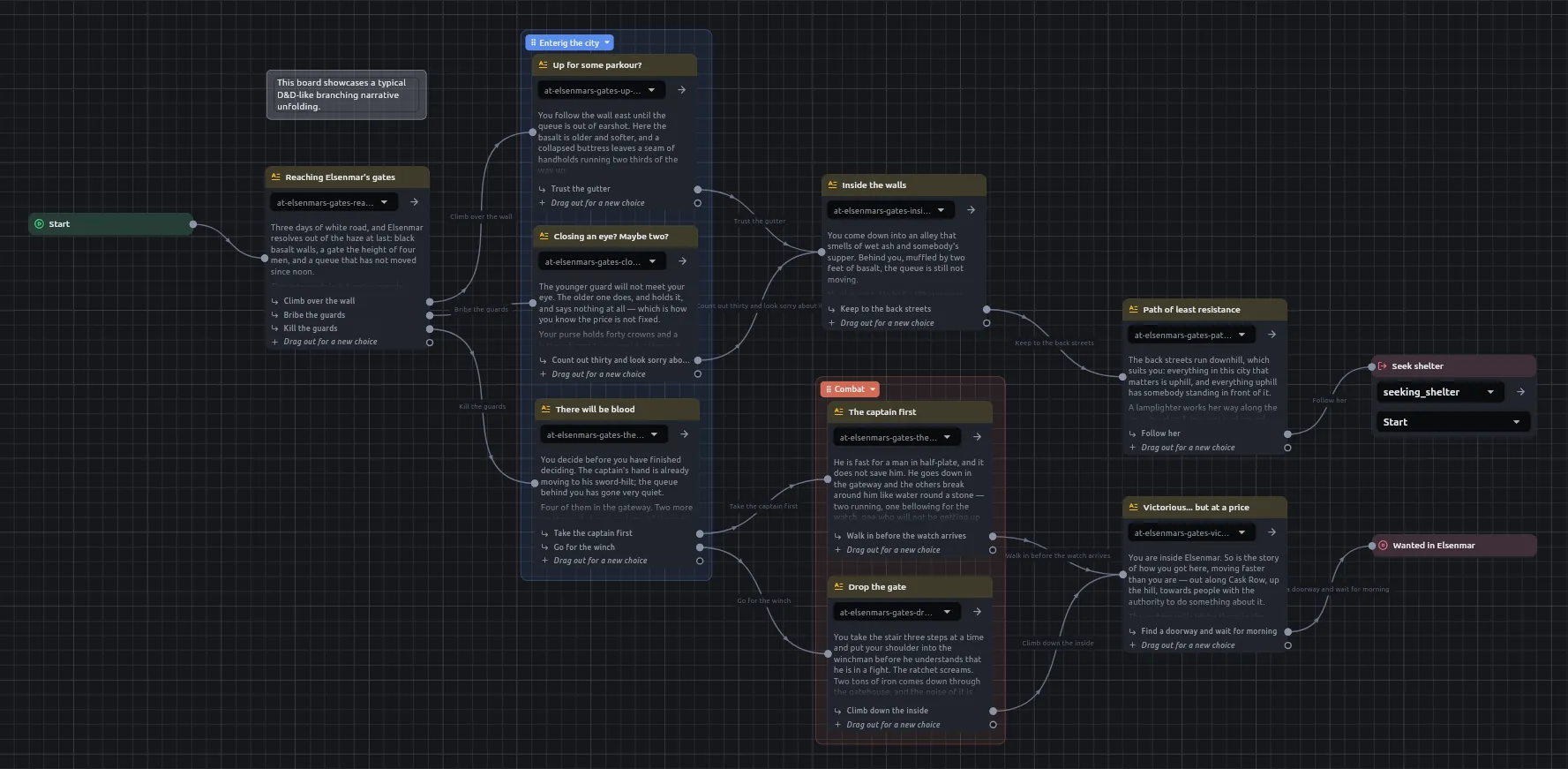
## Add a node
[Section titled “Add a node”](#add-a-node)
Right-click an empty part of the canvas and pick the card from the Create menu — a passage, a Jump, a Script, a loop, a component.
To create a card already wired, drag a wire from a port and drop it on empty canvas instead. The same menu opens there, and the card you pick arrives wired to the port you dragged from.
Undo and Redo are in the Edit menu and on their keystrokes. **View ▸ Shortcuts card** brings the shortcuts card back.
In any picker of something you made — a Jump’s board, a Component’s component, a Script’s `.py`, a Narration node’s passage or soundscape, a State machine’s diagram, a variable on a `cvar` node — the search field opens focused. Type to narrow the list by name or by path, which is shown under each name. Pickers are alphabetical; a Jump’s node picker keeps the board’s reading order.
A Jump card has an arrow that opens the board it points at.
To see what a card is for, right-click it and choose *About this node*. It lists what each control does and what each port takes or answers, and links to the docs page.
## Add the Start
[Section titled “Add the Start”](#add-the-start)
A board has exactly one **Start**. Right-click an empty part of the canvas and choose **Start** from the Create menu; the menu does not offer a second. A board with two is refused at Play, with both named.
## Name a choice and give it words
[Section titled “Name a choice and give it words”](#name-a-choice-and-give-it-words)
A Narration node grows one output port per choice. Wire the last one and a new spare appears beneath it.
1. Click a choice’s row on the card.
2. Enter a **name**. The card shows it as the choice’s label, so a branch can be found on a wide board.
3. Enter its **words** — what the reader is offered — in each language the story is written in. A choice with nothing in the reader’s language falls back to the language the story was written in.
To limit how often a choice can be taken, or to offer it only while a condition holds, see [How to limit a choice](/how-to/limit-a-choice/).
## Attach your own notes to a card
[Section titled “Attach your own notes to a card”](#attach-your-own-notes-to-a-card)
1. Right-click the card and choose *Edit metadata…*.
2. Add entries, each a name, a type and a value. A small tag appears on the card’s header while the card carries any.
Nothing on the board reads metadata; it is yours, for a status, a reviewer’s note or a mark for a tool of your own. It travels with the node into a compiled campaign and to an AI assistant, and a copied node arrives with its notes.
## Draw the wires with the right kind of port
[Section titled “Draw the wires with the right kind of port”](#draw-the-wires-with-the-right-kind-of-port)
Wire a triangle to a triangle and a dot to a dot: control ports are triangles pointing the way the flow runs and carry the story, data ports are dots and carry a value. Rest the pointer on a value port to see what it takes — `number`, `list`, or `anything`.
## Wire the story and leave the values hanging off it
[Section titled “Wire the story and leave the values hanging off it”](#wire-the-story-and-leave-the-values-hanging-off-it)
1. Wire one control path from Start through the cards the story takes: `exec` in, a choice, branch or `completed` out.
2. Wire each value into the card that reads it — a Number into a Set variable, a String into a Component’s name, a Get variable into an Output. None of these needs an `exec` wire.
Put any card whose value depends on something the story does in the flow after it, as below. [How a story runs](/explanation/how-a-story-runs/) explains why.
## Make a value depend on something the story does
[Section titled “Make a value depend on something the story does”](#make-a-value-depend-on-something-the-story-does)
A card whose value depends on something the story does must be in the flow after it. A Comparator hanging off a Dice roller, say, is worked out before there is a roll to compare.
1. Wire the roller’s `completed` into the Comparator.
2. Wire the Comparator’s `completed` into the If.
For several values at once, use a **Do all**:
1. Put a **Do all** in front of the passage and one chain of cards per value on its branches.
2. Wire the Do all’s `completed` port to the passage.
A branch runs to the end of its wire before the next starts, and a passage does not end a wire, so a passage on one branch holds the later branches back until it has been read. That looks like a Set that never fired; keeping the story on `completed` avoids it. See [How to run several jobs before a passage](/how-to/order-jobs-before-a-passage/).
If the app marks a card with [`W.GE.05`](/reference/diagnostics/#wge05) or [`W.GE.06`](/reference/diagnostics/#wge06), a value is being read from before the story or from another path. `W.GE.06` can be answered per card with *I meant that*; see the [diagnostics reference](/reference/diagnostics/).
## Draw wires as right angles
[Section titled “Draw wires as right angles”](#draw-wires-as-right-angles)
Wires are curved by default. In **Settings ▸ Links**, choose **Right-angled** to draw every wire on every canvas as straight legs with rounded corners. A handle on a wire is then a corner, and lines up with its neighbours as you drag it.
## Related
[Section titled “Related”](#related)
* [Boards, nodes and macros](/explanation/boards-nodes-and-macros/) — what a board is and why the canvas draws two kinds of wire.
* [How a story runs](/explanation/how-a-story-runs/) — two kinds of wire, and why the story only goes forwards.
* [Board and navigation rules](/reference/canvas-rules/) — the rules the canvas enforces.
* [Nodes](/reference/nodes/) — every node, what it takes and what it answers.
* [Diagnostics](/reference/diagnostics/) — the coded checks on a board’s shape.
# How to write a passage
> Write a Narration node's Markdown, add pictures, and hand the passage values to read with {{ name }}.
## Write the text
[Section titled “Write the text”](#write-the-text)
1. Double-click a Narration node to open its editor.
2. Write the passage. To make a sentence vary instead of forking into two passages, put Python in an inline `{{ … }}` span or a fenced ` ```ripple ` block. See [How to run Python in a story](/how-to/script-a-passage/).
## Add a picture
[Section titled “Add a picture”](#add-a-picture)
* **Drop a file on the editor.** The link writes itself.
* **Click Image**, beside Link. Type a few letters to pick a project file by name, or give a URL or a path for anything outside the folder.
A picture picked from outside the project is copied into `.ripple/external/` first. If **Import outside assets** is switched off in the File menu, it is linked instead and Messages says so. The alt text and prompt behaviour are in [Passages, choices, languages and reading time](/reference/passages/#writing).
### Write a link by hand
[Section titled “Write a link by hand”](#write-a-link-by-hand)
Start the path with a slash to measure it from the project root, as in ``. Without a slash it is read from the bundle’s parent folder. The rules and an example are under [Link spellings](/reference/passages/#link-spellings).
## Hand a passage values to read
[Section titled “Hand a passage values to read”](#hand-a-passage-values-to-read)
1. Click the **Reads** row at the bottom of the card, beside the soundscape the node brings. It reads “Reads nothing — click to declare” until a name is declared, then “Reads — N”.
2. In the dialog, declare each name with a type, written the way every other card’s ports are. A slot may carry a default; the types and defaults are in [Node families, slots and state](/reference/node-families/#slots).
3. Wire a value into the port the card now has for each name.
4. Use the name in the passage: `You owe {{ gold }} crowns.` with a number on the `gold` port. A slot with a default and nothing wired uses the default.
Declare the names on each card that shows the passage: they belong to the card, not to the passage file (see [Passages and translations](/explanation/passages-and-translations/)).
If a name is not wired, a small warning shows where it stood and the rest of the passage renders as usual. Names are offered as you type only when the passage is opened from a board.
### Name a slot
[Section titled “Name a slot”](#name-a-slot)
Use letters, digits and underscores, and do not start with a digit. If the dialog refuses a name, the reason is shown under the field. The full rule is under [Name rule](/reference/passages/#name-rule). If Messages reports [`W.GE.15`](/reference/diagnostics/#wge15), rename the slot.
## Related
[Section titled “Related”](#related)
* [Passages and translations](/explanation/passages-and-translations/): why a passage is a folder of Markdown files, one per language.
* [Passages, choices, languages and reading time](/reference/passages/): link and name rules, the reading-time figures.
# How to write a style rule
> Teach the checker your project's house style in Weir — name a rule, say what it catches and what it suggests, test it, and fix one that does not compile.
A style rule is a check of your own: a phrase to look for, what to say about it, and what to suggest instead. It is written in Weir, the rule language of Harper, the spelling checker, and it applies to every English passage and note in the project. What it catches is underlined like any other finding, and its suggestion is in the menu.
## Write a rule
[Section titled “Write a rule”](#write-a-rule)
1. Open Project settings from the bottom of the activity bar and pick *Writing*.
2. Under *Style rules*, type a name in the field and choose **New rule**. A name is letters, digits, `_` and `-`, starting with a letter or a digit, and no two rules share one, whatever their case.
3. The editor opens on an example rule that already works. Change it to say what you mean; [What a rule says](#what-a-rule-says) is below.
4. Read the line under the editor. *Compiles, and all 2 tests pass.* means the rule works and does what its tests say.
5. Choose **Save**, then Save the settings.
## What a rule says
[Section titled “What a rule says”](#what-a-rule-says)
```weir
expr main [(magic user), (magic-user)]
let message "This setting calls them spellwrights."
let description "Suggests the setting's own word."
let kind "Style"
let becomes "spellwright"
test "A magic user knocked at the gate." "A spellwright knocked at the gate."
allows "The spellwright knocked at the gate."
```
* `expr main` is what to look for. Words in a row go in `( )`, alternatives in `[ ]` separated by commas. Inside `[ ]`, put a hyphenated word in brackets of its own: `(magic-user)`.
* `message` is what the menu says over the underline.
* `description` says what the rule is for.
* `becomes` is the suggestion.
* `kind` sets the colour of the underline: `Style`, or no `kind` at all, is blue; `Grammar`, `Usage` or `WordChoice` is amber; `Spelling` is red.
* `test "before" "after"` checks the rule turns the first sentence into the second. `allows "sentence"` checks it leaves one alone.
The rest of the language, from parts of speech to exceptions, is on Harper’s [Weir](https://writewithharper.com/docs/weir) page. **Weir reference** in the editor opens it.
## Fix a rule that does not work
[Section titled “Fix a rule that does not work”](#fix-a-rule-that-does-not-work)
* **A test fails.** The line under the editor lists each failing test, with what it expected and what it got.
* **The rule does not compile.** The line under the editor says why, in the checker’s English, and **Save** becomes **Save anyway**. A rule saved like that is marked in red on the *Writing* page and listed in Messages until it compiles; the other rules go on working.
A rule is a file, `.ripple/style/.weir`, and can be edited in any text editor as well. The app picks up a change made there.
## Delete a rule
[Section titled “Delete a rule”](#delete-a-rule)
Choose the bin beside the rule on the *Writing* page, then Save.
## Related
[Section titled “Related”](#related)
* [How to check spelling and grammar](/how-to/check-spelling-and-grammar/)
* [Project files](/reference/project-files/)
# C and C++ binding
> The C and C++ binding of the Ripple Effect engine: the CMake project, its options and targets, the C++17 layer's every type and member, and the C ABI's conventions and functions.
The C and C++ binding is a CMake project that fetches the pinned engine release for the target you are building, refuses it unless its SHA-256 is the pinned one, and adds `ripple/ripple.hpp`, a header-only C++17 layer over the engine’s C ABI. A C host uses the C header, `include/ripple/ripple.h` inside the engine archive, directly. Version 1.5.x binds Ripple Effect contract 1.5; the `PATCH` is the binding’s own. The source is public at [ConnectingTheDots-DCWK/ripple\_effect\_c\_cpp\_integration](https://github.com/ConnectingTheDots-DCWK/ripple_effect_c_cpp_integration). The binding is MIT. The engine library and `ripple.h` are under the [Ripple Effect Runtime Licence](https://legal.ripplefx.app/runtime/), whose one condition is that the engine archive’s `NOTICE` is reproduced wherever your product lists the third-party software it contains.
| Release | Engine pinned | Added |
| ------- | ------------- | ---------------------------------------------------------------------------------------- |
| 1.5.0 | 1.5.2 | The C ABI, the C++17 layer, `Player`, `SoundscapeDriver`, CMake that fetches the engine. |
| 1.5.1 | 1.5.3 | The web, through Emscripten. |
| 1.5.2 | 1.5.3 | iOS, device and simulator. |
## Packages and installing
[Section titled “Packages and installing”](#packages-and-installing)
No package manager carries the binding. Take it one of three ways.
### FetchContent
[Section titled “FetchContent”](#fetchcontent)
```cmake
include(FetchContent)
FetchContent_Declare(
ripple_effect
GIT_REPOSITORY https://github.com/ConnectingTheDots-DCWK/ripple_effect_c_cpp_integration
GIT_TAG v1.5.2)
FetchContent_MakeAvailable(ripple_effect)
target_link_libraries(my_game PRIVATE Ripple::cpp)
```
Or the release’s source tarball, pinned by the digest in that release’s `SHA256SUMS`:
```cmake
FetchContent_Declare(
ripple_effect
URL https://github.com/ConnectingTheDots-DCWK/ripple_effect_c_cpp_integration/releases/download/v1.5.2/ripple_effect_c_cpp_integration-1.5.2.tar.gz
URL_HASH SHA256=)
```
### A submodule
[Section titled “A submodule”](#a-submodule)
```sh
git submodule add https://github.com/ConnectingTheDots-DCWK/ripple_effect_c_cpp_integration third_party/ripple_effect
git -C third_party/ripple_effect checkout v1.5.2
```
```cmake
add_subdirectory(third_party/ripple_effect)
target_link_libraries(my_game PRIVATE Ripple::cpp)
ripple_effect_copy_runtime(my_game) # the DLL beside the .exe, on Windows
```
As a subproject it builds no tests and no examples and downloads nothing but the engine.
### find\_package, after an install
[Section titled “find\_package, after an install”](#find_package-after-an-install)
```sh
cmake --preset linux-clang && cmake --build --preset linux-clang
cmake --install out/build/linux-clang --prefix /opt/ripple_effect
```
```cmake
find_package(RippleEffect 1.5 REQUIRED) # CMAKE_PREFIX_PATH=/opt/ripple_effect
target_link_libraries(my_game PRIVATE Ripple::cpp)
```
The package version is **SameMinorVersion**: a request for 1.5 takes any 1.5.x and nothing else. The installed tree:
| Path | Holds |
| ------------------------------------------------------ | ---------------------------------------------------------------------- |
| `include/ripple/ripple.h`, `include/ripple/ripple.hpp` | The C header and the C++ layer. |
| `lib/` | The library; on Windows the shared library’s import library. |
| `bin/` | The Windows DLL. |
| `lib/cmake/RippleEffect/` | The package config, and `native-static-libs.txt` for a static install. |
| `share/ripple_effect/ENGINE-NOTICE` | The engine’s `NOTICE`. |
The package config also sets `RippleEffect_ENGINE_VERSION` and `RippleEffect_ENGINE_TRIPLE`.
### Targets
[Section titled “Targets”](#targets)
| Target | What it is |
| ---------------- | ------------------------------------------------------------------------------------------------------------------------------------------ |
| `Ripple::engine` | The C library, shared or static, with `ripple/ripple.h` on its include path. A static link carries the system libraries the archive lists. |
| `Ripple::cpp` | `Ripple::engine`, and `ripple/ripple.hpp` over it. Requires C++17. |
### Options and cache variables
[Section titled “Options and cache variables”](#options-and-cache-variables)
| Name | Default | What it does |
| --------------------------- | ------------------------------------ | -------------------------------------------------------------------------------------------------------------------------------------------------------------------- |
| `RIPPLE_ENGINE_PYTHON` | `ON` | The engine with the Python interpreter. `OFF` links the `no-python` engine. |
| `RIPPLE_ENGINE_SHARED` | `ON` | The shared library. `OFF` links the static one and the system libraries its archive lists in `lib/native-static-libs.txt`. Forced `OFF` on iOS and under Emscripten. |
| `RIPPLE_ENGINE_TARGET` | empty: worked out from the toolchain | The engine’s triple, for a toolchain the configure cannot name. |
| `RIPPLE_ENGINE_DIR` | empty | An unpacked `ripple-engine-c` archive, for an offline, vendored or separately audited build. Nothing is downloaded. |
| `RIPPLE_ENGINE_CACHE` | `/_ripple_engine` | Where downloaded archives are kept, to share them between build trees. |
| `RIPPLE_ENGINE_TREE` | empty | A checkout of the engine’s own source, built with cargo. For the engine’s developers: the result is marked UNVERIFIED and a release of the binding refuses it. |
| `RIPPLE_BUILD_TESTS` | `ON` when top-level | This repository’s tests. |
| `RIPPLE_BUILD_EXAMPLES` | `ON` when top-level | The two example players. |
| `RIPPLE_INSTALL` | `ON` when top-level | The install rules and the package config. |
| `RIPPLE_WARNINGS_AS_ERRORS` | `OFF` | Warnings as errors, for this repository’s own targets. |
| `RIPPLE_SANITIZE` | empty | `address` or `thread`, for this repository’s own targets. |
After the configure, `RIPPLE_ENGINE_VERSION`, `RIPPLE_ENGINE_TRIPLE`, `RIPPLE_ENGINE_ROOT` (where the archive was unpacked) and `RIPPLE_ENGINE_UNVERIFIED` are set, and the configure prints the binding’s version, the engine’s, the triple, the variant and the linkage.
| CMake function | What it does |
| -------------------------------------- | ----------------------------------------------------------------------------------------------------------------- |
| `ripple_effect_copy_runtime()` | Copies the engine’s DLL beside `` after it links. Does nothing off Windows and nothing for a static link. |
### Where the engine comes from
[Section titled “Where the engine comes from”](#where-the-engine-comes-from)
The pinned release is `engine-v` of the public [ripple\_engine\_releases](https://github.com/ConnectingTheDots-DCWK/ripple_engine_releases), whose signed manifest names every archive. The binding’s `engine.json` holds the version, the signing key’s id and every archive’s digest. A download is tried from `https://ripplefx.app/go/engine//` first and the GitHub release second; an archive whose digest is not the pinned one is refused. An archive is `ripple-engine-c-[-no-python]-.tar.gz` and holds:
| Path | Holds |
| ---------------------------- | ------------------------------------------------------------------------------------------------------------------------------------------------------------------------------------ |
| `include/ripple/ripple.h` | The C header. The binding never copies it, so the header you compile against is always the library’s own. |
| `lib/` | `libripple_effect_engine.so`, `.dylib` or `.a`; on Windows `ripple_effect_engine.dll`, its import library `ripple_effect_engine.dll.lib`, and the static `ripple_effect_engine.lib`. |
| `lib/native-static-libs.txt` | The system libraries a static link needs. |
| `NOTICE` | The notice the Runtime Licence asks you to reproduce. |
### Requirements
[Section titled “Requirements”](#requirements)
| | |
| ------- | ------------------------------------------------------------------------------------------------------------------------------------------------------------------------------------------------------------------------------------------------------------------ |
| CMake | 3.24 or later. The presets file is version 5. |
| C | `ripple.h` is C99. |
| C++ | `ripple.hpp` is C++17. |
| Presets | `linux-gcc`, `linux-clang`, `linux-asan`, `linux-static`, `linux-no-python`, `macos-clang`, `windows-msvc` (from a developer prompt), `android-arm64`, `ios-arm64`, `ios-simulator`, `emscripten`, `emscripten-no-python`. Each builds under `out/build/`. |
### Under Emscripten
[Section titled “Under Emscripten”](#under-emscripten)
Configure with Emscripten’s toolchain file, through `emcmake cmake` or the `emscripten` preset; the `wasm32-unknown-emscripten` archive is fetched and linked statically. The engine asks for no exception flag. `ripple.hpp` reports a refusal by throwing, so a C++ host that catches `ripple::Error` compiles and links with `-fwasm-exceptions`, adding `-sSUPPORT_LONGJMP=wasm` for Emscripten 4.0.10, as `examples/cpp_player` does; one Emscripten link takes one exception model. Without exceptions, define `RIPPLE_HPP_NO_EXCEPTIONS`.
## Choosing the variant
[Section titled “Choosing the variant”](#choosing-the-variant)
The variant is a configure-time choice: `RIPPLE_ENGINE_PYTHON=ON` links the engine with the Python interpreter and `OFF` links the `no-python` engine, about half the size.
* **Opening.** The `no-python` engine refuses a campaign that needs Python when it is opened, with `RIPPLE_ERROR_NEEDS_PYTHON` (`ripple::NeedsPython`). A campaign exported with **Needs no Python** is checked for exactly that host.
* **Asking.** `ripple::engine_has_python()` (`ripple_engine_has_python()`) answers which library is loaded; `Session::python_available()` answers for a session. A manifest’s `needs` lists `python` when the campaign runs scripts.
* **The console.** `Session::console_feed` on the `no-python` engine answers a failure of kind `RIPPLE_PYTHON_FAILURE_KIND_UNAVAILABLE`.
## Platforms
[Section titled “Platforms”](#platforms)
| Platform | Architectures | Floor | Notes |
| --------------------------- | ----------------------------- | -------------- | ---------------------------------------------------------------------------------------------------------------------------------------------------------------------------------------------------------------- |
| Linux | x86\_64, aarch64 | glibc 2.35 | The soname is `libripple_effect_engine.so`. Ship it beside your binary with an `$ORIGIN` RPATH, or link statically. |
| macOS | x86\_64, arm64 | 12.0 | One architecture per configure; the release has no universal library, so build twice and `lipo`. The install name is `@rpath/libripple_effect_engine.dylib`. |
| Windows | x64, arm64 | | MSVC’s ABI only; MinGW is refused. The shared engine is a DLL with an import library. The static library is built against the dynamic CRT (`/MD`). |
| Android | arm64-v8a, x86\_64 | API 24 | With the NDK’s toolchain file. The `.so` goes in your APK’s `jniLibs`; the static library links into your own native library. |
| iOS | arm64 device, arm64 simulator | 13.0 | Static only. `CMAKE_SYSTEM_NAME=iOS` fetches `aarch64-apple-ios`; adding `CMAKE_OSX_SYSROOT=iphonesimulator` fetches `aarch64-apple-ios-sim`. A simulator runtime’s own minimum may raise the deployment target. |
| The web, through Emscripten | wasm32 | Emscripten 4.0 | Static only. From engine 1.5.3. |
On Emscripten:
* **Emscripten 4.0 or later.** Each release is linked and played with 4.0.10, 4.0.19 and the newest it was built with. Before 4.0 the optimiser rejects a feature the engine’s objects carry, and 3.1.38 links and then cannot open a bundle’s folder, with nothing reporting it.
* **Unity** 6000.5 and later bundle Emscripten 4.0.19 and are supported; 6000.0 to 6000.4 bundle 3.1.38 and are not. The archive’s `.a` is the plugin.
* **.NET in the browser is not supported**: its `wasm-tools` workload links with an Emscripten below the floor.
* **Single-threaded.** A program linked with `-pthread` refuses the library.
* **A panic aborts the module** rather than unwinding. A trap is not recoverable in place: the page reopens and resumes from its last checkpoint.
* **Open a campaign from memory.** A page has no folder; fetch the bundle’s files and pass them to `Campaign::open_files` (`ripple_campaign_open_memory`). A folder works under `-sNODERAWFS` or in Emscripten’s virtual filesystem.
* **Size.** A linked program with the interpreter is about 5.4 MB of WebAssembly, 2.0 MB gzipped; without it, about 0.8 MB and 0.3 MB.
The full matrix of what each engine release ships is in [Engine targets](/reference/engine-targets/).
## The engine
[Section titled “The engine”](#the-engine)
| C++ | C | Answers |
| -------------------------------------------------- | ------------------------------------------------ | ------------------------------------------------------------ |
| `ripple::engine_version()` | `ripple_engine_version()` | The loaded library’s version, not the one built against. |
| `ripple::engine_contract()` | `ripple_engine_contract()` | The contract the loaded library binds, `1.5`. |
| `ripple::engine_has_python()` | `ripple_engine_has_python()` | False for the `no-python` library. |
| | `ripple_bundle_format()` | The bundle format the engine writes, and reads up to. |
| | `ripple_save_format()` | The save format the engine writes. |
| `ripple::contract_major`, `ripple::contract_minor` | `RIPPLE_CONTRACT_MAJOR`, `RIPPLE_CONTRACT_MINOR` | The contract the header binds, `1` and `5`, at compile time. |
The C++ functions return `std::string_view` over strings the library owns; the C ones return NUL-terminated `const char *`. An engine of the same `MAJOR.MINOR` keeps every function, struct and constant of the header. `ripple.hpp` fails to compile with `#error` against a `ripple.h` of another contract.
| Constant | Value | Meaning |
| -------------------------------- | ------------ | -------------------------------------------------------------------------------------- |
| `RIPPLE_CHOICE_NONE` | `4294967295` | The choice index that means the reader is leaving the passage; `ripple::leave` in C++. |
| `RIPPLE_MIXER_DEFAULT_MAX_CUES` | `8` | Cues that may sound at once; the oldest gives way. |
| `RIPPLE_MIXER_DEFAULT_GAIN_STEP` | `0.004` | The smallest change of gain worth a `gain` command. |
## Campaign
[Section titled “Campaign”](#campaign)
`ripple::Campaign` is a bundle, opened: a move-only handle shared by every session made from it. It may be destroyed before its sessions, which go on working.
| Member | Answers | Notes |
| -------------------------- | ------------------------------------------ | ----------------------------------------------------------------------------------------------------------------------- |
| `static open_dir(folder)` | `Campaign` | The folder that holds `campaign.json`. Files are read as the story asks for them, never from outside the folder. |
| `static open_files(files)` | `Campaign` | A bundle in memory: a `std::vector`, each a `path` inside the bundle and its `bytes`. The bytes are copied. |
| `handle()` | `RippleCampaign*` | The C handle, for a call the layer does not wrap. |
| `folder()` | `const std::optional&` | The folder it was opened from; none for a bundle in memory. |
| `manifest()` | `Manifest` | |
| `board(index)` | `Board` | By index into the manifest’s boards. |
| `soundscape(index)` | `Soundscape` | By index into the manifest’s soundscapes. |
| `board_with_id(id)` | `std::optional` | The index of the board with that catalog id. |
| `node(board, id)` | `std::optional` | A node of a board, by its id. |
| `validate()` | `std::vector` | Everything wrong with the bundle as a whole; empty when it is sound. Each has a `message` and a `location`. |
| `media_path(index)` | `std::optional` | A medium’s path inside the bundle; never absolute and never leaving it. |
| `media_file(index)` | `std::optional` | The folder joined with the path, for a campaign opened from a folder; none otherwise. Never fails. |
| `media_bytes(index)` | `std::optional>` | A medium’s bytes, read whole; none when the bundle does not hold it. A long track is better streamed from its path. |
### Manifest
[Section titled “Manifest”](#manifest)
`campaign.json`, table by table.
| Field | Type | Meaning |
| --------------------------------------------------------------------------------- | ---------------------------- | ------------------------------------------------------------------------------------------------------------------------------- |
| `format` | `std::int64_t` | The bundle format. |
| `generator` | `std::optional` | Who compiled it. |
| `text_format` | `std::string` | `markdown` or `html`: what a passage’s text is. |
| `project` | `Project` | `title`, `description`, `default_locale`, `locales`, and `cover`, the cover picture’s path inside the bundle when there is one. |
| `entries` | `std::vector` | The entry boards, by index into `boards`. |
| `boards`, `passages`, `components`, `scripts`, `media`, `machines`, `soundscapes` | `std::vector` | One row each: `id`, `name`, and `path`, the document’s path inside the bundle (for a medium, the file’s). |
| `cvars` | `std::vector` | The console variables declared: `name`, `type`, `default_value`. |
| `needs` | `std::vector` | What a host must have to play it: `python`, when it runs scripts. |
### Board, Node, Port
[Section titled “Board, Node, Port”](#board-node-port)
| Type | Fields |
| ------- | ----------------------------------------------------------------------------------------------- |
| `Board` | `id`, `name`, `start` (`std::int64_t`), `prime` (`std::vector`), `nodes`. |
| `Node` | `id`, `type`, `title`, `inputs`, `outputs` (`std::vector`), `data`, `metadata` (`Value`). |
| `Port` | `id`, `kind` (`PortKind::control` or `PortKind::data`), `edges`. |
| `Edge` | `node`, `port`: one end of a wire, by index on its board. |
### Soundscape and Track
[Section titled “Soundscape and Track”](#soundscape-and-track)
A soundscape is a timeline of clips a passage plays. Times are milliseconds.
| `Soundscape` field | Type |
| ------------------------------- | ----------------------- |
| `id`, `name` | `std::string` |
| `length`, `fade_in`, `fade_out` | `std::int64_t` |
| `looping`, `tied` | `bool` |
| `volume` | `double`, default `1.0` |
| `tracks` | `std::vector