The workspace
A project is a folder you already have, or one the app makes for you. Either way the app is a view onto it: the file tree on the left is the directory as it is on disk, and every file it shows is one you could open in another program.
The home screen
Section titled “The home screen”The home screen is a grid of the projects the app knows about. Two buttons:
- New project asks for a title, a location, an optional description and
cover, and the language you are writing in. That last one is offered
rather than guessed: the starting point comes from your computer’s settings,
but the choice is yours and it is made in the open. Making a project creates
the folder and one file in it,
.ripple/project.json, and nothing else. A rail on the dialog’s left picks Blank — that — or Templates, which lists the example projects this build carries and makes a copy of one where you point it. The first is The City Of Elsenmar, the tabletop campaign the app is developed against: three chapters, two languages, characters and items as components, dice, variables, Python in the prose. The copy is yours to change, and you can make another. - Import a folder opens a directory you already have. If it has been a project before, its title, description, cover and language arrive already filled in and nothing is written into it. If it has not, you name it.
A project that another program has moved or deleted simply disappears from the grid; there is nothing else to keep in step.
Everything is a file
Section titled “Everything is a file”A project is a view onto a folder. You point the app at a directory and it shows you what is there. It writes no scaffold, imposes no layout and claims no ownership. Move a project, rename it, delete it from your file manager — there is nothing else to keep in step.
Every file the app owns is plain text. Three kinds are JSON, namespaced
inside .json so ordinary tools still read them, and one is a diagram in a
format that is not ours at all:
*.graph.json |
a board — nodes, wires and the choices on them |
*.macro.graph.json |
a macro — a board a board can call |
*.component.json |
a component — a name, a cover and an ordered bag of typed attributes |
*.soundscape.json |
a soundscape — a timeline of clips a passage plays |
*.fsm.mmd |
a state machine, as a mermaid stateDiagram-v2 |
*.loc.narr.bdl/ |
one passage in several languages: a folder of ordinary .md files |
*.py |
a script a Script node runs |
.ripple/ |
the app’s own bookkeeping, and nothing of yours |
A component, for instance, is this:
{ "name": "sword", "attributes": [ { "label": "Integrity", "type": "string", "value": "pristine" } ]}Attribute types are written under their wire names — string, markdown,
int, float, bool, json, componentList, assetList — because a script
reading the file should not have to know what the code calls them. Numbers and
booleans are real JSON numbers and booleans, never strings.
It is meant for version control. Prose lives in Markdown, scripts live in
.py files you can open in any editor, and the graphs are plain JSON with
stable ids — so a diff shows what changed and a merge conflict is something a
human can read. The app’s per-folder state in .ripple/ is written with
sorted, relative paths so it stays quiet in git diff and travels correctly
into a clone. You do not have to bring your own: git is built into the
app.
What the app writes, and where
Section titled “What the app writes, and where”Everything the app keeps about a project lives in one folder, .ripple/,
beside your files. Nothing is written into your story.
Directorymy-story/
Directory.ripple/
- project.json the title, description, cover and languages
- registry.json the index of boards and components, and their ids
- workspace.json which folders were open — per machine, not committed
- cvars.json the console variables the project declares
Directorysaves/ paused and bookmarked playthroughs
- …
Directoryexport/ export profiles
- …
Directoryexternal/ pictures and audio picked from outside the project, copied in
- …
Directorychapters/
- the_gates.graph.json
Directorythe_gates_opening.loc.narr.bdl/
- en-US.md
- it-IT.md
- tavern.soundscape.json
Directorymusic/
- tavern.ogg
Directoryitems/
- sword.component.json
Directoryscripts/
- damage.py
- notes.md
Commit .ripple/. The registry is what keeps a Jump pointing at the right
board after a rename: a Jump stores the target’s catalog id rather than its
path, and the ids live in the registry. The one file that should not travel is
workspace.json, which is per-machine, and the built-in version control
ignores it for you. Saved games in saves/ are left out as well — a
playthrough is a fact about your reading rather than about the story.
A picture or a sound you pick from outside the project — from your
Downloads, say — is copied into .ripple/external/ rather than into a folder
the app invents at the top of your story. Reaching outside the project is a way of saying you do
not intend to file it, so it goes where the app’s own things go. Copying in
is a switch, from the palette; with it off the file is linked, and a link
that leaves the project is said where it is — under the field, and in
Messages every time the project is opened.
The window
Section titled “The window”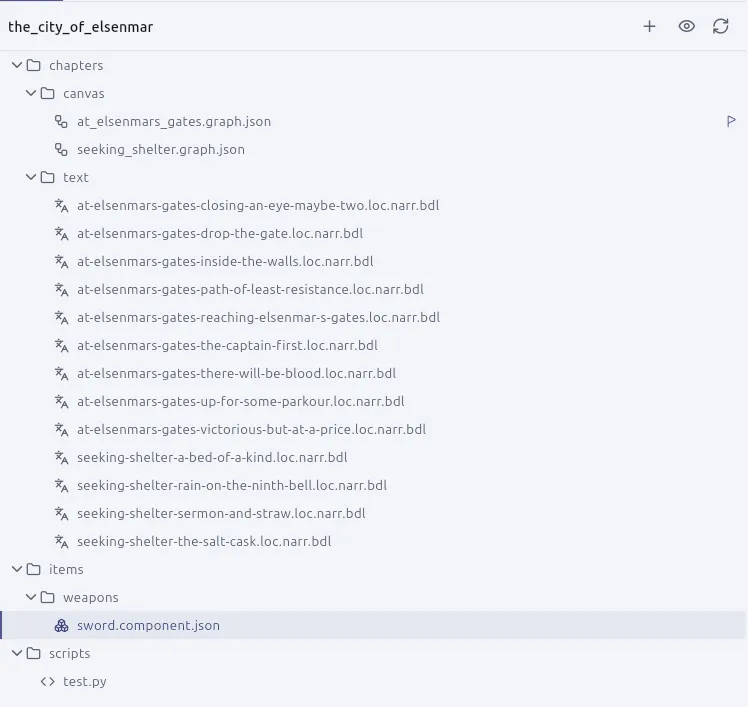
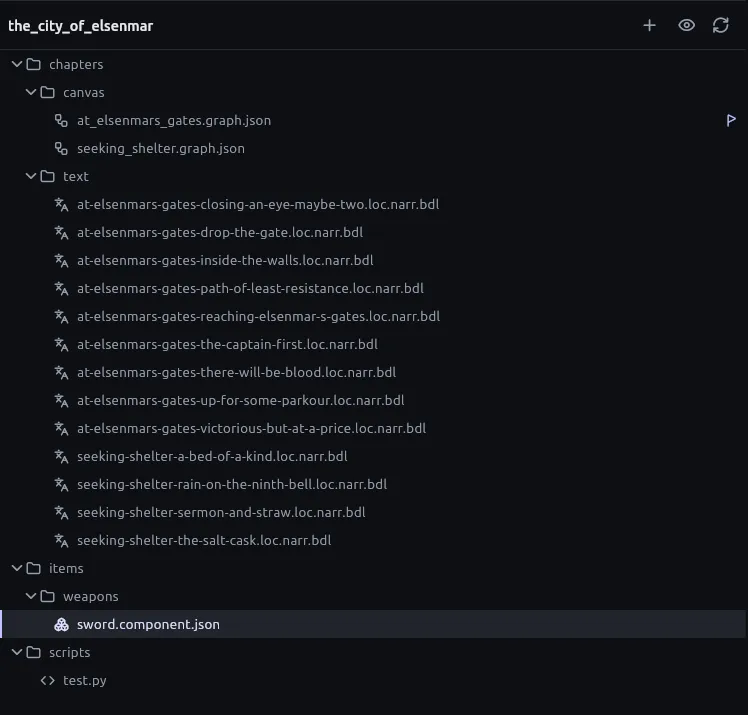
The file tree behaves like a file manager: multi-select, cut, copy, paste, rename, delete, spring-loaded folders and drag-to-move. Its + button makes the kinds of file the app owns — a board, a macro, a component, a script, a state machine, a soundscape, a localised passage, a note — and any other kind by the extension you type. Everything else in the folder — a PDF, a picture, a spreadsheet, a sound — just sits there and opens.
Editor tabs are views. A closed board keeps its camera, its undo stack and its unsaved edits; tabs follow renames and close on deletes. Open a file from the tree, or land on one from a board, and its tab scrolls into view.
The viewer panel on the right renders whatever is open: a board on its canvas, a passage in the Markdown editor with a live preview, a component in its attribute editor, a script beside a Python console, a state machine beside its diagram, a soundscape on its timeline, an audio file with play, pause and a scrub bar, and for anything else plain text, images or a PDF. Every editor fills its tab, under one bar that is the same in every tab: the controls on the left, and at the far right whether the file is written — Saved or Unsaved, with the word — and a button that reads it from disk again.
The left panel’s footer: Script navigation draws how the boards hand the story to each other, Export project packages it for a build or a translator, Project settings is where the languages live, and Console variables is the page where a project declares its typed variables.
Messages is the tab beside Files and Changes. Anything the app notices about your project lands there — a translation that has fallen behind its source, a project with boards but no way into any of them, a file a newer version wrote — and the badge counts what is worth looking at.
Saving
Section titled “Saving”Everything writes as you work, with a short debounce, and closing the window
flushes what is left. Ctrl+S when you want to be sure. This holds for every
kind of document.
The app expects to share the folder. A file another program changes underneath it is noticed rather than overwritten, which is what makes it safe to have a passage open in a second editor, or to pull from a co-author.
The command palette
Section titled “The command palette”Ctrl+Shift+P opens the command palette: everything the app can do, by name,
from anywhere in a project, with a typo-tolerant filter and a scope that only
offers what can actually run. Commands with no button anywhere — Show the tip
for…, Follow the system — live here. It is the quick way to reach a
command and never the only one.
The first time you open each kind of thing — the home screen, a board, a bundle, a component, the campaign window — a short tip appears, once, saying what the words for it are. It is not a tour; there is no single path through the app. Any tip can be brought back from the palette, and the About box re-arms all of them.