Your first story
In this tutorial you build a small story from nothing and play it: a traveller at a gate, two ways through it, and an ending. At each step you look at what the app wrote into the project folder.
You need the app installed. If your platform stops an app it does not know, How to install Ripple Effect says what to click. If you would rather read a finished story first, New project → Templates makes you a copy of one; here we build a small one from nothing.
-
Make a project.
Press New project on the home screen. Give it a title, The Gate will do, pick where the folder should go, and choose the language you are writing in. The language is offered from your computer’s settings, but the choice is yours: it decides the name of the file every passage is written into.
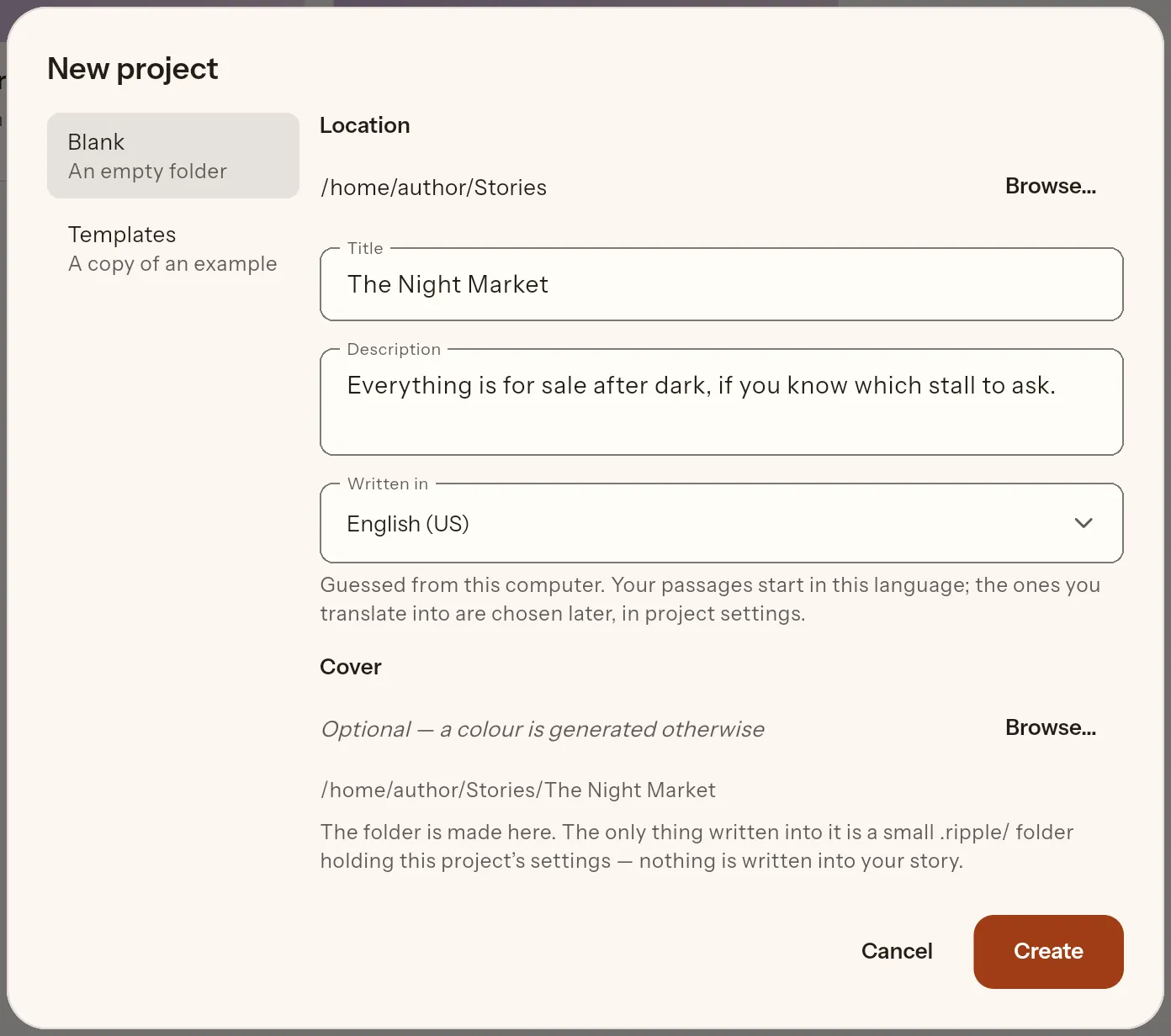
Look at what the app creates: the folder with exactly one thing in it:
Directorythe_gate/
Directory.ripple/
- project.json
That is the project. There is no scaffold and no convention; everything else in the folder will be yours. See A project is a folder for why.
-
Make a board.
In the file tree on the left, press + and choose Board. Name it
gate. It opens on the canvas holding one node, Start, which is where the story begins. A board has exactly one.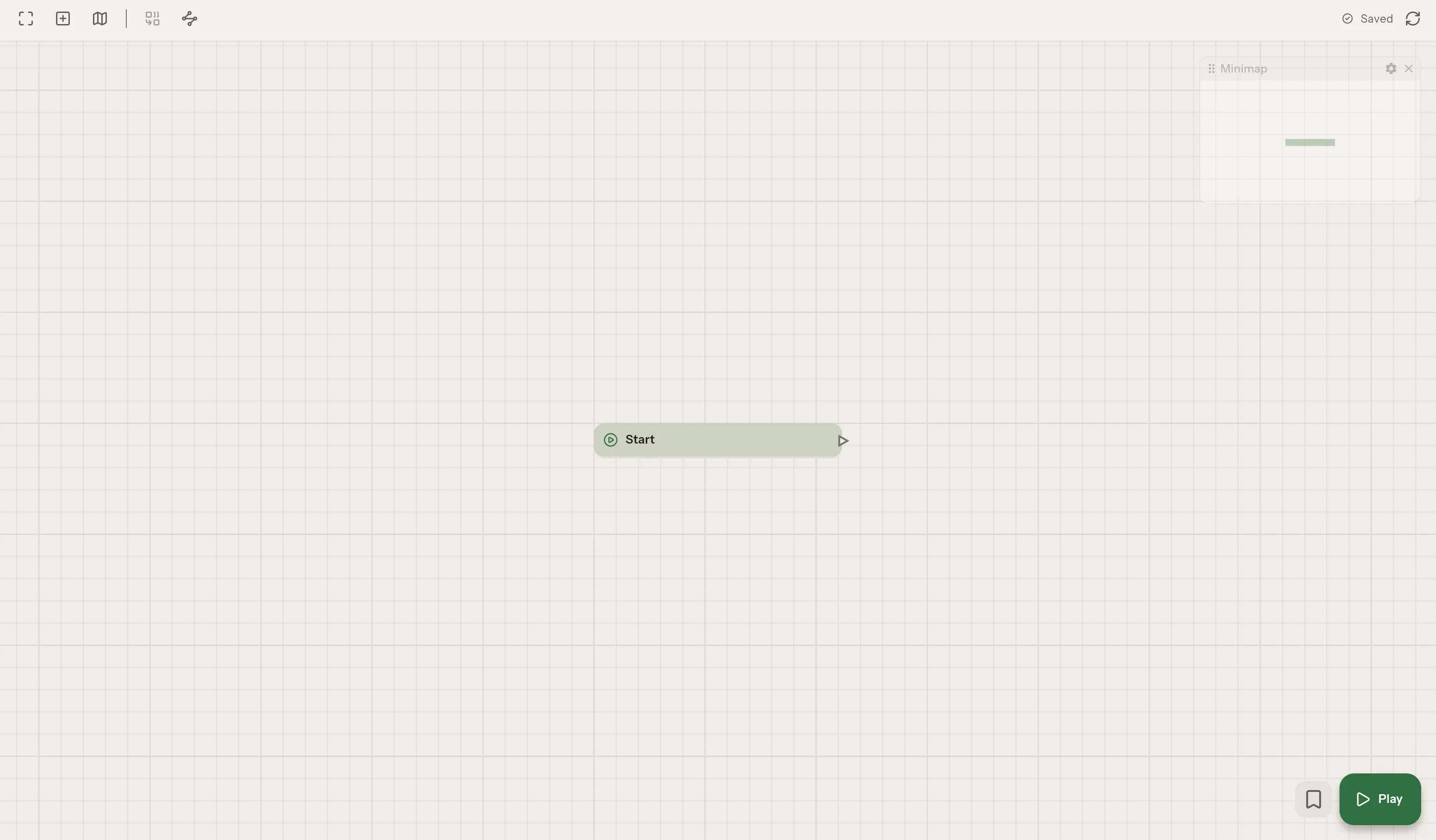
On disk you now have
gate.graph.json. It is JSON. -
Write the first passage.
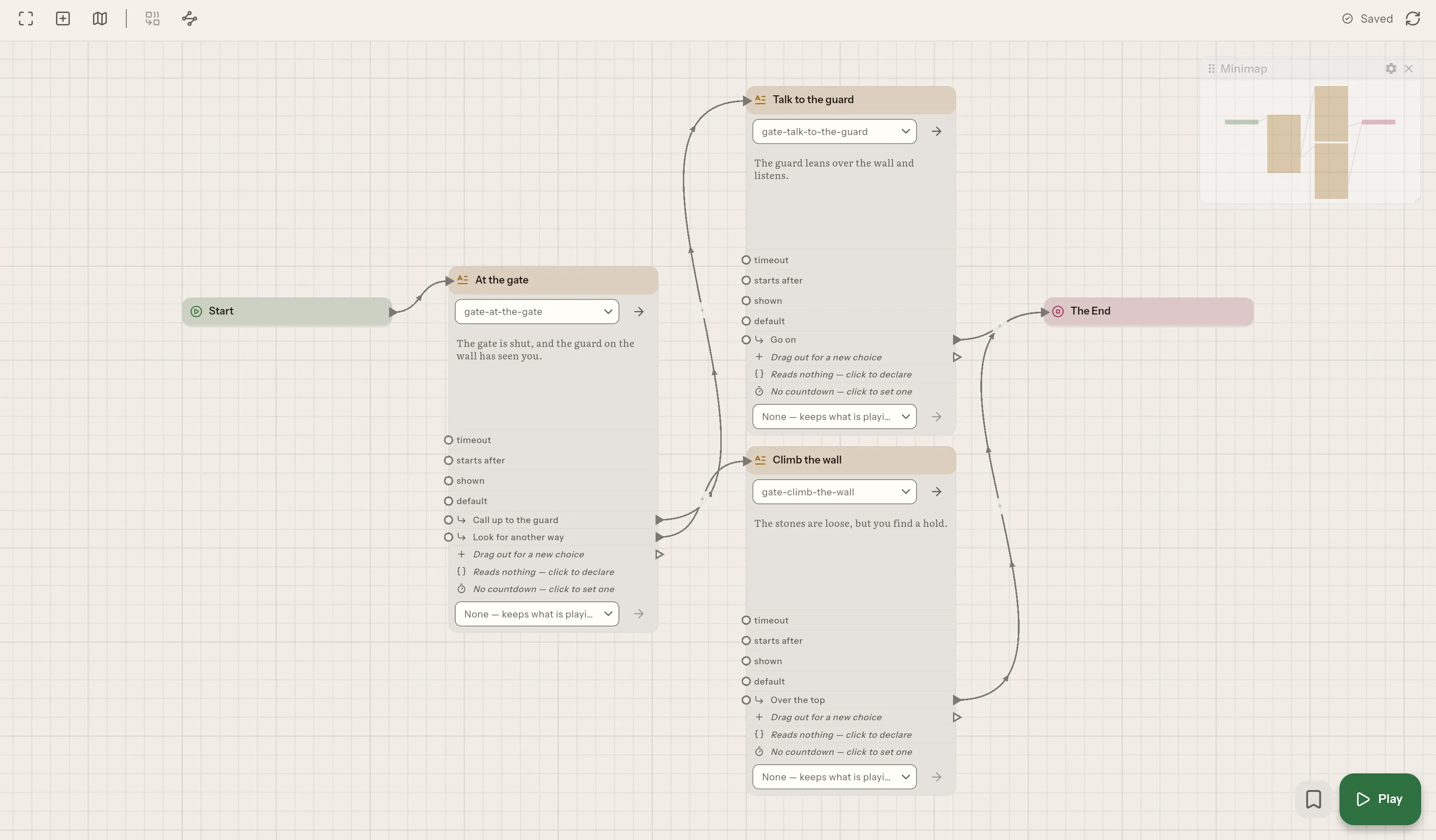
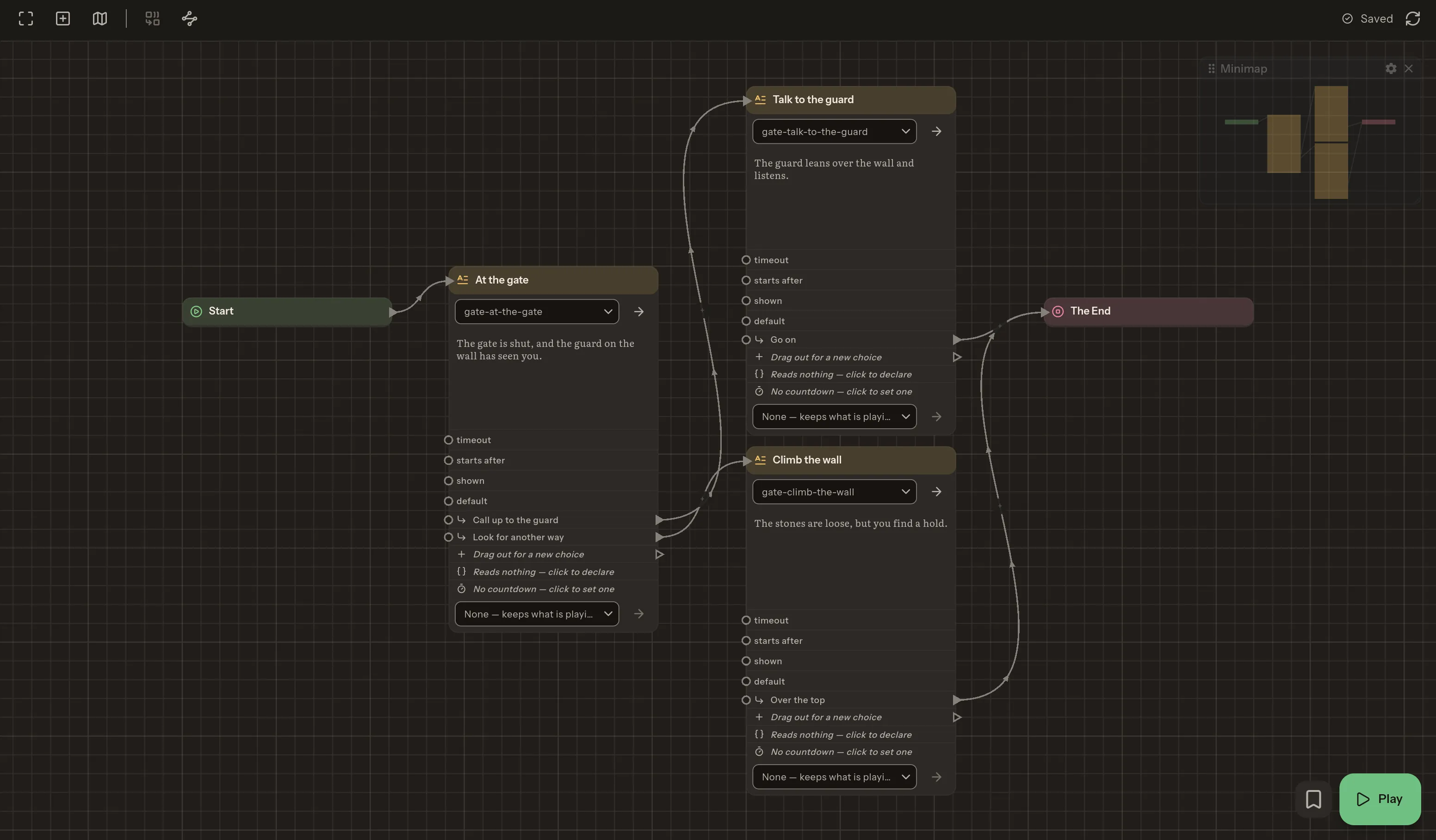
Right-click an empty part of the canvas and choose Create ▸ Story ▸ Narration. A right-click, or a wire let go over empty canvas, is how every card is made. A card lands where you clicked, reading Empty — double-click to write., so double-click it.
The Passage dialog asks for a title, At the gate, and which passage the card reads. Press New to make one, and write:
The gate is shut, and the guard on the wall has seen you.Close the dialog. The writing is already saved: everything in the app writes as you work, and the dialog only decides the title and which passage the card points at.
Beside the board there is now a folder that the app shows as one file:
Directorythe_gate/
- gate.graph.json
Directorygate-at-the-gate.loc.narr.bdl/
- en-US.md
- touch.json
en-US.md, or whichever language you chose, is your sentence as plain Markdown. A translation would be a second.mdbeside it. The folder name follows the board and the title. -
Wire it in.
Drag from the port on the right of Start to the port on the left of your passage. The story now has a first page.
-
Give the passage two choices.
Drag from the passage’s first output port and let go over empty canvas. The Create menu opens where you dropped it, already wired to whatever you pick. Choose Narration, double-click the new card, title it Talk to the guard, press New and write
The guard leans over the wall and listens.Do it again from the passage’s second port: title it Climb the wall, press New and writeThe stones are loose, but you find a hold.A spare port appears beneath each one you wire.Now click each choice’s row on the first card. A choice has a name, which is what the card shows so you can find the branch on a wide board, and its words, which are what the reader is offered, in every language the story is written in. Give the first one Call up to the guard and the second Look for another way.
-
End it.
Right-click on empty canvas, choose End, and wire both branches into it. An End accepts any number of wires, so every branch can finish at the same place.
-
Play it.
Press Play. The campaign window opens on your first passage with the two choices beneath it. Pick one, read the next passage, and reach the end.
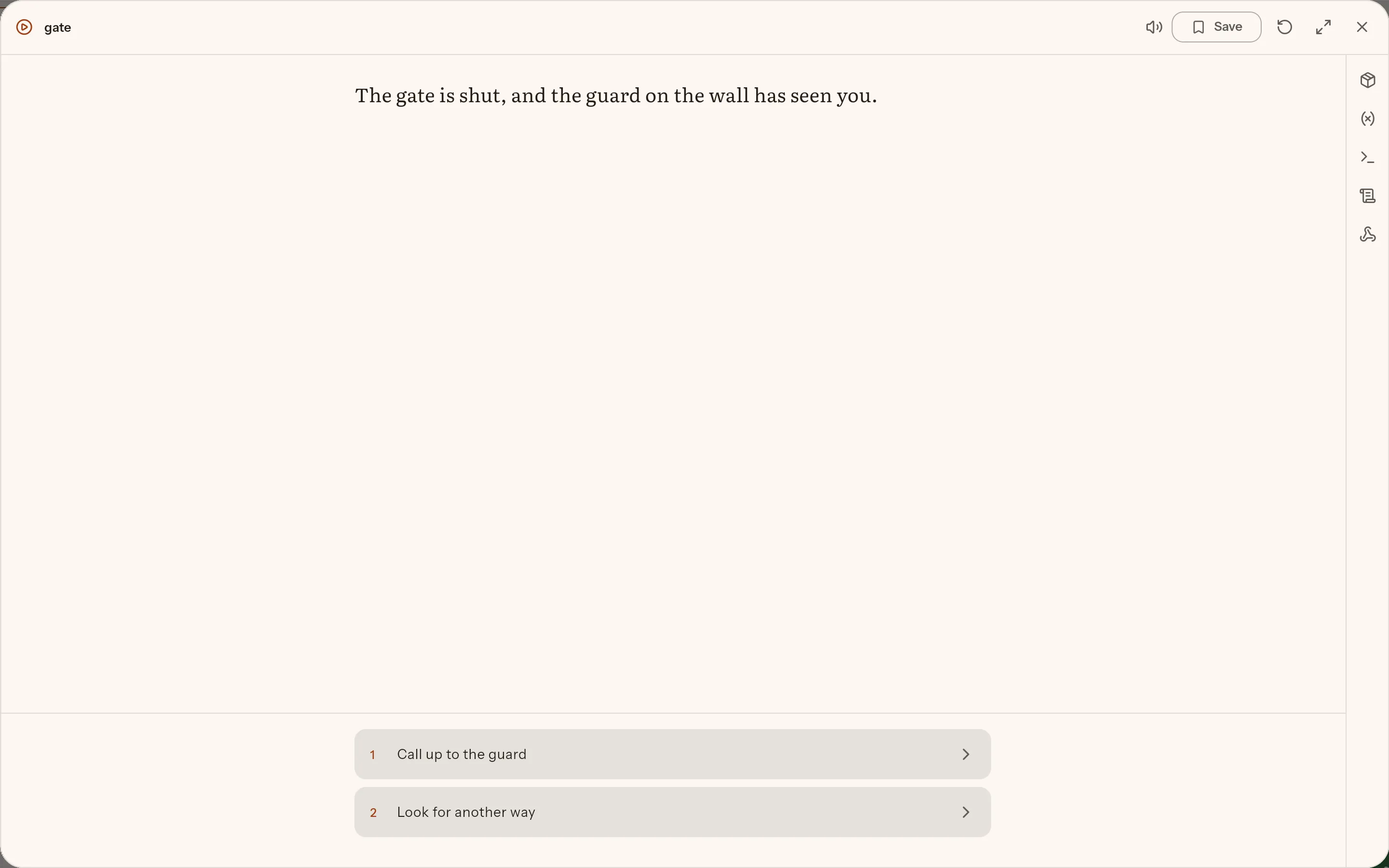
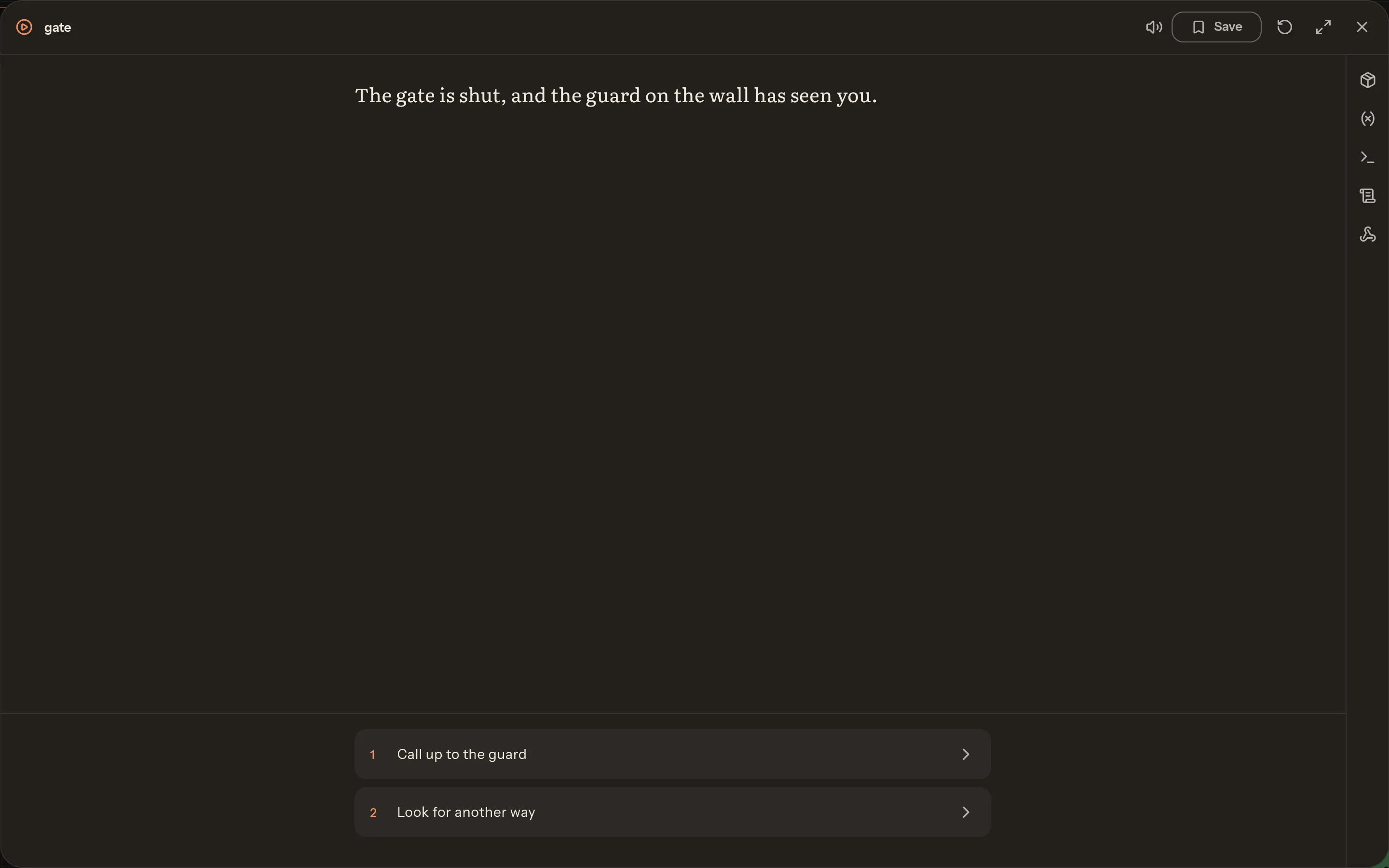
What you just played is what an exported campaign plays: the same engine, with no preview copy that could disagree with it. See Why the preview is the shipped story.
What you have
Section titled “What you have”Directorythe_gate/
Directory.ripple/
- project.json
- registry.json
- workspace.json
- gate.graph.json
Directorygate-at-the-gate.loc.narr.bdl/
- en-US.md
- touch.json
Directorygate-talk-to-the-guard.loc.narr.bdl/
- en-US.md
- touch.json
Directorygate-climb-the-wall.loc.narr.bdl/
- en-US.md
- touch.json
You have built a board, three passages, and the app’s index in .ripple/. Every file is plain text.
Where to go next
Section titled “Where to go next”- A second board. Make one, put a passage on it, and hand the story over with a Jump from the first board. Then open Script navigation from the activity bar’s bottom icons to see the two boards drawn as a map. See How to build a board.
- A dice roll. A dice roller node can decide whether the climb works. Nodes lists every node.
- A macro. A macro lets you write a stretch of story once and call it from every board. See How to reuse a stretch of story with a macro.
- A second language. Project settings adds one; every passage gains an empty file for it, and the reader picks the language in the campaign window. See How to add, switch off or change a project’s languages.
- Keep a history. How to keep a history and back up a project.