How to play and test a campaign
Play a board
Section titled “Play a board”-
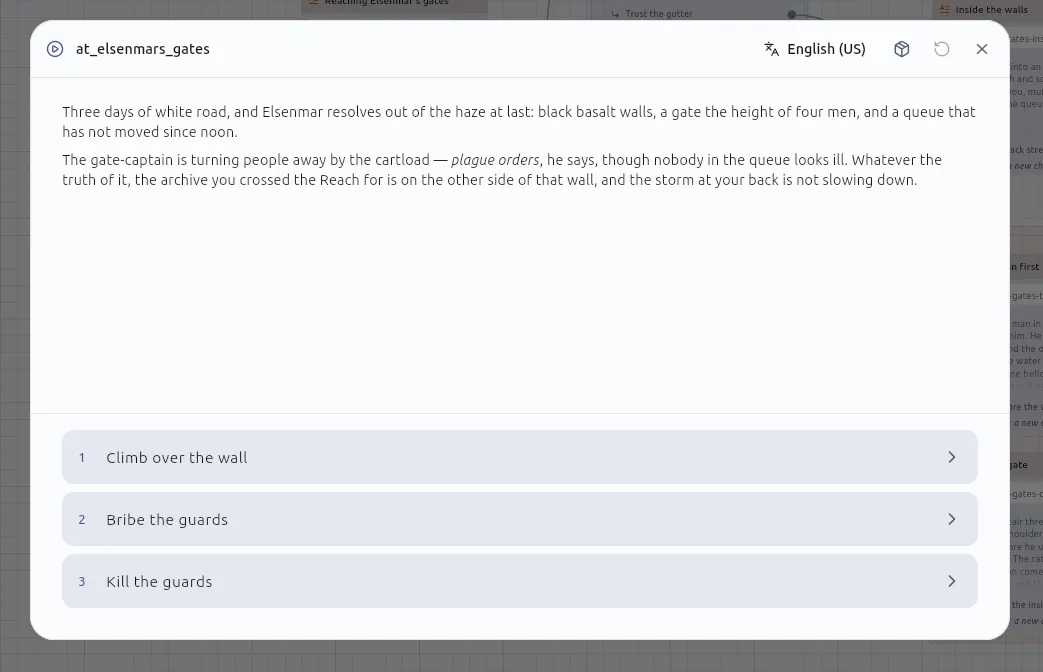
Open the board and press Play at its bottom right. The campaign window opens and runs the story from that board’s Start, following Jumps from board to board until a path reaches an End.
-
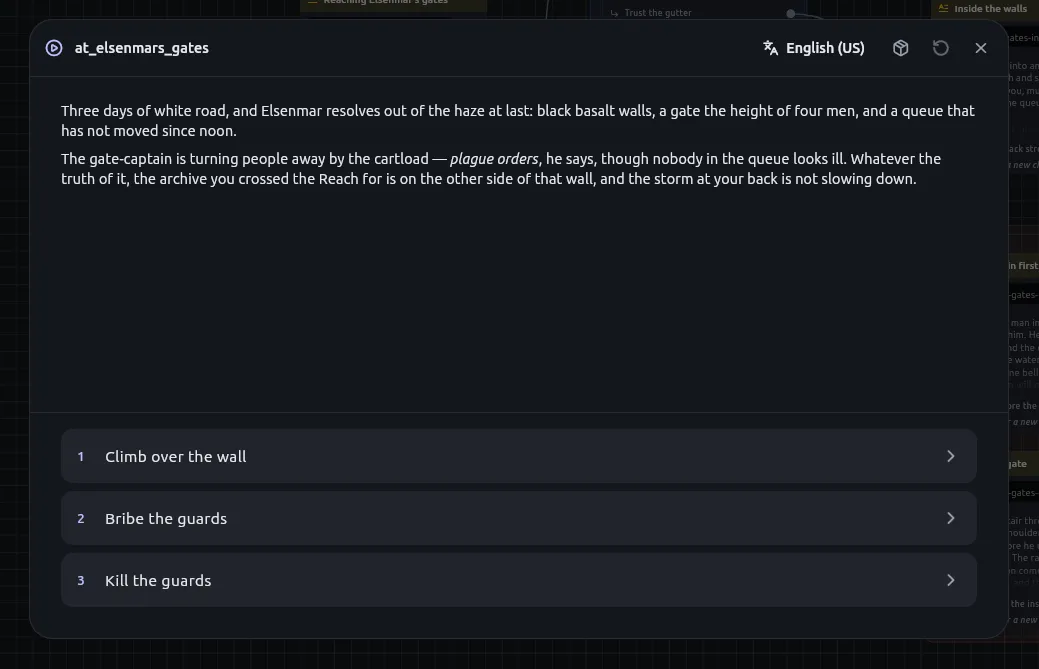
Read the passage. It is rendered as Markdown with its Python already run, and the choices leading out of it are the tiles beneath. Press a tile to follow it.
-
Press Start over when you want to run again. It is available from the first passage to an ending, and an ending also offers Play again.
Play re-indexes the project before it compiles, so the playthrough is current without exporting first. Why the preview is the shipped story explains why.
Read in another language
Section titled “Read in another language”Pick the language from the campaign window’s header. You can change it mid-passage. A passage with nothing in the chosen language says so instead of falling back to another.
Answer an Input node’s form
Section titled “Answer an Input node’s form”When the story reaches an Input node, fill in the form and press Enter in a field to continue. The fields are listed in The campaign window and saved games.
Deal with warnings
Section titled “Deal with warnings”Compile warnings, such as a roll that cannot vary or a macro missing one of its ends, appear in Messages when you press Play, not only when you export. The engine’s board checks appear there too: Play checks every board, and a finding names the cards it concerns.
-
Open Messages and read the finding. Look the code up in the diagnostics reference.
-
Fix the board, or, for
W.GE.06, choose I meant that on the finding to acknowledge it for that card.
If the project has turned Python off (project settings, Capabilities), every Script node and every passage with Python in it is marked as an error and listed in Messages. The campaign will not play until none remain.
Raise the loop ceiling
Section titled “Raise the loop ceiling”A loop nothing breaks out of stops the campaign and offers you the node that ran away. By default one loop node may go round 512 times in a board.
-
Open Settings and find Playing.
-
Choose 128, 512, 2,048, 8,192, or None for no ceiling.
A For node’s own Max iterations still applies first when it is lower.
Play from a node
Section titled “Play from a node”-
Right-click any node on a board.
-
Choose Play from here. The campaign begins at that node instead of the Start.
-
Set up whatever the story should already have made, using the console in the campaign window. It may do everything a Script node may.
The run starts with nothing made yet, and the window says so. Only a Start begins a story on its own; Play from here is how you begin anywhere else.
Inspect and change a playthrough
Section titled “Inspect and change a playthrough”Open a panel from the narrow strip down the window’s right edge: Entities, Variables, Console or Trace. What each shows is in The campaign window and saved games.
- To change a value by hand, open Variables and edit it.
- To read the story’s own steps, open Trace. Use its toggle to show everything underneath.
- To keep the plain lines, press Copy in Trace.
Find the node behind a trace line
Section titled “Find the node behind a trace line”-
Tap a line in Trace. The story pauses, the window closes, and the board opens with that node selected and centred.
-
Press Resume to bring the story back.
A line about something inside a macro takes you to the card that called it, since that is what is on the board.
Change the window
Section titled “Change the window”A button in the header takes the window to the app’s edges and back; Escape also brings it back. The mute button beside it is remembered between sessions.