How to build a board
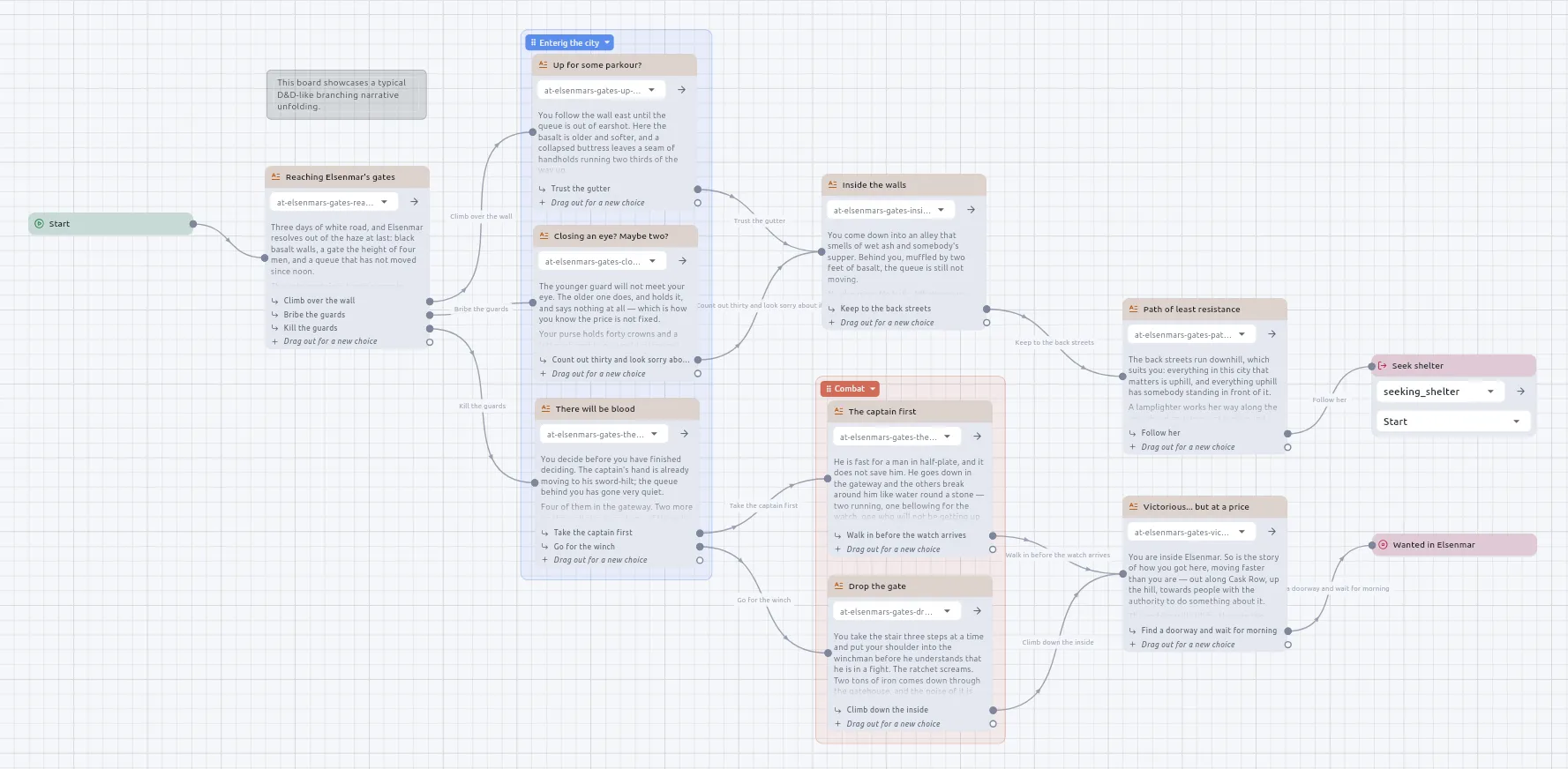
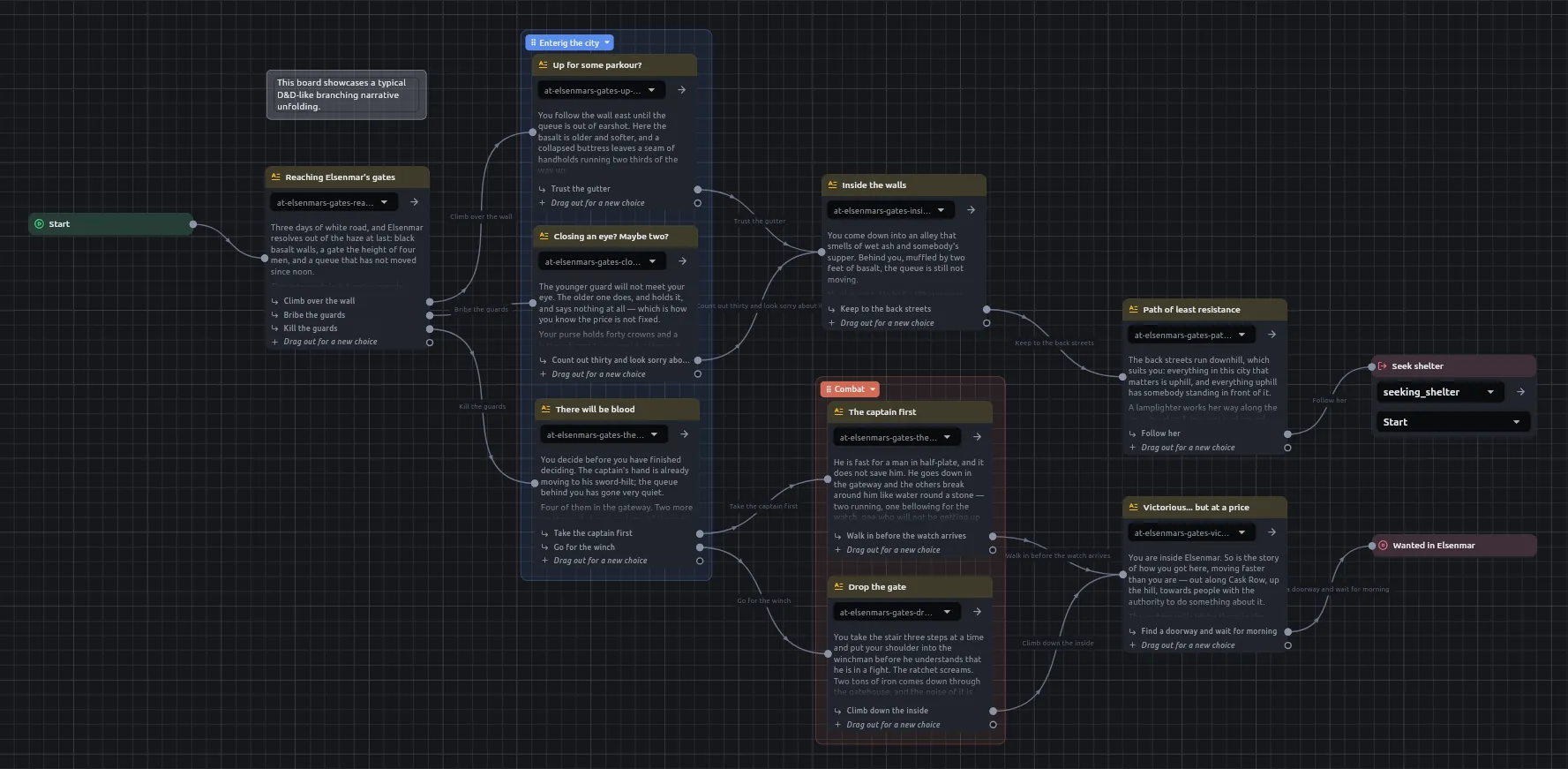
Add a node
Section titled “Add a node”Right-click an empty part of the canvas and pick the card from the Create menu — a passage, a Jump, a Script, a loop, a component.
To create a card already wired, drag a wire from a port and drop it on empty canvas instead. The same menu opens there, and the card you pick arrives wired to the port you dragged from.
Undo and Redo are in the Edit menu and on their keystrokes. View ▸ Shortcuts card brings the shortcuts card back.
In any picker of something you made — a Jump’s board, a Component’s component, a Script’s .py, a Narration node’s passage or soundscape, a State machine’s diagram, a variable on a cvar node — the search field opens focused. Type to narrow the list by name or by path, which is shown under each name. Pickers are alphabetical; a Jump’s node picker keeps the board’s reading order.
A Jump card has an arrow that opens the board it points at.
To see what a card is for, right-click it and choose About this node. It lists what each control does and what each port takes or answers, and links to the docs page.
Add the Start
Section titled “Add the Start”A board has exactly one Start. Right-click an empty part of the canvas and choose Start from the Create menu; the menu does not offer a second. A board with two is refused at Play, with both named.
Name a choice and give it words
Section titled “Name a choice and give it words”A Narration node grows one output port per choice. Wire the last one and a new spare appears beneath it.
- Click a choice’s row on the card.
- Enter a name. The card shows it as the choice’s label, so a branch can be found on a wide board.
- Enter its words — what the reader is offered — in each language the story is written in. A choice with nothing in the reader’s language falls back to the language the story was written in.
To limit how often a choice can be taken, or to offer it only while a condition holds, see How to limit a choice.
Attach your own notes to a card
Section titled “Attach your own notes to a card”- Right-click the card and choose Edit metadata….
- Add entries, each a name, a type and a value. A small tag appears on the card’s header while the card carries any.
Nothing on the board reads metadata; it is yours, for a status, a reviewer’s note or a mark for a tool of your own. It travels with the node into a compiled campaign and to an AI assistant, and a copied node arrives with its notes.
Draw the wires with the right kind of port
Section titled “Draw the wires with the right kind of port”Wire a triangle to a triangle and a dot to a dot: control ports are triangles pointing the way the flow runs and carry the story, data ports are dots and carry a value. Rest the pointer on a value port to see what it takes — number, list<string>, or anything.
Wire the story and leave the values hanging off it
Section titled “Wire the story and leave the values hanging off it”- Wire one control path from Start through the cards the story takes:
execin, a choice, branch orcompletedout. - Wire each value into the card that reads it — a Number into a Set variable, a String into a Component’s name, a Get variable into an Output. None of these needs an
execwire.
Put any card whose value depends on something the story does in the flow after it, as below. How a story runs explains why.
Make a value depend on something the story does
Section titled “Make a value depend on something the story does”A card whose value depends on something the story does must be in the flow after it. A Comparator hanging off a Dice roller, say, is worked out before there is a roll to compare.
- Wire the roller’s
completedinto the Comparator. - Wire the Comparator’s
completedinto the If.
For several values at once, use a Do all:
- Put a Do all in front of the passage and one chain of cards per value on its branches.
- Wire the Do all’s
completedport to the passage.
A branch runs to the end of its wire before the next starts, and a passage does not end a wire, so a passage on one branch holds the later branches back until it has been read. That looks like a Set that never fired; keeping the story on completed avoids it. See How to run several jobs before a passage.
If the app marks a card with W.GE.05 or W.GE.06, a value is being read from before the story or from another path. W.GE.06 can be answered per card with I meant that; see the diagnostics reference.
Draw wires as right angles
Section titled “Draw wires as right angles”Wires are curved by default. In Settings ▸ Links, choose Right-angled to draw every wire on every canvas as straight legs with rounded corners. A handle on a wire is then a corner, and lines up with its neighbours as you drag it.
Related
Section titled “Related”- Boards, nodes and macros — what a board is and why the canvas draws two kinds of wire.
- How a story runs — two kinds of wire, and why the story only goes forwards.
- Board and navigation rules — the rules the canvas enforces.
- Nodes — every node, what it takes and what it answers.
- Diagnostics — the coded checks on a board’s shape.