The workspace window, menus and palette
Home screen
Section titled “Home screen”A grid of the projects the app knows about. A project that another program has moved or deleted disappears from the grid.
| Control | Action |
|---|---|
| New project | Asks for a title, a location, an optional description and cover, and the language you are writing in. The starting language comes from the computer’s settings and can be changed. Creates the folder and one file in it, .ripple/project.json. |
| Import a folder | Opens an existing directory. If it has been a project before, its title, description, cover and language arrive filled in and nothing is written into it. If not, you name it. |
The New project dialog has a rail on its left:
| Entry | Result |
|---|---|
| Blank | An empty project. |
| Templates | Lists the example projects this build carries and copies the chosen one where you point it. The first is The City Of Elsenmar: three chapters, two languages, characters and items as components, dice, variables and Python in the prose. |
On the home page the menu bar holds File and Help only.
Project window
Section titled “Project window”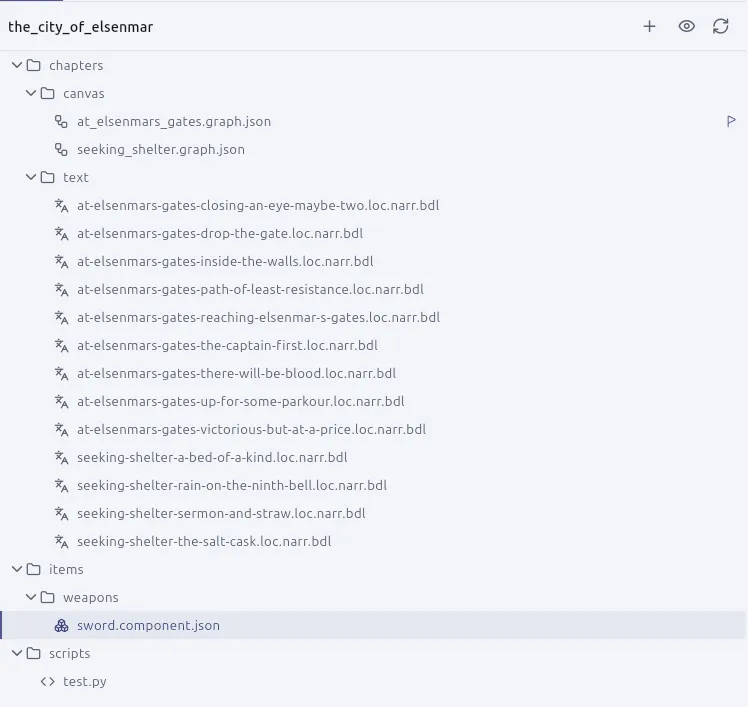
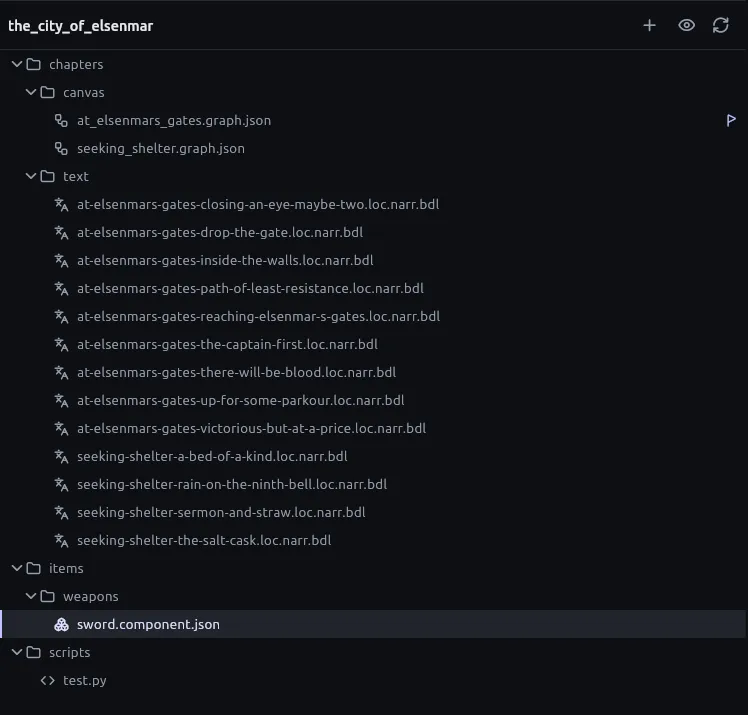
| Part | Position | Contents |
|---|---|---|
| Activity bar | Narrow strip of icons down the left | Picks what the side bar shows; holds four buttons at its bottom, and a Messages toggle. |
| Side bar | Beside the activity bar | Files, Changes or Search. Clicking the section already showing folds the side bar away. |
| Editor area | Centre | The open documents, in a docking area. |
| Messages | Under the documents | See Messages. |
Activity bar buttons
Section titled “Activity bar buttons”The four buttons at the bottom are in view whether the side bar is open or not.
| Button | Opens |
|---|---|
| Script navigation | How the boards hand the story to each other. |
| Export project | Packages the project for a build or a translator. |
| Project settings | Pages down a rail: General, Languages, Writing, Narration roots, Capabilities. |
| Console variables | The page where a project declares its typed variables. |
A fifth control at the bottom of the activity bar shows or hides Messages and carries its count. It is not one of the four.
File tree
Section titled “File tree”| Capability | Detail |
|---|---|
| Selection and editing | Multi-select, cut, copy, paste, rename, delete, spring-loaded folders, drag-to-move. |
| Keys | Ctrl+X, Ctrl+C, Ctrl+V, Ctrl+A (Cmd on a Mac), Delete, F2 to rename, Escape to clear the selection. |
| + button | Makes a board, a macro, a component, a script, a state machine, a soundscape, a localised passage or a note, and any other kind by the extension you type. |
| Other files | A PDF, a picture, a spreadsheet or a sound sits in the tree and opens. |
Editor tabs
Section titled “Editor tabs”- A tab is a view. A closed board keeps its camera, its undo stack and its unsaved edits.
- Tabs follow renames and close when their file is deleted.
- Opening a file from the tree, or landing on one from a board, scrolls its tab into view.
- Open documents, their arrangement, and how the side bar and Messages were left are remembered per project in
.ripple/workspace.json.
Docking
Section titled “Docking”| Gesture | Result |
|---|---|
| Drag a tab out of its strip | Places it beside another document. |
| Drop a tab on another strip | Tabs it there. |
| Drag a divider | Resizes. |
| Drag a tab along its strip | Neighbouring tabs make room live; the order shown is the order kept on release. |
A drop that would leave everything where it is does not light up as a target. The docking is fl_panel; see Open source.
Document editors
Section titled “Document editors”| Document | Editor |
|---|---|
| Board | Canvas |
| Passage | Markdown editor with a live preview |
| Component | Attribute editor |
| Script | Editor beside a Python console |
| State machine | Editor beside its diagram |
| Soundscape | Timeline |
| Audio file | Play, pause and a scrub bar |
| Anything else | Plain text, image or PDF |
Every editor fills its tab under one bar that is the same in every tab: the controls on the left, and at the far right whether the file is written (Saved or Unsaved, in words) and a button that reads the file from disk again.
Zen Mode
Section titled “Zen Mode”| Property | Detail |
|---|---|
| Enter | F11 (Ctrl+Cmd+F on a Mac) or View ▸ Zen Mode. The same keys leave it. |
| Hidden | The app bar, the side bar, Messages and the tabs. |
| Banner | A small banner at the top names the document on entry and whenever it changes. It carries an Exit Zen Mode button when the pointer reaches the top edge. |
Ctrl+Tab, Ctrl+Shift+Tab |
In Zen Mode, move between every open document, whichever group it is in. Outside it, move along the tabs of the group you are in. |
Menu bar
Section titled “Menu bar”In a project the app bar carries File, Edit, View, Campaign, Changes and Help. On the home page it carries File and Help. Together they offer everything the command palette can, with the shortcut beside each row and a check beside each option that is on.
| Menu | Contents |
|---|---|
| File | New file…, New folder…, Go to file…, Save, Save all; the submenu This file (Reload from disk, Keep my version, Rename this file…, Delete this file…, Show this file in the file manager, Copy path); Close tab, Close other tabs, Close all tabs; Project settings…, Export project…; the submenu Project (Show the project folder, Reload files, Re-index the project, Import outside assets); Close project. Settings… opens the settings dialog. On the home page: New project…, Import a folder…, settings. |
| Edit | Undo, redo, cut, copy, paste, duplicate, select all. They act on the text field you are typing in, or on the board in front of you. Duplicate is for boards only. |
| View | Command Palette, Show files, Show changes, Find in project, Dismiss the messages that can be dismissed, Zen Mode, and the options Side bar, Messages, Minimap, Shortcuts card, Create on drop, Performance mode, Hidden files, each checked while on. |
| Campaign | Play campaign…, Open a saved game…, Resume campaign, Abort campaign, Trace what leads here, Script navigation, Console variables, Host callbacks, What this Python can and cannot do. |
| Changes | See what changed in this file, Mark everything ready, Save a save point…, Take the last save point back, Set this work aside…, New storyline…, Move to another storyline…, Check for changes, Get changes from the backup, Back up now. |
| Help | Documentation, what is new, tips, troubleshooting, support and about. Troubleshooting holds Show every tip again and the rows that copy the package and device reports and open this session’s folder. |
Undo and Redo are in Edit rather than on the board toolbar. A right-click, or a wire let go over empty canvas, makes any card. The shortcuts card is restored from View ▸ Shortcuts card.
Find in project
Section titled “Find in project”Open the Search section of the side bar with Ctrl+Shift+F (Cmd+Shift+F on a Mac), or run Find in project from the palette.
| Option | Effect |
|---|---|
| Match case, whole word, regular expressions | Standard matching switches. |
| Files to include and exclude | Restrict which files are searched. |
| Switches | Boards and components, narration, console variables, everything else. |
Boards and components are read for what you wrote in them (a node’s title, a choice’s text in each language, a field’s value), never their JSON. Each result says where it is, for example Choice text (Italian) in “At the gate”, Field “Backstory”, Line 12, English. Names that other things refer to, such as a variable’s or a state’s, are marked. Clicking a result opens the document at the match.
Replace
Section titled “Replace”A replace field sits under the search field. Typing in it shows what each result would become.
| Action | Detail |
|---|---|
| Replace one, replace a file’s, replace all | Replace all asks first and shows the counts. |
| Preview | Shows what a file would look like after. For a board or a component, only the words that change. |
| Undo | Replacements go into the open editors and are undone there; a board’s in one step. |
| Left alone | Names something else refers to; a result whose text changed since the search; a file another program changed meanwhile. Each is said in the panel. |
Command palette
Section titled “Command palette”| Property | Detail |
|---|---|
| Open | Ctrl+Shift+P (Cmd+Shift+P on a Mac), or View ▸ Command Palette. |
| Contents | Every command the app has, by name, from anywhere in a project. |
| Filter | Typo-tolerant. |
| Scope | Offers only what can run. |
| Palette-only commands | Some commands have no button, for example Show the tip for… and Follow the system. |
| Recently used | While nothing is typed, the last command you ran is offered first. It is remembered between launches. |
The first time you open each kind of thing (the home screen, a board, a bundle, a component, the campaign window) a short tip appears once, naming the words for it. There is no tour. A tip is brought back from the palette (Show the tip for…); Help ▸ Troubleshooting ▸ Show every tip again re-arms all of them.
Messages
Section titled “Messages”Messages is what the app says to you about your open project, for example a translation that has fallen behind its source. It is cleared when another project opens. It is separate from the session log; see The session log and reports.
| Property | Detail |
|---|---|
| Position | Under the documents, a third of their height, with a count beside its name. |
| Close | The cross on the panel. |
| Reopen | The button at the bottom of the activity bar (it carries the count), or the View menu. |
| Grouping | By subject (Boards, Translations, Version control), with a count on each heading that can be folded away; or by how loud, with everything broken first. |
| Chips | Three, turning problems, cautions and records on and off. |
| Remembered | The grouping and the chips. |
| Engine messages | Wear their code. The code opens that rule’s heading on Diagnostics. |
| Messages naming cards | Clicking one opens the board and lifts those cards out of the canvas. Escape, or the cross in the toolbar, puts the canvas back. |
| I meant that | A tick on the one check that can be wrong about a deliberate choice (W.GE.06). It stays ticked. |
Most messages have no code: they are the app reporting on a file, a translation, or something it could not do. Coded messages are the engine reading the shape of your boards.