How to trace the routes between two passages
Use a trace to answer how can a reader get from here to there or how could a reader have arrived here at all, without playing the story.
See how the boards connect
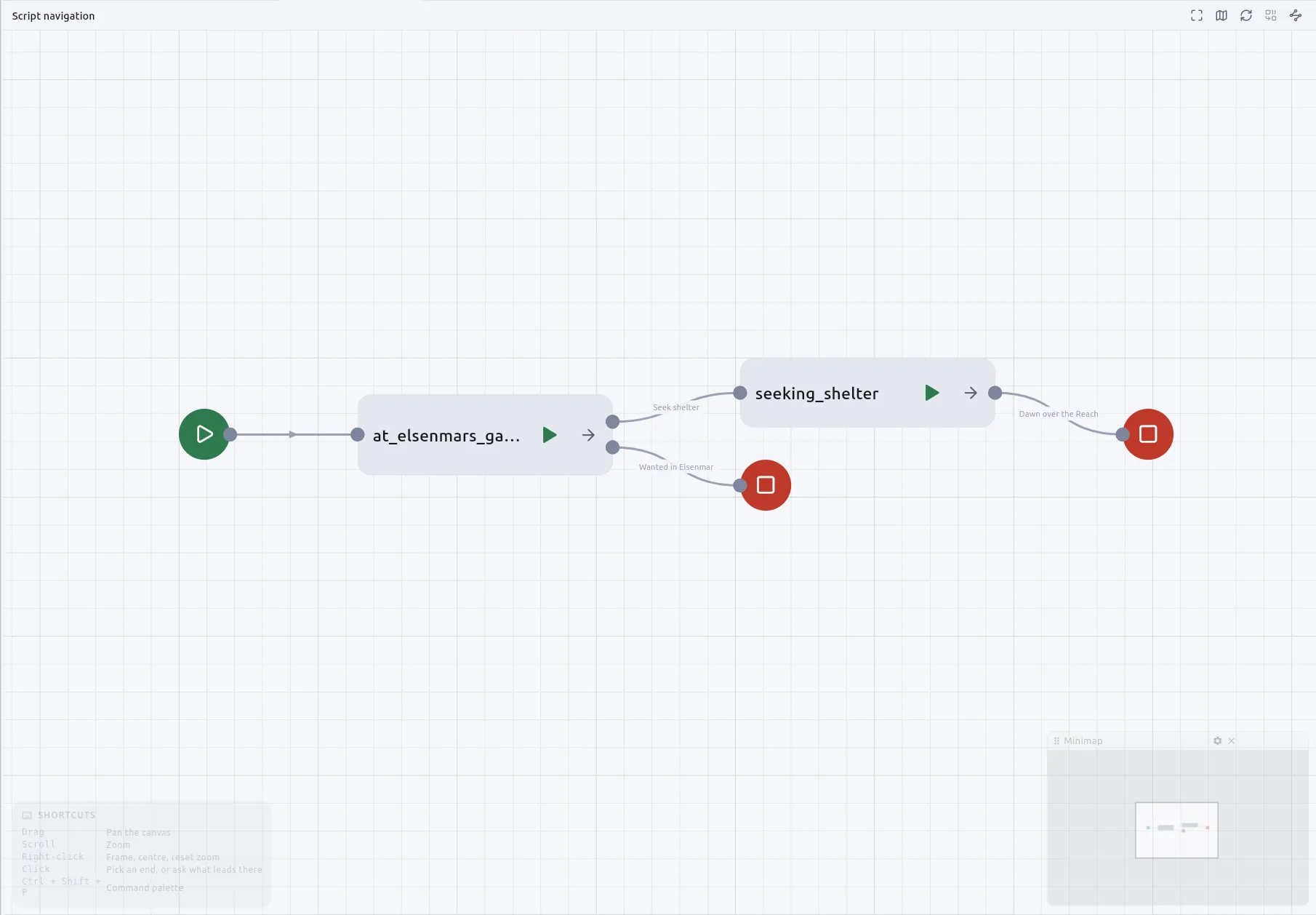
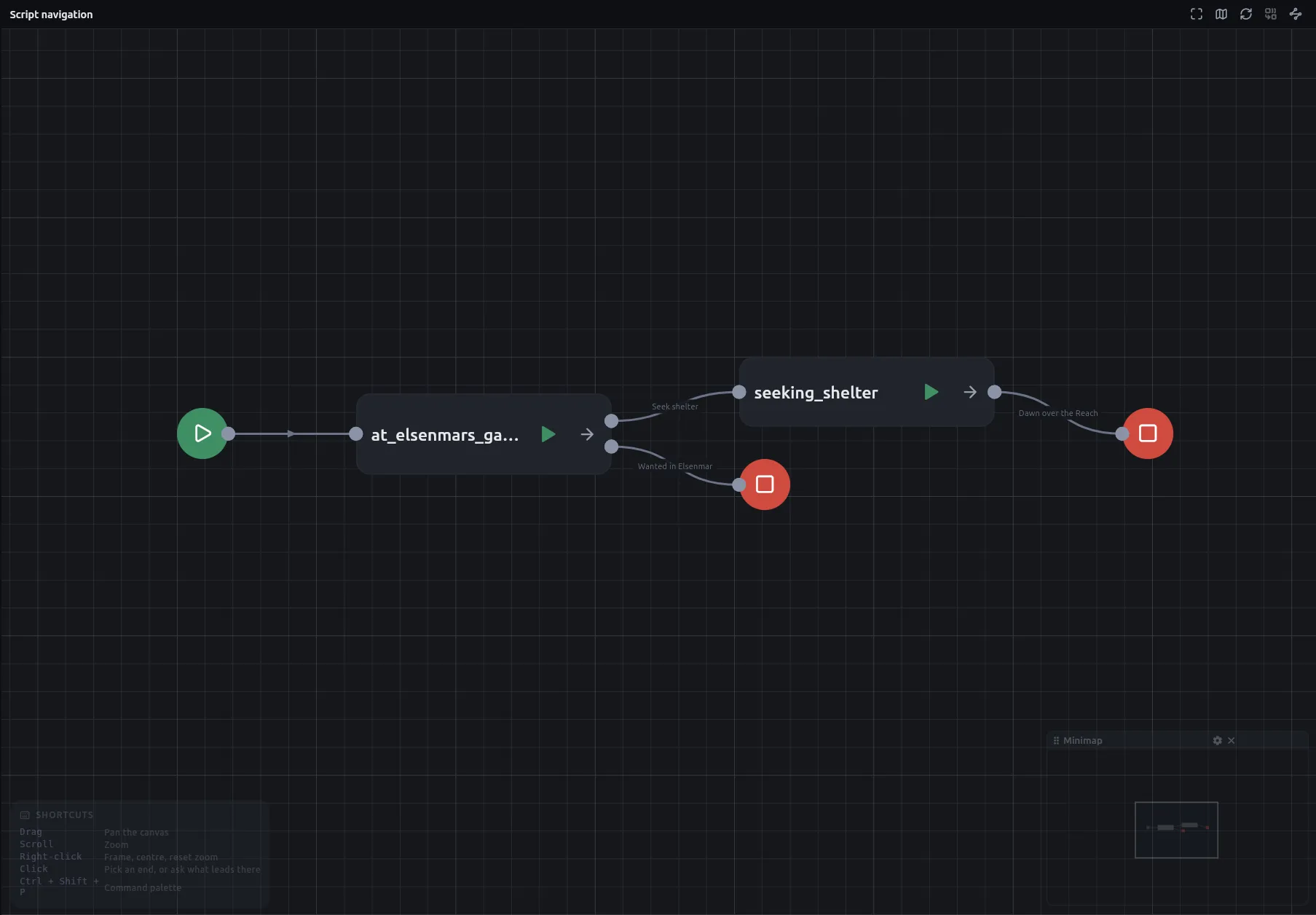
Section titled “See how the boards connect”- Press Script navigation, the first button in the left panel’s footer. The overview opens: one card per board, one output per way out of it, every arrow labelled with the node it leaves by. A Jump into the middle of a chapter also names where it lands, such as
Down → The cellar. Markers show where a thread begins and ends.
Nothing on the overview can be moved or rewired, and the same project lays out identically each time.
Trace every route between two passages
Section titled “Trace every route between two passages”- Open the board and press Trace the routes between two passages on its quickbar. The quickbar then offers a tick and a cross in place of the toggle.
- Click the first passage, then the second. Only Start, Narration, Jump and End nodes can be picked; a click on any other node does nothing. The status beside the buttons reads Pick two passages, then Pick one more, then Ready.
- Press the tick, Trace every route between them. Every route lights up in colour and the rest of the board goes under a scrim. The status beside the buttons gives the count, such as 2 routes, or No route between them, or Loops — countless routes when the story can go round a loop any number of times.
- Read the colours. Each linear run has its own hue, so the place where routes part is where the colour changes. You can pick either passage first. The app tries both directions and draws the one that has a route; if both do, the order you picked decides.
- Press the cross, Take the trace away, when you are done. Editing the board also drops the trace.
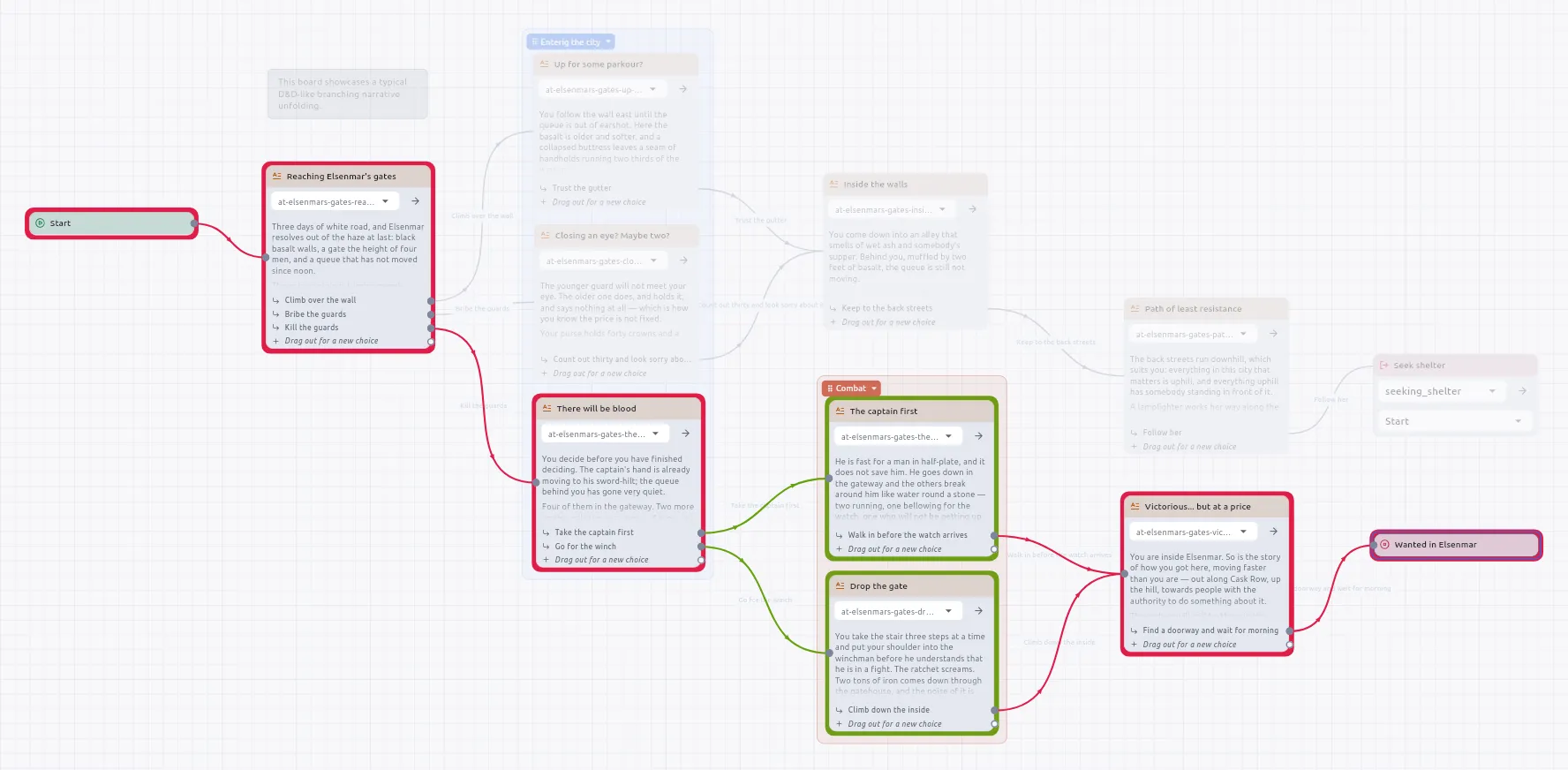
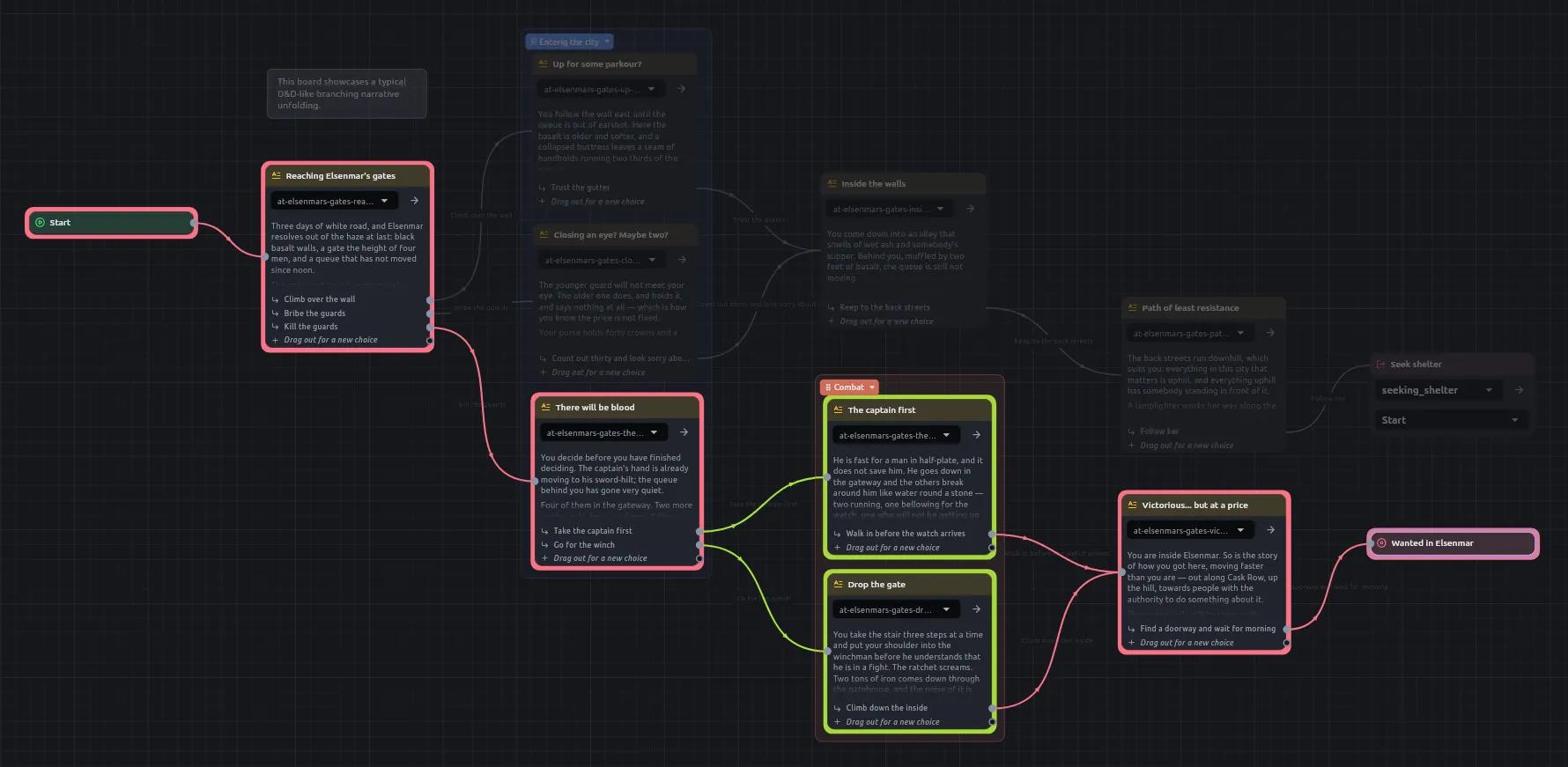
Confirming a trace ends the picking: the board keeps its routes with only the cross beside them, and the next click is an ordinary click. Two boards can each hold a trace at once. To abandon the picking before you confirm, press the cross, Stop tracing.
Trace between two chapters
Section titled “Trace between two chapters”On the boards overview, use the same gesture to pick two boards instead of two passages: Trace the routes between two boards, click each, then the tick.
Ask what leads to one passage
Section titled “Ask what leads to one passage”- Select one passage on a board. With nothing selected the button reads Select one to see everything that leads to it.
- Press the quickbar button beside the trace toggle, or run Trace what leads here from the command palette.
The answer is every route that arrives at the passage, from wherever the story begins. You pick no second end, and a story often has several beginnings. The status reads a count such as 3 ways here, Nothing leads here or Loops — countless ways here. If every route stays on its own board, the board draws it and the cross takes it away. If one arrives through a Jump, the board cannot draw it and the answer opens as a merged view.
Trace across boards in the merged view
Section titled “Trace across boards in the merged view”- Pick a passage on one board.
- Open another board and pick a second passage there.
- Press the tick, now reading Open both boards in one view and trace between them. The merged view opens in its own tab, titled with the two boards’ names joined by ↔, or
Into <board>for a what-leads-here answer. - Press the reload button on the bar to read every board from disk again after you have edited one.
In the merged view:
- Every board on the route is on one canvas, and a passage is shown as its prose. Hover a passage for its name, and click it to open its bundle in the viewer panel.
- Wherever the story passed through an If, a Switch, a roll or a loop, the arrow names that node and the way it went, such as
Hit? → true, beside the words of the choice if there was one. - If the header says boards are folded, press Expand N more chapters. A board over the view’s size budget appears as one card, and the route still passes through it.
- If a chapter has since been deleted, the view says One of those chapters is no longer in this project. If nothing reaches the board you asked about, it says so, as Nothing in this project reaches followed by the board’s name.
The merged view is read-only. Make changes on the boards themselves. A trace on a board and a merged view do not mix: opening a merged view takes every board’s trace away, and while one is open the board’s two trace buttons are disabled with the tooltip Close the merged trace first — a board cannot trace while one is open. Closing the last merged view hands the boards back.
For how Do-all branches, macros and choices that run a script are drawn on a route, see Board and navigation rules.
Ask an assistant instead
Section titled “Ask an assistant instead”An MCP client can ask the same three questions with trace_between, trace_into and board_links, for example to check that an ending is reachable.